Content
# 📕 小红书创作者MCP工具包
[](LICENSE)
[]((https://kayin-1253854796.cos.ap-shanghai.myqcloud.com/ownmedia/20250622023225261.jpg?imageSlim))
A powerful Xiaohongshu automation toolkit that supports integration with AI clients (such as Claude Desktop) through the MCP protocol to enable content creation, publishing, and creator data analysis through AI conversations.
## ✨ Key Features
- 🍪 **Cookie Management**: Securely obtain, verify, and manage Xiaohongshu login credentials
- 🤖 **MCP Protocol Support**: Seamless integration with AI clients like Claude Desktop and CherryStudio
- 📝 **Automatic Publishing**: Supports automated publishing of image and video notes
- 🖼️ **Diverse Image Support**: Supports local images and network URLs
- ⏰ **Scheduled Tasks**: Supports scheduled data collection using cron expressions
- 📊 **Data Collection**: Automatically collects creator center dashboard, content analysis, and fan data
- 🧠 **AI Data Analysis**: Chinese header data that AI can directly understand and analyze
- 💾 **Data Storage**: Supports local CSV storage (SQL is currently reserved but not developed)
- 🎯 **Unified Interface**: One tool to solve LLM operation Xiaohongshu automation needs
## 📋 Feature List
### Login
- [x] **Login** - Supports traditional command-line login and login via AI conversation
### Content Publishing
- [x] **Image Publishing** - Supports publishing image notes
- [x] **Video Publishing** - Supports publishing video notes
- [x] **Topic Tags** - Supports automatically adding topic tags to increase content exposure
- [ ] **Content Search** - Supports specified search (under development)
### Data Collection
- [x] **Dashboard Data** - Collects account overview data (number of fans, likes, etc.)
- [x] **Content Analysis Data** - Collects note performance data (views, likes, etc.)
- [x] **Fan Data** - Collects fan growth and analysis data
- [x] **Scheduled Collection** - Supports automatic scheduled collection using cron expressions
- [x] **Data Storage** - Local CSV storage (default)
## 📋 Environment Requirements
### 🌐 Browser Environment
- **Google Chrome Browser** (latest version recommended)
- **ChromeDriver** (version must exactly match the Chrome version)
### 🔍 Check Chrome Version
In the Chrome browser, visit: `chrome://version/`
<!--  -->
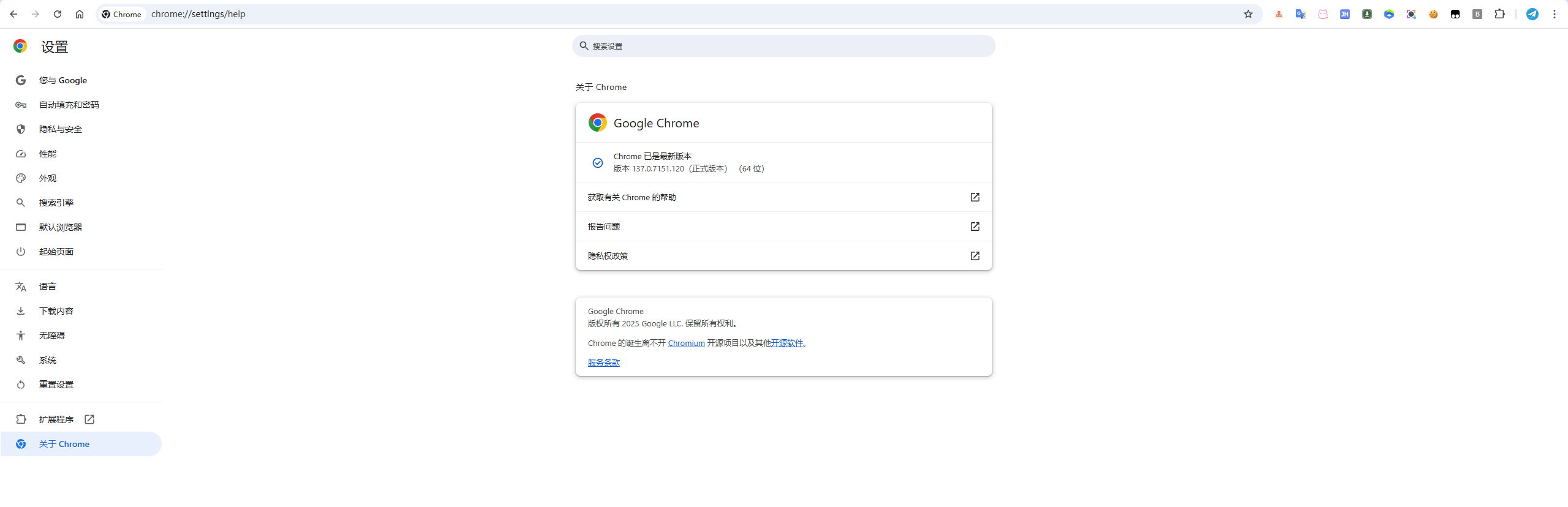
### 📥 ChromeDriver Installation Method
#### Method 1: Automatic Download (Recommended)
```bash
# Use webdriver-manager to automatically manage
pip install webdriver-manager
```
#### Method 2: Manual Download
1. 📋 Visit the official download page: [Chrome for Testing](https://googlechromelabs.github.io/chrome-for-testing/)
2. 🎯 Select the ChromeDriver that exactly matches your Chrome version
3. 📁 Download and extract to a suitable location (e.g., `/usr/local/bin/` or `C:\tools\`)
4. ⚙️ Configure the correct path in the `.env` file
#### Method 3: Package Manager Installation
```bash
# macOS (Homebrew)
brew install --cask chromedriver
# Windows (Chocolatey)
choco install chromedriver
# Linux (Ubuntu/Debian)
sudo apt-get install chromium-chromedriver
```
> ⚠️ **Important Note**: Version mismatch is the most common cause of problems. Please ensure that the ChromeDriver version exactly matches the Chrome browser version!
### 🌐 Remote Browser Connection
Supports connecting to a running remote Chrome instance to improve performance and support remote deployment scenarios.
#### 🔧 Configuration Method
Add the following configuration to the `.env` file:
```bash
# Enable remote browser connection
ENABLE_REMOTE_BROWSER=true
REMOTE_BROWSER_HOST=http://xx.xx.xx.xx
REMOTE_BROWSER_PORT=xxxx
```
#### 🚀 Start Remote Chrome
- If you encounter a permission error, check if the `./chrome-data` directory exists and has read/write permissions. If not, follow these steps to fix it:
1. `docker run --rm selenium/standalone-chrome id seluser` to get the seluser's uid, e.g., returns `uid=1200(seluser) gid=1200(seluser) groups=1200(seluser)`
2. `sudo chown -R 1200:1200 ./chrome-data` to grant seluser read/write permissions, where 1200 is seluser's uid
3. Re-run `docker-compose up --force-recreate` to start the container
```bash
version: '3.8'
services:
selenium-chrome:
image: selenium/standalone-chrome:latest
container_name: selenium-chrome
ports:
- "54444:4444"
- "57900:7900"
shm_size: 2g
environment:
- SE_VNC_NO_PASSWORD=1
volumes:
- ./chrome-data:/home/seluser # Change the mount path to ensure permissions
restart: unless-stopped
command: >
bash -c "mkdir -p /home/seluser/.config/google-chrome &&
touch /home/seluser/.config/google-chrome/test.txt &&
/opt/bin/entry_point.sh"
```
#### 💡 Usage Scenarios
- **Remote Deployment**: Run Chrome on a server and connect locally
- **Performance Optimization**: Reuse a running Chrome instance to avoid repeated startup
- **Development Debugging**: Connect to a logged-in Chrome instance to maintain session state
- **Docker Environment**: Share a Chrome instance between containers
#### ⚠️ Precautions
- A new Chrome instance will not be started when connecting remotely
- Ensure that the target Chrome instance has remote debugging enabled
- Some operations (such as window resizing) may not be supported in remote mode
## 🚀 Quick Start
### 💡 Minimal Usage
```bash
# Clone the project
git clone https://github.com/aki66938/xhs-toolkit.git
cd xhs-toolkit
# Run (automatically installs dependencies)
./xhs # Mac/Linux
xhs.bat # Windows
# Or use Python
python install_deps.py # Dependency installation wizard
./xhs # Start the program
```
### 🎮 Interactive Menu
Running `./xhs` will display a user-friendly menu interface:
```
╭─────────────────────────────────────────╮
│ 小红书MCP工具包 v1.3.0 │
│ 快速操作菜单系统 │
╰─────────────────────────────────────────╯
【主菜单】
1. 🔄 数据收集
2. 🌐 浏览器操作
3. 📊 数据管理
4. 🍪 Cookie管理
5. 🚀 MCP服务器
6. ⚙️ 系统工具
0. 退出
```
### 🛠️ Run from Source
#### Method 1: uv (Recommended ⚡)
```bash
# Clone the project
git clone https://github.com/aki66938/xhs-toolkit.git
cd xhs-toolkit
# Use uv to install dependencies and run
uv sync
uv run python xhs_toolkit.py status ## Verify tool availability
```
> 💡 **uv Usage Tip**: All `python` commands in the documentation can be replaced with `uv run python` to enjoy a faster dependency management experience!
#### Method 2: pip (Traditional Method)
```bash
# Clone the project
git clone https://github.com/aki66938/xhs-toolkit.git
cd xhs-toolkit
# Create a virtual environment (recommended)
python -m venv venv
source venv/bin/activate # Windows: venv\Scripts\activate
# Install dependencies
pip install -r requirements.txt
python xhs_toolkit.py status ## Verify tool availability
```
## 🛠️ Usage Guide
### 1. Create Configuration File
Copy and edit the configuration file:
```bash
cp env_example .env
vim .env # Edit configuration
```
**Required Configuration**:
```bash
# Chrome browser path
CHROME_PATH="/Applications/Google Chrome.app/Contents/MacOS/Google Chrome"
# ChromeDriver path
WEBDRIVER_CHROME_DRIVER="/opt/homebrew/bin/chromedriver"
```
### 2. Obtain Login Credentials
```bash
# Method 1: Use the interactive menu
./xhs
# Select 4 -> Cookie Management -> 1 -> Get New Cookies
# Method 2: Direct command
./xhs cookie save
```
In the pop-up browser, if it is connected to a remote browser, you can visit http://ip:57900 to access the VNC interface, and then perform the following steps:
1. Log in to the Xiaohongshu Creator Center
2. Ensure that you can access the Creator Center functions normally
3. Press Enter to save after completion
### 3. Start the MCP Server
```bash
# Method 1: Use the interactive menu
./xhs
# Select 5 -> MCP Server -> 1 -> Start Server
# Method 2: Direct command
./xhs server start
```
### 4. Client Configuration
**Claude Desktop**
#### Using uv (Recommended)
Add the following to `~/Library/Application Support/Claude/claude_desktop_config.json`:
```json
{
"mcpServers": {
"xhs-toolkit": {
"command": "uv",
"args": [
"--directory",
"/path/to/xhs-toolkit",
"run",
"python",
"-m",
"src.server.mcp_server",
"--stdio"
]
}
}
}
```
#### Using System Python
If you are not using uv, you can configure it as:
```json
{
"mcpServers": {
"xhs-toolkit": {
"command": "python3",
"args": [
"-m",
"src.server.mcp_server",
"--stdio"
],
"cwd": "/path/to/xhs-toolkit",
"env": {
"PYTHONPATH": "/path/to/xhs-toolkit"
}
}
}
}
```
**Note**:
- You need to replace `/path/to/xhs-toolkit` with the actual project path
- macOS user configuration file location: `~/Library/Application Support/Claude/claude_desktop_config.json`
- Windows user configuration file location: `%APPDATA%\Claude\claude_desktop_config.json`
- You need to restart Claude Desktop after modifying the configuration
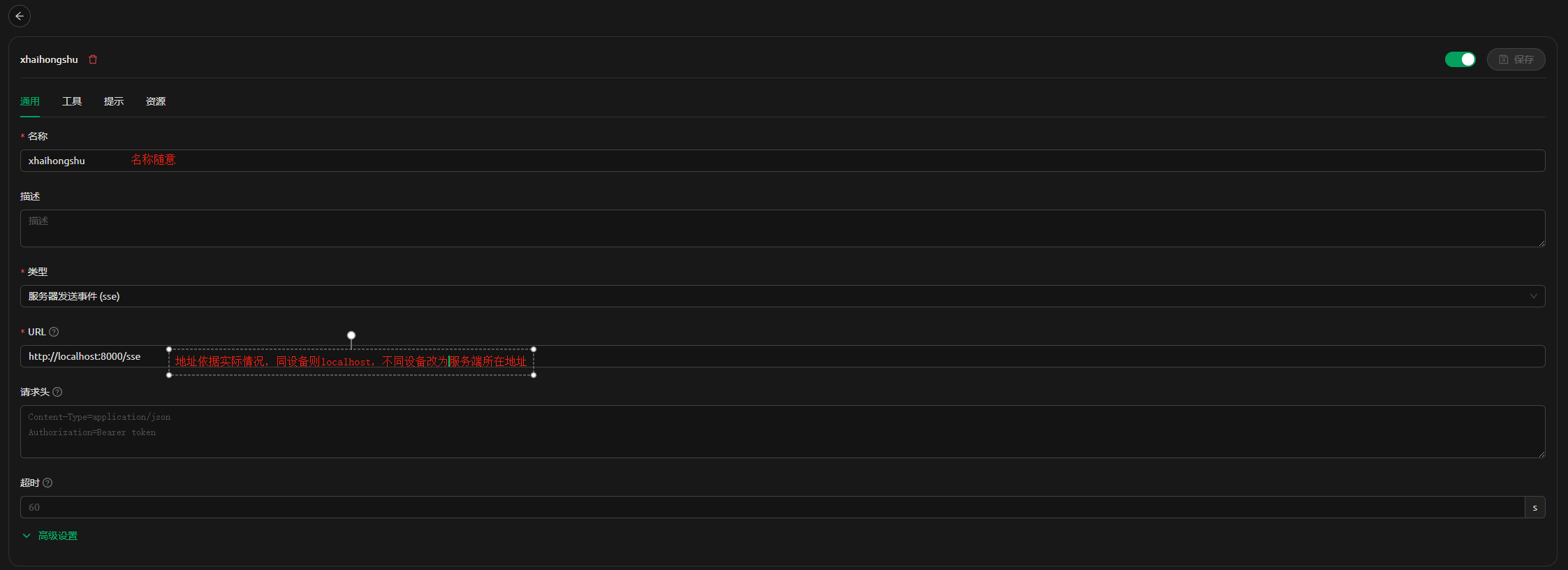
**cherry studio**
Add the configuration in the MCP configuration
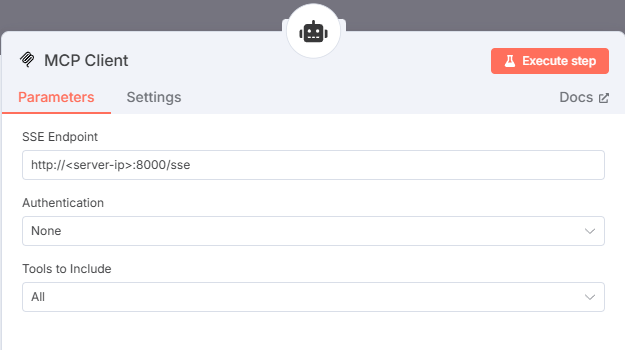
**n8n**
Add the configuration in the tool of the AI agent node of n8n
## 🔧 Main Functions
### MCP Tool List
| Tool Name | Function Description | Parameters | Remarks |
|---------|----------|------|------|
| `test_connection` | Test MCP connection | None | Connection status check |
| `smart_publish_note` | Publish Xiaohongshu note ⚡ | title, content, images, videos, tags, topics | Supports local paths, network URLs, topic tags |
| `check_task_status` | Check publishing task status | task_id | View task progress |
| `get_task_result` | Get the result of a completed task | task_id | Get the final publishing result |
| `login_xiaohongshu` | Smart login to Xiaohongshu | force_relogin, quick_mode | MCP-specific non-interactive login |
| `get_creator_data_analysis` | Get creator data for analysis | None | Dedicated to AI data analysis |
### 💬 AI Conversational Operation Guide
Complete login, publishing, data analysis, and other operations through AI conversations, without the need to learn complex commands.
#### 🔐 Smart Login
```
User: "Login to Xiaohongshu"
```
**Important Notes**:
- 🚨 Do not change the `headless` parameter for the first use. Change it to headless mode after obtaining the cookies
- 🌐 After the AI calls the login tool, it will launch the browser. You need to manually enter the verification code or scan the code for the first login
- 🍪 After success, the cookies will be automatically saved locally, and you will be exempt from logging in next time
#### 📝 Content Publishing
**Image Publishing (Local Images)**:
```
Please publish a Xiaohongshu note with the title: "Today's Sharing", content: "...", image path: "/User/me/xhs/poster.png"
```
**Image Publishing (Network Images)**:
```
Please publish a Xiaohongshu note with the title: "Food Sharing", content: "Today's food", using this network image: https://example.com/food.jpg
```
**Video Publishing**:
```
Please publish a Xiaohongshu video with the title: "Today's vlog", content: "...", video path: "/User/me/xhs/video.mp4"
```
**Publish with Topic Tags**:
```
Please publish a Xiaohongshu note with the title: "AI Learning Experience", content: "Today I learned the basics of machine learning", topics: "AI, artificial intelligence, learning experience", image: "/path/to/image.jpg"
```
#### 📊 Data Analysis
```
Please analyze my Xiaohongshu account data and provide content optimization suggestions
```
#### 🔧 Publishing Principle
During the manual upload process, the browser will pop up a window for the user to select the file path. The AI will pass the path parameters provided by the user to the MCP tool to automatically complete the upload action.
#### ⚡ Smart Waiting Mechanism
- **📷 Image Upload**: Fast upload, no need to wait
- **🎬 Video Upload**: Poll to check the upload progress and wait for the "Upload Successful" flag to appear
- **⏱️ Timeout Protection**: Maximum waiting time of 2 minutes to avoid MCP call timeout
- **📊 Status Monitoring**: DEBUG mode displays video file size and duration information
- **🔄 Efficient Polling**: Check every 2 seconds for precise text matching
### 📊 Data Collection and AI Analysis Functions
Automatically collect Xiaohongshu creator data, supporting scheduled tasks and AI intelligent analysis.
#### 🧠 AI Data Analysis Features
- **Chinese Headers**: CSV files use Chinese headers, and AI can directly understand the meaning of the data
- **Intelligent Analysis**: Get complete data through the `get_creator_data_analysis` MCP tool
- **Data-Driven**: AI provides content optimization suggestions based on real data
- **Trend Analysis**: Analyze account performance trends and fan growth
#### Collected Data Types
1. **Dashboard Data**: Account overview data such as number of fans, likes, and views
2. **Content Analysis Data**: Note performance data, including views, likes, and comments
3. **Fan Data**: Fan growth trends, fan profile analysis, etc.
#### Scheduled Task Example
Using cron syntax, write to the configuration file .env
```bash
# Collect every 6 hours
COLLECTION_SCHEDULE=0 */6 * * *
# Collect at 9 am on weekdays
COLLECTION_SCHEDULE=0 9 * * 1-5
# Collect at 2 am on the 1st of every month
COLLECTION_SCHEDULE=0 2 1 * *
```
### 🎯 Manual Operation Tools
Added interactive menu and manual operation tools to provide a more convenient operation experience:
#### Main Functions
- **🔄 Data Collection**: Manually trigger data collection, supporting selection of data types and time dimensions
- **🌐 Browser Operation**: Quickly open logged-in Xiaohongshu pages
- **📊 Data Management**: Export Excel/JSON, analyze data trends, backup and restore
- **🍪 Cookie Management**: Get, view, and verify cookie status
#### Usage Example
```bash
# Start the interactive menu
./xhs
# Or use the command line
./xhs manual collect --type all # Collect all data
./xhs manual browser --page publish # Open the publishing page
./xhs manual export --format excel # Export Excel
./xhs manual analyze # Analyze data trends
```
---
## 🚀 Update Log - v1.3.0
### 🎯 Important Function Updates
#### 🏷️ Topic Tag Automation Function (Fully Implemented)
- **New Topic Automation System**: Based on rigorous Playwright verification testing, it achieves truly effective Xiaohongshu topic tag addition
- **Intelligent Input Mechanism**: Uses Actions class to input character by character and JavaScript event simulation to perfectly simulate real user operations
- **Complete DOM Verification**: Supports detecting `data-topic` attributes and hidden identifiers to ensure that topics receive platform traffic recommendations
- **Multiple Backup Plans**: Multiple input methods and verification mechanisms provide a 99%+ success rate guarantee
#### 🔧 Topic Architecture Restructuring Upgrade
- **Terminology Unification**: Comprehensive restructuring from "tags" to "topics" to conform to Xiaohongshu platform terminology
- **Componentized Design**: Added a dedicated `topic_automation.py` module to provide basic and advanced automation functions
- **Interface Unification**: Updated all models, interfaces, and server code to maintain backward compatibility
#### 🧪 Key Fixes Based on Actual Testing
- **Input Method Fix**: Solved the issue where `send_keys` could not trigger the dropdown menu
- **Verification Mechanism Improvement**: Multi-layer verification ensures successful topic conversion, including complete metadata checks
- **Fault Tolerance Enhancement**: Multiple backup plans are available even if one step fails, ensuring functional stability
### Usage Example
```python
# New topic function usage (automatically supported in MCP tool)
smart_publish_note(
title="AI学习心得",
content="分享一些人工智能学习经验",
topics=["AI", "人工智能", "学习心得"], # 新增话题参数
images=["image.jpg"]
)
```
### Technical Details
- **Verification Test Coverage**: Based on 3 rigorous Playwright verification tests
- **DOM Structure Adaptation**: Fully adapted to the real Xiaohongshu topic tag DOM structure
- **Performance Optimization**: Intelligent waiting mechanism and concurrent processing to improve automation efficiency
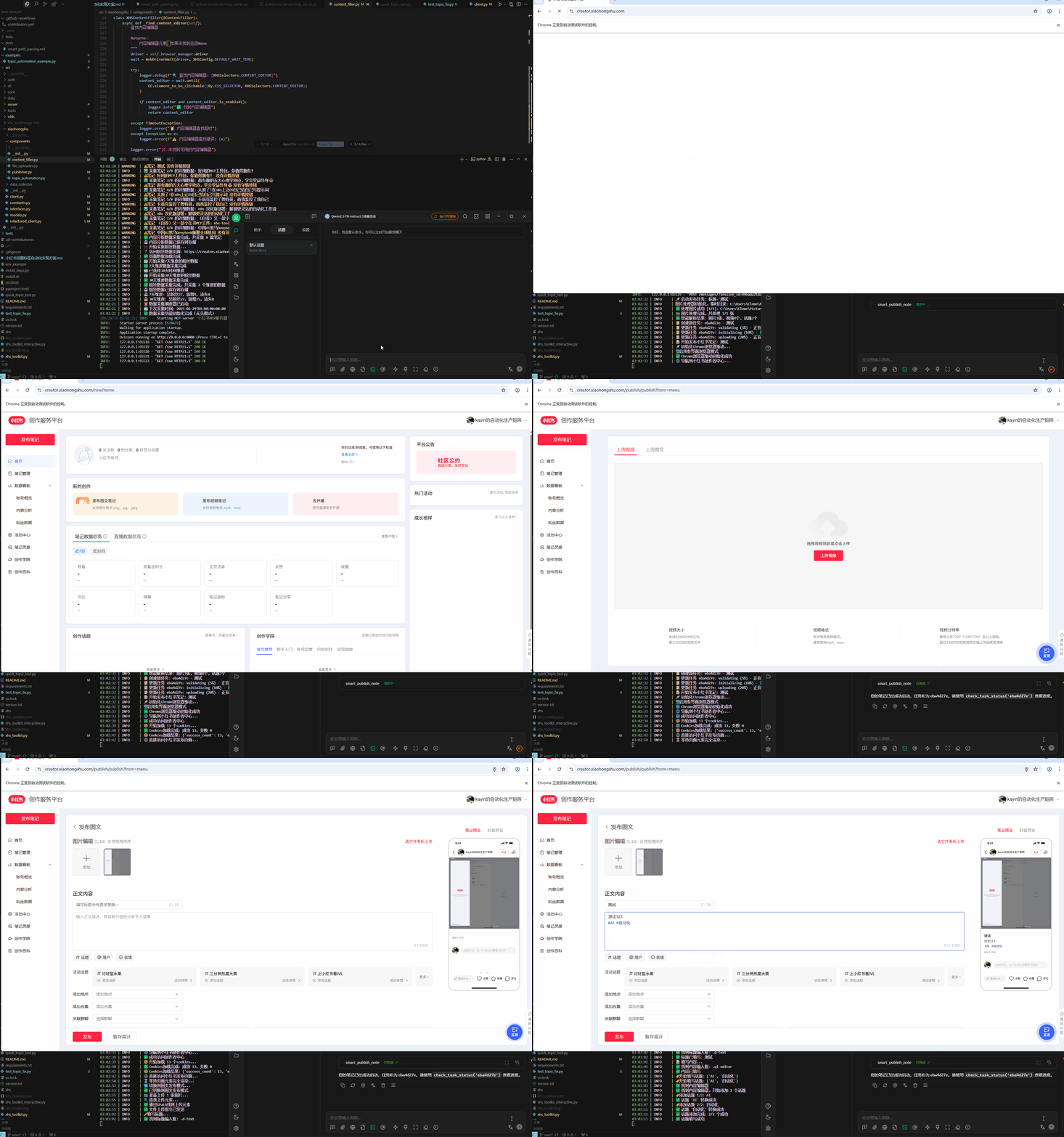
### Testing Effect
---
<details>
<summary>📜 Click to view v1.2.5 update log</summary>
## 🚀 Update Log - v1.2.5
### New Features
#### 🎮 Interactive Menu System
- Unified entry point `./xhs`, no need to memorize complex commands
- Number selection menu, more intuitive operation
- Real-time status display, understand system status
- Supports Windows (xhs.bat) and Unix systems
#### 🛠️ Manual Operation Toolset
- **manual collect**: Manual data collection, supports selecting type and dimension
- **manual browser**: Open the logged-in browser, quickly access various pages
- **manual export**: Export data to Excel or JSON format
- **manual analyze**: Analyze data trends, view the best notes
- **manual backup/restore**: Data backup and restore functions
#### 🔧 Improved Dependency Management
- Intelligent detection of uv/pip environment
- Automatically select the best Python environment
- Added `install_deps.py` installation wizard
- Supports both uv and pip installation methods
### Optimizations and Improvements
- Simplified startup command, unified use of `./xhs`
- Improved Windows support, providing bat and PowerShell scripts
- Optimized code structure, splitting modules to avoid excessively large single files
- Enhanced error handling and user prompts
</details>
---
<details>
<summary>📜 Click to view v1.2.4 update log</summary>
## 🚀 Update Log - v1.2.4
### New Features
#### 🌐 Network Image Support
- Supports direct publishing of HTTP/HTTPS image links
- Automatically downloads network images to a local temporary directory
- Supports common image formats (jpg, png, gif, webp)
#### 📁 Improved Image Processing
- Added `ImageProcessor` module to uniformly process various image inputs
- Supports mixed input: `["local.jpg", "https://example.com/img.jpg"]`
- More flexible input format support
### Usage Example
```python
# 网络图片
smart_publish_note(
title="美食分享",
content="今天的美食",
images=["https://example.com/food.jpg"]
)
# 混合使用
smart_publish_note(
title="旅行记录",
content="风景很美",
images=["/local/photo.jpg", "https://example.com/view.jpg"]
)
```
### Other Optimizations
- Improved text processing, preserving line breaks
- Updated documentation
</details>
---
<details>
<summary>📜 Click to view v1.2.3 update log</summary>
## 🚀 Update Log - v1.2.3
### 🔧 Important Fixes
#### 🖥️ Headless Mode Optimization
- **Fixed Headless Mode Failure Issue**: Enhanced Chrome headless mode configuration, added multiple insurance parameters
- **Optimized Browser Startup Logic**: Used `--headless=new` and `--headless` dual headless mode configuration
- **Optimized Configuration Verification**: Ensured that all modules use a unified HEADLESS configuration to avoid configuration inconsistencies
### 💡 Details
- Added multiple Chrome parameters such as `--disable-gpu-compositing` and `--disable-notifications`
- Improved the asynchronous initialization logic when starting the MCP server
- Enhanced compatibility and stability in Windows environments
</details>
---
<details>
<summary>📜 Click to view v1.2.2 update log</summary>
## 🚀 Update Log - v1.2.2
### 🆕 New Features
#### 🔐 Intelligent Login System
- Added an automated login detection mechanism, supporting non-interactive login in MCP mode
- Implemented a four-fold detection mechanism: URL status, page elements, identity verification, error status detection
- Added an intelligent waiting mechanism to automatically monitor the login completion status
- Optimized cookies saving logic, distinguishing between interactive mode and automated mode
#### 🧠 Intelligent Path Parsing System
- Added intelligent file path recognition function, supporting automatic parsing of multiple input formats
- Added `smart_parse_file_paths()` function, using JSON parsing, ast.literal_eval and other parsing methods
- Adapted to LLM dialogue scenarios and array data transmission from platforms such as dify
**Supported Input Formats**:
- Comma separated: `"a.jpg,b.jpg,c.jpg"`
- Array string: `"[a.jpg,b.jpg,c.jpg]"`
- JSON array: `'["a.jpg","b.jpg","c.jpg"]'`
- Real array: `["a.jpg", "b.jpg", "c.jpg"]`
- Mixed format: `"[a.jpg,'b.jpg',\"c.jpg\"]"`
#### 🛠️ Code Architecture Optimization
- Refactored login-related modules to improve code maintainability
- Optimized exception handling mechanism to enhance system stability
### 🔧 Fixed Features
#### 📝 Path Processing Optimization
- Solved the multi-image upload format recognition problem reported by users
- Intelligently distinguish between string and array formats to avoid data type judgment errors
- Supports various data formats transmitted from different platforms (dify, LLM dialogue, etc.)
- Enhanced fault tolerance, even if the format is not standard, it can be parsed as much as possible
</details>
---
## 🚀 Development Roadmap
### 📋 Features to be Developed
#### 🔥 High Priority
- **🔐 Headless Mode Login** - Improve the automatic login process in headless mode to enhance the automation experience
#### 🔮 Long-Term Planning
- **🤖 AI Creation Statement** - Intelligently detect AI-generated content and automatically add a creation statement identifier
- **👥 Multi-Account Management** - Support multi-account switching for publishing (follow platform policies, limited to 3 accounts per IP)
- **🌐 Proxy Mode Support** - Support proxy network access in conjunction with multi-account functionality
- **🐳 Docker Containerization** - Provide a containerized deployment solution to facilitate multi-instance management and deployment
- **🔍 Content Review Mechanism** - Sensitive word reminder or filtering
## 🔧 Troubleshooting
### ChromeDriver Common Issues
#### ❌ Issue: Version Mismatch Error
```
selenium.common.exceptions.SessionNotCreatedException: session not created: This version of ChromeDriver only supports Chrome version XX
```
**✅ Solution**:
1. 🔍 Check Chrome Version: Visit `chrome://version/`
2. 📥 Download the corresponding version of ChromeDriver: [Chrome for Testing](https://googlechromelabs.github.io/chrome-for-testing/)
3. ⚙️ Update the path configuration in the `.env` file
#### ❌ Issue: ChromeDriver Not Found
```
selenium.common.exceptions.WebDriverException: 'chromedriver' executable needs to be in PATH
```
**✅ Solution**:
1. Confirm that ChromeDriver has been downloaded and unzipped
2. Option A: Add ChromeDriver to the system PATH
3. Option B: Configure the full path in `.env`: `WEBDRIVER_CHROME_DRIVER="/path/to/chromedriver"`
4. Linux/macOS: Ensure the file has execute permissions `chmod +x chromedriver`
#### ❌ Issue: Chrome Browser Path Error
```
selenium.common.exceptions.WebDriverException: unknown error: cannot find Chrome binary
```
**✅ Solution**: Configure the correct Chrome path in the `.env` file
```bash
# macOS
CHROME_PATH="/Applications/Google Chrome.app/Contents/MacOS/Google Chrome"
# Windows
CHROME_PATH="C:\Program Files\Google\Chrome\Application\chrome.exe"
# Linux
CHROME_PATH="/usr/bin/google-chrome"
```
### Other Common Issues
#### ❌ Issue: MCP Connection Failed
**✅ Solution**:
1. Confirm that the server has been started: `python xhs_toolkit.py server start`
2. Check if port 8000 is occupied
3. Restart Claude Desktop or other MCP clients
#### ❌ Issue: Login Failed
**✅ Solution**:
1. Clear old cookies: Delete the `xhs_cookies.json` file
2. Re-acquire cookies: `python xhs_toolkit.py cookie save`
3. Ensure that you are using the correct Xiaohongshu creator center account
---
## 🙏 Contributors
Thanks to everyone who has contributed to the project!
<a href="https://github.com/aki66938/xhs-toolkit/graphs/contributors">
<img src="https://contrib.rocks/image?repo=aki66938/xhs-toolkit" />
</a>
If you would also like to contribute to the project, feel free to submit a Pull Request or Issue!
## 📄 License
This project is open source under the [MIT License](LICENSE).
## 🔐 Security Commitment
- ✅ **Local Storage**: All data is only stored locally
- ✅ **Open Source Transparency**: The code is completely open source and auditable
- ✅ **User Control**: You have complete control over your data
<div align="center">
Made with ❤️ for content creators
</div>



