Content
# GladeKit MCP
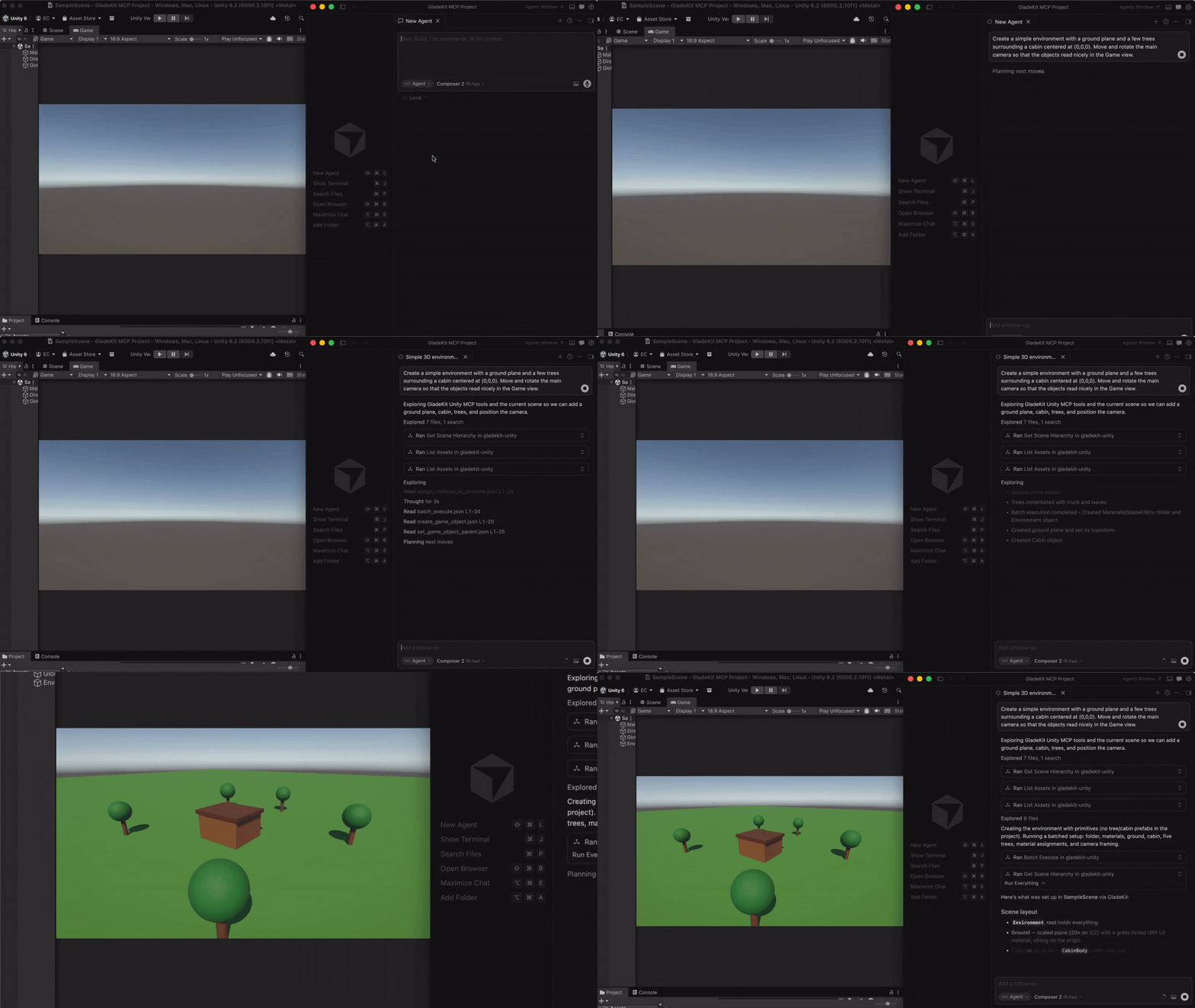
Connect Cursor, Claude Code, Windsurf, Claude Desktop, and other AI clients directly to your Unity or Godot editor.
**Unity:** 260+ tools, full Unity-aware system prompt, GLADE.md project context, script semantic search, skill calibration, free CC0 asset pipeline, cloud intelligence layer with RAG and cross-session memory.
**Godot (4.3+):** 105 native tools across scene/node, scripts, resources, signals, physics, 2D (sprites, tilemaps, parallax), audio, particles, animation, camera, navigation, runtime (incl. structured runtime-event observation), project introspection, Control / Window UI, and lighting & WorldEnvironment.
The MCP server auto-detects which editor is running (Unity on `:8765`, Godot on `:8766`) and exposes the matching tool set.
---
## Quick Start
### 1. Install the editor bridge
GladeKit MCP supports both Unity and Godot. Install the bridge for your engine by following the instructions below.
<details>
<summary><strong>Unity</strong></summary>
In Unity, open **Window > Package Manager > + > Add package from git URL...**
```
https://github.com/Glade-tool/glade-mcp.git?path=/unity-bridge
```
The Unity bridge starts automatically on `localhost:8765`.
</details>
<details>
<summary><strong>Godot (4.3+)</strong></summary>
1. Download `com.gladekit.mcp-bridge.zip` from the latest [Godot bridge release](https://github.com/Glade-tool/glade-mcp/releases?q=godot&expanded=true). (Grab the zip asset under **Assets** - not "Source code".)
2. Extract it and you get a single `com.gladekit.mcp-bridge/` folder. Move it into your project's `addons/` directory, so the final path is `<your-godot-project>/addons/com.gladekit.mcp-bridge/plugin.cfg`.
3. In Godot: **Project → Project Settings → Plugins** → enable **GladeKit MCP Bridge**.
The Godot bridge starts automatically on `localhost:8766`. You should see a confirmation line in the editor Output panel:
```
[GladeKit MCP Bridge] listening on ws://127.0.0.1:8766 (v0.7.6, 105 tools registered, thread-polled at 200Hz)
```
**Supported:** Godot 4.3+ GDScript projects, Forward+ and Compatibility renderers, 2D and 3D. **Not yet supported:** Godot Mono / C# projects, web export targets, headless server builds. The bridge is editor-only; it never runs in exported games.
</details>
Engine auto-detection: the MCP server probes both ports on startup and exposes the matching tool set. Running both editors at once? Set `GLADEKIT_MCP_FORCE_ENGINE=unity` or `=godot` to pin a specific engine.
### 2. Connect your AI client
Install [uv](https://docs.astral.sh/uv/getting-started/installation/) (one-time):
- **Mac/Linux:** `curl -LsSf https://astral.sh/uv/install.sh | sh`
- **Windows:** `powershell -ExecutionPolicy ByPass -c "irm https://astral.sh/uv/install.ps1 | iex"`
Then add the MCP config to your AI client. The client launches the MCP server automatically - no manual server step.
<details>
<summary><strong>Claude Code</strong></summary>
**Option A: one-liner (recommended)**
- **Mac/Linux:** `claude mcp add --transport stdio gladekit-mcp --scope user -- uvx gladekit-mcp`
- **Windows:** `claude mcp add --transport stdio gladekit-mcp --scope user -- cmd /c uvx gladekit-mcp`
**Option B: manual config**
If you cloned this repo, the `.mcp.json` auto-connects. Otherwise add to your Claude Code MCP settings:
```json
{
"mcpServers": {
"gladekit-mcp": {
"command": "uvx",
"args": ["gladekit-mcp"]
}
}
}
```
</details>
<details>
<summary><strong>Cursor</strong></summary>
`Cursor Settings > MCP > Add new MCP server`:
```json
{
"mcpServers": {
"gladekit-mcp": {
"command": "uvx",
"args": ["gladekit-mcp"]
}
}
}
```
</details>
<details>
<summary><strong>Claude Desktop</strong></summary>
Edit `~/Library/Application Support/Claude/claude_desktop_config.json` (Mac) or `%APPDATA%\Claude\claude_desktop_config.json` (Windows):
```json
{
"mcpServers": {
"gladekit-mcp": {
"command": "uvx",
"args": ["gladekit-mcp"]
}
}
}
```
</details>
<details>
<summary><strong>Cline (VS Code extension)</strong></summary>
Open Cline's MCP settings file (auto-created on first MCP use):
- **Mac:** `~/Library/Application Support/Code/User/globalStorage/saoudrizwan.claude-dev/settings/cline_mcp_settings.json`
- **Windows:** `%APPDATA%\Code\User\globalStorage\saoudrizwan.claude-dev\settings\cline_mcp_settings.json`
- **Linux:** `~/.config/Code/User/globalStorage/saoudrizwan.claude-dev/settings/cline_mcp_settings.json`
Add:
```json
{
"mcpServers": {
"gladekit-mcp": {
"command": "uvx",
"args": ["gladekit-mcp"]
}
}
}
```
</details>
<details>
<summary><strong>Windsurf</strong></summary>
In Windsurf, open **Windsurf Settings → MCP Servers → Open MCP Registry**, then click the settings (gear) icon to open `mcp_config.json`. Add the snippet below (or edit `~/.codeium/windsurf/mcp_config.json` directly):
```json
{
"mcpServers": {
"gladekit-mcp": {
"command": "uvx",
"args": ["gladekit-mcp"]
}
}
}
```
</details>
<details>
<summary><strong>Unity AI Gateway (native in-editor)</strong></summary>
Unity's built-in AI Assistant can connect to GladeKit via MCP. This gives you GladeKit's 260+ tools directly inside the Unity Editor - no external AI client needed.
**Requires:** Unity 6000.3+ with AI Gateway package (`com.unity.ai.assistant@2.x`)
1. In Unity, go to **Edit > Project Settings > AI > MCP Servers**
2. Click **Open Config File** and paste:
```json
{
"enabled": true,
"path": "",
"mcpServers": {
"gladekit-mcp": {
"type": "stdio",
"command": "uvx",
"args": ["gladekit-mcp"]
}
}
}
```
3. Under **Path Configuration**, paste your terminal's PATH into **User Path** so Unity can find `uvx`. To get your PATH:
- **Mac/Linux:** `echo $PATH`
- **Windows:** `echo %PATH%`
4. Click **Refresh Config File and Reload Servers**
5. Verify the server shows **StartedSuccessfully** in the Servers section
> **Tip:** If `uvx` isn't found, add the directory containing it to the `path` field in the config (e.g., `"/opt/homebrew/bin"` on Mac or `"C:\\Users\\<you>\\.local\\bin"` on Windows). Alternatively, use `pip install gladekit-mcp` and set `"command": "python"` with `"args": ["-m", "gladekit_mcp"]`.
> **Troubleshooting:** If the server shows **FailedToStart**, click **Inspect** for error details. The most common cause is PATH - Unity's PATH differs from your terminal's PATH. See the [Troubleshooting](#troubleshooting) section below.
> **Paid tier (`GLADEKIT_API_KEY`):** To enable RAG knowledge base and cross-session memory on any client, add the key to the `env` field of your config. See [Cloud intelligence](#cloud-intelligence) below.
</details>
<details>
<summary><strong>VS Code (GitHub Copilot)</strong></summary>
Add to `.vscode/mcp.json` in your workspace:
```json
{
"servers": {
"gladekit-mcp": {
"type": "stdio",
"command": "uvx",
"args": ["gladekit-mcp"]
}
}
}
```
</details>
---
## Why GladeKit Unity MCP?
| Feature | GladeKit Unity MCP | unity-mcp (CoplayDev) |
| ------------------ | ---------------------------------------------------------------------------------------------------- | ---------------------- |
| Tools | **260+ granular tools** across 16+ categories | ~40 consolidated tools |
| System prompt | **Full Unity intelligence** - render pipeline detection, input system routing, tool discipline rules | None |
| Project context | **GLADE.md** - inject your game design doc into every request | None |
| Script search | **Semantic search** via OpenAI embeddings (bring your own key) | None |
| Skill calibration | **Auto-detects beginner/expert**, adapts response verbosity | None |
| In-session memory | `remember_for_session` - AI stores and recalls facts mid-conversation | None |
| Cloud intelligence | `GLADEKIT_API_KEY` - RAG knowledge base, cross-session memory, convention extraction | None |
| License | MIT | MIT |
All core features are **free and local**. The cloud intelligence layer is optional and requires a `GLADEKIT_API_KEY`.
---
## Features
<details>
<summary><strong>260+ tools across 16+ categories</strong></summary>
Scene • GameObjects • Scripts • Prefabs • Materials • Lighting • VFX & Audio • Animation • IK • Physics (3D & 2D) • Tilemaps • Camera • UI • Input System • Terrain & NavMesh • Profiler • Asset Pipeline
All 260+ tools are dispatchable. Claude Code sees ~80 curated core tools by default (Claude Code has a practical 128-tool limit; Unity AI Gateway has a cloud token budget). Use `get_relevant_tools` to discover extended tools for specialized work (blend trees, NavMesh, IK, Cinemachine, etc.).
**5 meta-tools:** `get_relevant_tools` (task-based tool discovery + RAG context), `remember_for_session` (store facts), `recall_session_memories` (retrieve facts), `batch_execute` (multi-step tool dispatch), `search_project_scripts` (semantic code search).
**7 MCP resources:** Bridge health, project context, scene hierarchy, project scripts, current selection, GLADE.md, and session memory.
</details>
<details>
<summary><strong>GLADE.md</strong></summary>
Create a `GLADE.md` file in your Unity project root. The MCP server reads it and injects it into every request. Works as a permanent context layer: your game's design intent, conventions, and constraints are always in scope.
```markdown
# My Game
Genre: 3D platformer
Player: CharacterController, double jump enabled
Art style: pixel art, 16x16 sprites
Naming: PascalCase for scripts, snake_case for folders
```
</details>
<details>
<summary><strong>Script semantic search</strong></summary>
Set `OPENAI_API_KEY` in your MCP config's `env` field and the server ranks project scripts by semantic similarity to your query. Ask "how does the enemy spawn?" and the right script surfaces, even if it's not named `EnemySpawner`.
Everything needed ships with the package; no install flags or extras required. Get a key at [platform.openai.com/api-keys](https://platform.openai.com/api-keys) (pay-as-you-go, pennies per search via `text-embedding-3-small`).
```json
{
"mcpServers": {
"gladekit-mcp": {
"command": "uvx",
"args": ["gladekit-mcp"],
"env": { "OPENAI_API_KEY": "sk-..." }
}
}
}
```
Without the key, `search_project_scripts` still returns scripts - just unranked. Keys are never sent anywhere except OpenAI's embedding endpoint.
</details>
<details>
<summary><strong>Skill calibration</strong></summary>
The server tracks vocabulary across your messages and detects whether you're a Unity beginner or expert. Beginners get plain-language explanations and encouraging framing. Experts get terse, technical responses. Calibration persists to `.gladekit/skill_level.json` in your project.
</details>
<details>
<summary><strong>Asset pipeline (free CC0 imports)</strong></summary>
Three tools for finding and importing free, commercially-usable assets directly from your AI client. All assets are CC0 (public domain, no attribution required). v1 ships [Kenney.nl](https://kenney.nl) packs; additional providers (Freesound, Quaternius, AI generation) are on the roadmap.
| Tool | Purpose |
| ---------------------- | -------------------------------------------------------------------------------------------------------------------------------------------------------------------------------------------------------- |
| `find_asset` | Search ranked candidates by description, asset type, style, and license. Read-only, no Unity dispatch. |
| `import_asset` | Download, extract, place under `Assets/`, configure import settings for the asset type, and write a `.gladekit-asset.json` sidecar with license metadata. Requires explicit `licenseAcknowledged: true`. |
| `list_imported_assets` | Walk the project's sidecars and surface a license audit (license counts, attribution-required count). Useful before a commercial release. |
**Example workflow** (Cursor, Claude Code, Windsurf use the same pattern):
> **You:** I'm prototyping a 2D platformer and need placeholder character + tile art. Find me something free.
The AI calls `find_asset`:
```json
{
"description": "platformer character and tiles",
"asset_type": "sprite_2d",
"max_results": 5
}
```
Result (truncated):
```json
{
"success": true,
"candidates": [
{
"id": "kenney/platformer-pack-redux",
"name": "Platformer Pack Redux",
"description": "360+ side-scrolling platformer sprites: characters, enemies, tiles, items, hazards.",
"license": "CC0-1.0",
"license_summary": "Public domain. No attribution required for any use, including commercial.",
"official_page": "https://kenney.nl/assets/platformer-pack-redux",
"approx_assets": 360,
"score": 0.92
},
{ "id": "kenney/pixel-platformer", "score": 0.71, ... },
{ "id": "kenney/tiny-town", "score": 0.45, ... }
],
"count": 3
}
```
> **You:** Let's go with Platformer Pack Redux. Import it to `Assets/Sprites/Platformer/`. I accept the CC0 license.
The AI calls `import_asset`:
```json
{
"candidateId": "kenney/platformer-pack-redux",
"assetType": "sprite_2d",
"licenseAcknowledged": true,
"targetPath": "Assets/Sprites/Platformer/"
}
```
The MCP server resolves the download URL locally (catalog is bundled with the server, no cloud dependency), passes it to the Unity bridge, which downloads, extracts, configures `TextureImporter` for each sprite (Texture Type = Sprite, Filter Mode = Point, Uncompressed) and writes the license sidecar. Result:
```json
{
"success": true,
"message": "Imported 360 file(s) from kenney/platformer-pack-redux to Assets/Sprites/Platformer/",
"downloadedBytes": 1842340,
"importedFileCount": 360,
"configuredImportSettings": 354,
"license": "CC0-1.0",
"sidecarPath": "Assets/Sprites/Platformer/.gladekit-asset.json"
}
```
The sprites appear in the Unity Project window, ready to drop into a scene.
> **You:** Before I ship, audit my imported assets. Anything that needs attribution?
The AI calls `list_imported_assets`:
```json
{
"success": true,
"count": 1,
"licenseCounts": { "CC0-1.0": 1 },
"attributionRequiredCount": 0,
"entries": [
{
"candidate_id": "kenney/platformer-pack-redux",
"license": "CC0-1.0",
"asset_type": "sprite_2d",
"imported_at": "2026-05-10T09:37:42Z",
"target_path": "Assets/Sprites/Platformer/",
"imported_file_count": 360,
"sidecar_path": "Assets/Sprites/Platformer/.gladekit-asset.json"
}
]
}
```
CC0 needs no attribution; the audit report is empty for required attributions. If you imported a CC-BY asset later, it would surface here so you remember to credit it.
**Security and license discipline:**
- The LLM never sees download URLs. URL resolution happens cloud/MCP-side; the bridge tool refuses if the resolved fields are missing or LLM-injected.
- `licenseAcknowledged: true` is required on every `import_asset` call. The bridge refuses without it. Do not set it without explicit user confirmation.
- The bridge validates `_resolvedUrl`'s host against a per-provider allowlist (`AssetPipelineGuard.IsResolvedUrlHostAllowed`) before downloading. Even a client bypassing both the cloud and MCP preprocessors cannot smuggle in an arbitrary download URL; unknown hosts fail closed. HTTPS only.
- Every imported asset bundle gets a `.gladekit-asset.json` sidecar recording the candidate id, provider, license, attribution string, source URL, and timestamp. `list_imported_assets` reads these for the audit report.
- Asset Pipeline tools are gated by `AssetPipelineGuard` on the bridge side. A misconfigured client cannot bypass it.
**Disabling the pipeline (for studio / curated-asset workflows):**
Set `GLADEKIT_MCP_DISABLE_ASSET_PIPELINE=1` in the MCP server's environment to suppress the three tools entirely. They will not appear in the tool list and dispatch will refuse with a clear error. This is the recommended setting for projects that already have a managed asset workflow (Perforce-tracked libraries, internal asset stores) where AI-driven external downloads aren't appropriate.
```json
{
"mcpServers": {
"gladekit-mcp": {
"command": "uvx",
"args": ["gladekit-mcp"],
"env": { "GLADEKIT_MCP_DISABLE_ASSET_PIPELINE": "1" }
}
}
}
```
The Unity bridge enforces the same gate via `EditorPrefs` (`GladeAI.AssetPipelineEnabled`, default `true`). Toggle it via `POST http://localhost:8765/api/settings { "assetPipelineEnabled": false }`.
</details>
<details>
<summary><strong>Cloud intelligence</strong></summary>
Set `GLADEKIT_API_KEY` in your MCP config's `env` field to unlock cloud-powered features:
- **RAG knowledge base** - `get_relevant_tools` queries a curated Unity knowledge base (API corrections, error patterns) and injects results alongside tool recommendations.
- **Cross-session persistent memory** - facts stored with `remember_for_session` persist across sessions and are re-injected into the system prompt.
- **Convention extraction** - coding patterns (naming, architecture, preferences) are distilled from your accumulated memories and surfaced in future sessions.
All cloud features degrade gracefully: if the key is missing or the cloud is unreachable, everything works normally.
```json
{
"mcpServers": {
"gladekit-mcp": {
"command": "uvx",
"args": ["gladekit-mcp"],
"env": { "GLADEKIT_API_KEY": "your-api-key" }
}
}
}
```
</details>
<details>
<summary><strong>Transports (stdio + streamable HTTP)</strong></summary>
GladeKit MCP supports two transports. **stdio is the default** and works with all MCP clients - every config above uses stdio.
**Streamable HTTP** is for clients that prefer URL-based config (Claude Desktop URL mode, custom clients). Launch the server manually, then point your client at the URL:
```bash
# Defaults: host=127.0.0.1, port=8766, path=/mcp
gladekit-mcp --transport http
# Custom host/port/path
gladekit-mcp --transport http --host 127.0.0.1 --port 9000 --path /mcp
```
Endpoints:
- `POST/GET/DELETE http://127.0.0.1:8766/mcp` - MCP streamable-HTTP endpoint
- `GET http://127.0.0.1:8766/health` - liveness check
**Security defaults:**
- Binds **loopback-only** (`127.0.0.1`). Use `--host 0.0.0.0` to expose on LAN - opt-in only.
- **DNS-rebinding protection** enabled for loopback binds: requests with a `Host` header other than `127.0.0.1:<port>` or `localhost:<port>` are rejected with `421 Misdirected Request`.
- Non-loopback binds disable rebinding protection (you've taken responsibility for the network) and print a warning on startup.
**Client config example:**
```json
{
"mcpServers": {
"gladekit-mcp": {
"url": "http://127.0.0.1:8766/mcp"
}
}
}
```
</details>
<details>
<summary><strong>Environment Variables</strong></summary>
| Variable | Required | Description |
| -------------------------------------- | -------- | ------------------------------------------------------------------------------------------------------- |
| `UNITY_BRIDGE_URL` | No | Unity bridge URL (default: `http://localhost:8765`) |
| `OPENAI_API_KEY` | No | Enables script semantic search via embeddings ([get one](https://platform.openai.com/api-keys)) |
| `GLADEKIT_API_KEY` | No | Enables RAG knowledge base, cross-session memory, convention extraction |
| `GLADEKIT_MCP_DISABLE_ASSET_PIPELINE` | No | Set to `1` to suppress `find_asset` / `import_asset` / `list_imported_assets` (curated-asset workflows) |
| `GLADEKIT_MCP_SUPPRESS_BRIDGE_WARNING` | No | Set to `1` to silence the stderr warning when the Unity bridge is older than the recommended version |
</details>
<details>
<summary><strong>Troubleshooting</strong></summary>
**Bridge not connecting**
- Open Unity and wait for it to finish importing assets - the bridge starts automatically
- Check **Window > GladeKit MCP** in Unity - the Bridge and AI Client indicators show connection status
- Verify nothing else is using port 8765: `lsof -i :8765` (Mac/Linux) or `netstat -ano | findstr 8765` (Windows)
**AI client can't find `uvx`**
- Install [uv](https://docs.astral.sh/uv/getting-started/installation/): `curl -LsSf https://astral.sh/uv/install.sh | sh` (Mac/Linux) or `pip install uv`
- Or use `pip install gladekit-mcp` and change the config command from `"uvx"` to `"python"` with args `["-m", "gladekit_mcp"]`
**Tools not appearing in Claude Code**
- Claude Code has a practical ~128-tool limit. GladeKit shows ~80 curated core tools by default - this is intentional. All 260+ are dispatchable: use `get_relevant_tools` to find extended tools by task description.
**`GLADE.md` not being picked up**
- The file must be named exactly `GLADE.md` (case-sensitive on Mac/Linux) and placed in the Unity project root (same directory as `Assets/`, `Packages/`, `ProjectSettings/`)
**Stderr warning: `Unity bridge X.Y.Z is older than recommended`**
- Unity caches UPM git packages and never refetches, so an `?path=unity-bridge` install drifts behind `main` over time. Update via Unity → **Window > Package Manager > GladeKit MCP Bridge > Update**, or pin the manifest entry to a specific tag so future updates are explicit:
```json
"com.gladekit.mcp-bridge": "https://github.com/Glade-tool/glade-mcp.git?path=unity-bridge#v0.7.12"
```
- The same warning also appears as a one-shot prefix on the next tool response so you see it in chat. To silence both: add `"GLADEKIT_MCP_SUPPRESS_BRIDGE_WARNING": "1"` to the `env` of your MCP client config.
**Unity AI Gateway - server shows FailedToStart**
- Click **Inspect** in the Servers section for the error message
- Most common cause: Unity can't find `uvx`. Under **Path Configuration**, paste your terminal's full PATH into **User Path**, then click **Refresh Config File and Reload Servers**
- On Windows: `echo %PATH%` in Command Prompt. On Mac/Linux: `echo $PATH`
- Alternative: use `pip install gladekit-mcp` and set the command to `"python"` with args `["-m", "gladekit_mcp"]` - avoids the `uvx` PATH dependency
- Validate outside Unity first: run `uvx gladekit-mcp` in a terminal (you should see the `gladekit-mcp v...` banner on stderr)
</details>
<details>
<summary><strong>Architecture</strong></summary>
```
[AI Client: Cursor / Claude Code / Windsurf / Claude Desktop / Unity AI Gateway]
|
| stdio or HTTP MCP protocol
v
[gladekit_mcp Python process]
bridge.py -> HTTP localhost:8765
prompts.py -> system prompt (auto-reads render pipeline, input system, GLADE.md)
tools/ -> 260+ tool schemas + dispatch
cloud.py -> optional GLADEKIT_API_KEY -> api.gladekit.com
|
| HTTP localhost:8765
v
[Unity Bridge -- C# Editor extension (UPM package)]
UnityBridgeServer.cs -> HttpListener on :8765
260+ ITool implementations
UnityContextGatherer -> scene, scripts, packages, render pipeline
```
</details>
<details>
<summary><strong>Contributing</strong></summary>
The Unity bridge (`unity-bridge/`) is the source of truth for C# tools. Adding a tool requires three changes:
**1. C# implementation** (`unity-bridge/Editor/Tools/Implementations/<Category>/MyTool.cs`):
```csharp
public class MyTool : ITool
{
public string Name => "my_tool";
public string Execute(Dictionary<string, object> args)
{
// ... Unity Editor API calls ...
return ToolUtils.CreateSuccessResponse("Done", extras);
}
}
```
**2. C# registration** (`unity-bridge/Editor/Tools/Registrars/<Category>Tools.cs`):
Add `Register(new MyTool());` to the matching category registrar. Registration is explicit — an unregistered tool compiles fine but returns "Tool was blocked from executing or null." when dispatched.
**3. Python schema** (`mcp-server/src/gladekit_mcp/tools/<category>.py`):
Add an entry to the category's tool list following the existing format (OpenAI function-calling schema).
</details>
---
**License:** MIT - see [LICENSE](LICENSE).
The [GladeKit desktop app](https://gladekit.com) is a separate commercial product that layers streaming, miss recovery, and a memory UI on top of this MCP server.



