Content
# @indianic/mailman
[](https://www.npmjs.com/package/@integratex/mailman)
[](https://opensource.org/licenses/MIT)
[](https://nodejs.org)



MailMan CLI — send and read Gmail just by asking your AI assistant, built for IndiaNIC infrastructure.
> 🌐 **Live tour & docs:** [mailman.indianic.dev](https://mailman.indianic.dev)
> 📦 **Public build:** [`@integratex/mailman`](https://www.npmjs.com/package/@integratex/mailman) — `npm i -g @integratex/mailman`
## See it in action
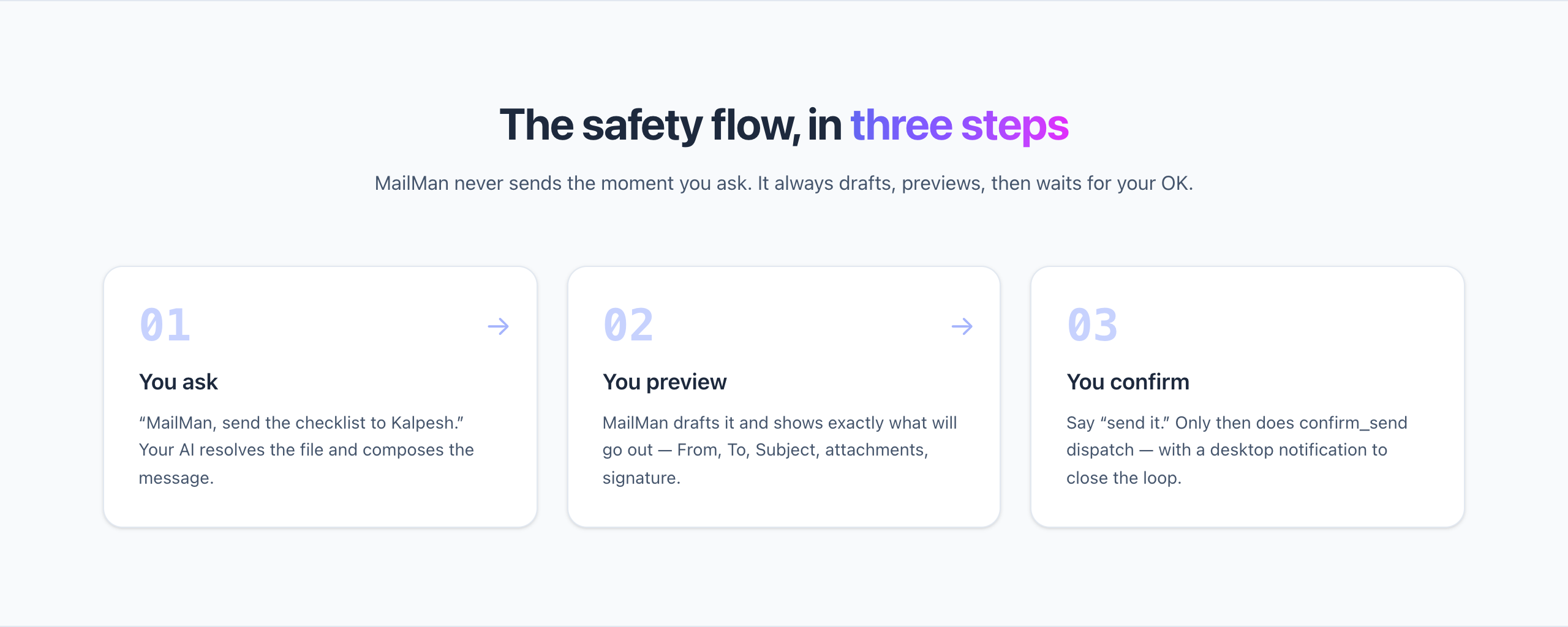
Ask your AI in plain English. MailMan **drafts, previews, and only sends on your OK** — never the moment you ask.
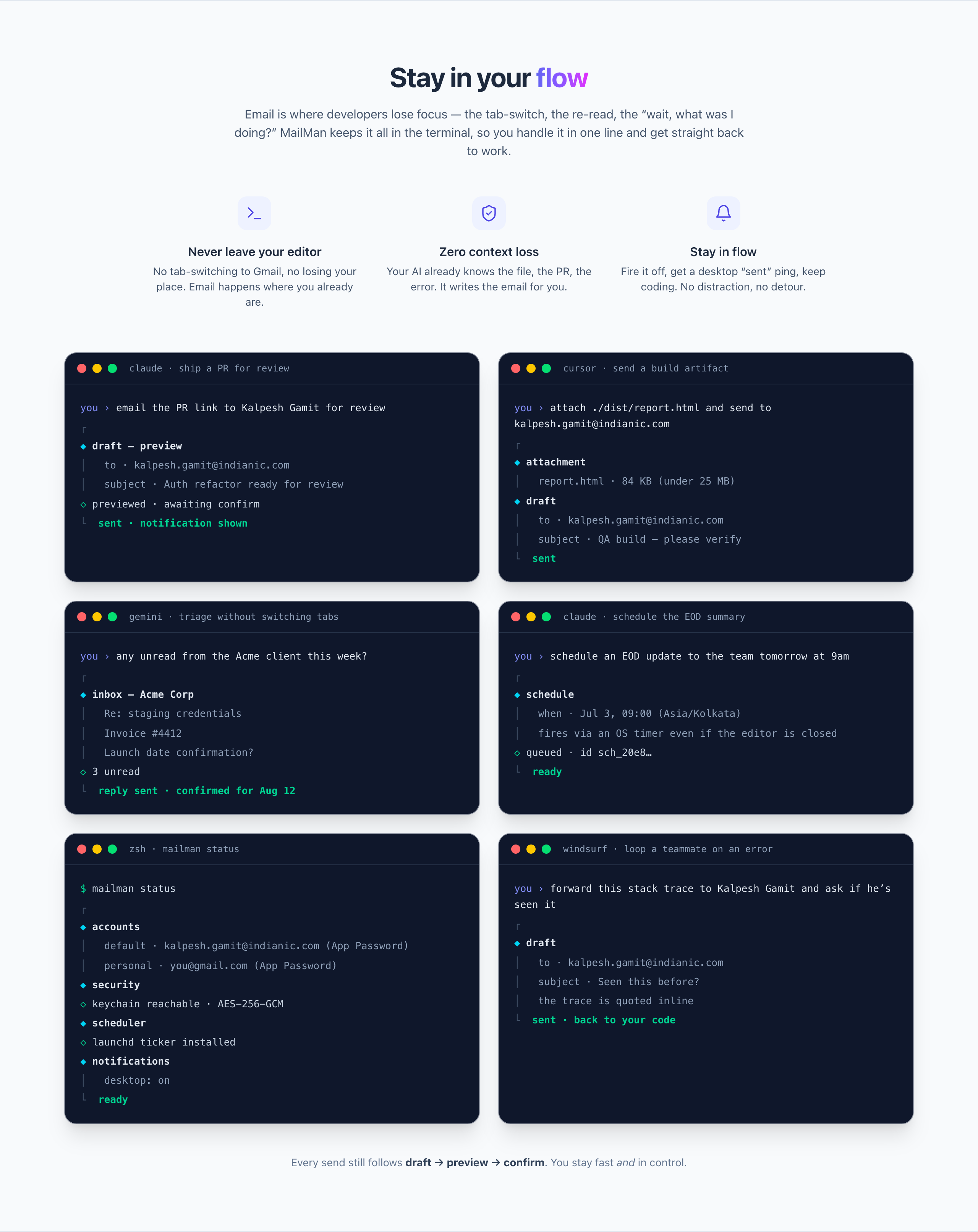
**Real prompts, across Claude Code · Cursor · Gemini CLI · Windsurf** — email happens where you already work:
## Features
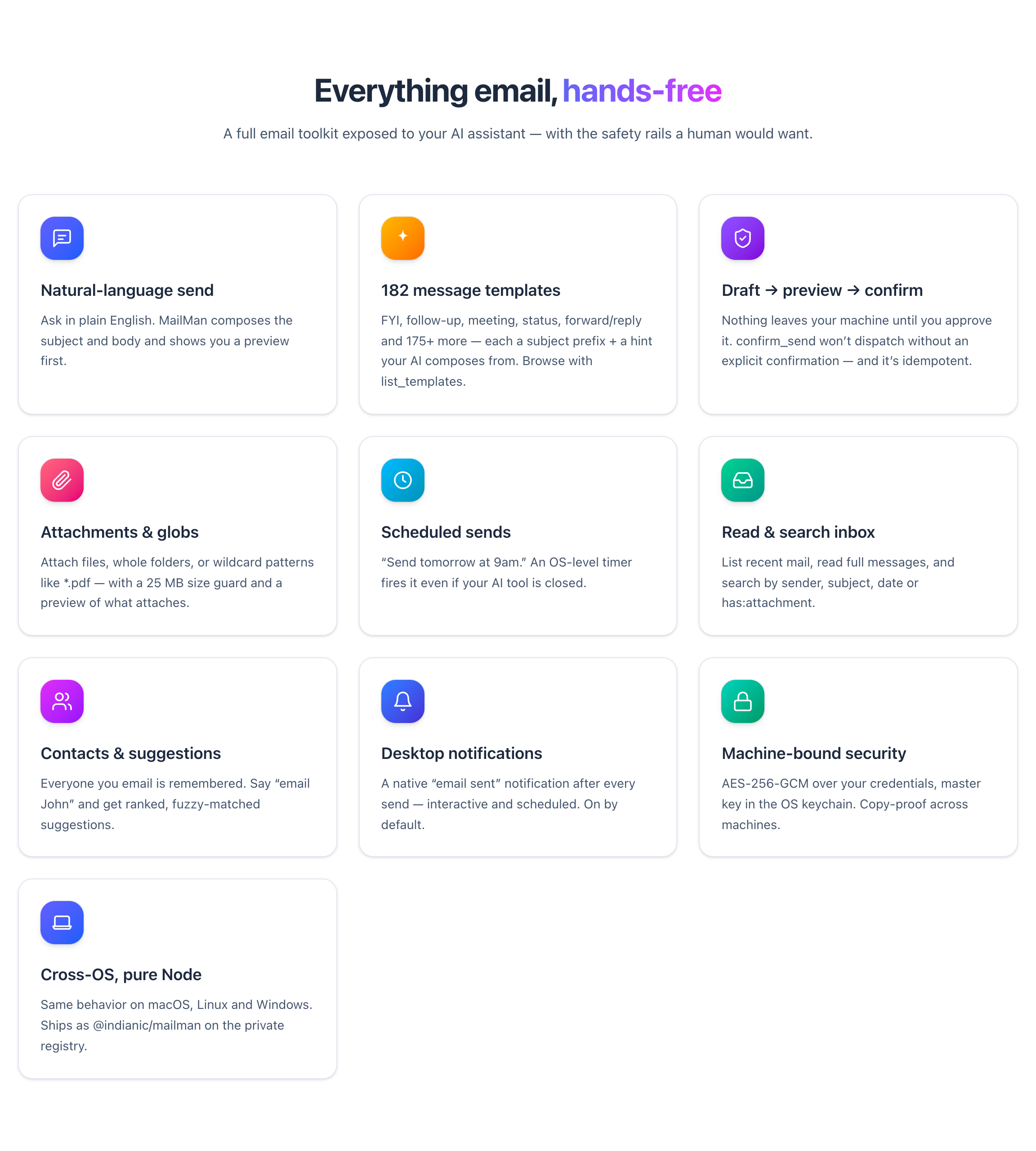
- Send **and read** Gmail from your AI in plain English — "send those docs to Kalpesh," "show my last 10 emails"
- **Draft → preview → confirm** safety — nothing sends until you approve (`confirm_send` won't dispatch without an explicit confirmation)
- **182 message templates** + `list_templates` (FYI, follow-up, meeting, forward/reply and more — a subject prefix + a hint your AI composes from)
- Attachments (files, folders, `*.pdf` globs), **scheduled sends** via an OS timer, inbox list / read / search, contacts + recipient suggestions
- Multi-account, machine-bound encrypted credentials (OS keychain), desktop notifications on send
- Installs into **Claude Code, Cursor, Gemini CLI, Windsurf, Codex** (`mailman register`) — cross-platform Win/Mac/Linux
- 23 MCP tools, exposed to your AI over MCP
## Installation
Point the `@indianic` scope at the private registry, then install globally with **npm** or **pnpm**:
```
# npm
npm config set @indianic:registry https://npm.indianic.in
npm install -g @indianic/mailman
# pnpm
pnpm config set @indianic:registry https://npm.indianic.in
pnpm add -g @indianic/mailman
```
(The scope config lands in your `~/.npmrc` — which npm, pnpm, and yarn all read — so no `--registry` flag is needed and public dependencies still resolve from the public registry. `mailman update` later upgrades in place with whichever manager you used.)
## Usage
```
# First-run setup — adds a Gmail account (email + App Password) and
# registers your AI tools (Claude Code, Cursor, Gemini CLI, Windsurf, Codex)
mailman init
# Register with AI editors later
mailman register --tools claude,cursor
mailman register -i
# Diagnostics & current state
mailman doctor
mailman status
# Accounts, contacts, settings
mailman account add
mailman settings set defaultBodyType html
mailman settings set desktopNotifications false
# Scheduled sends
mailman scheduled list
# Self-update
mailman update
# Help & version
mailman help
mailman --version
```
Once installed and registered, you talk to your AI — not the CLI — for everyday email:
```
You: mailman, send those docs to kalpesh.gamit@indianic.com
AI: [drafts subject/body, resolves attachments] Ready to send — confirm?
You: yes
AI: Sent.
You: mailman, list my last 10 emails
You: search for invoices from last month
You: send this tomorrow at 9am instead of now # goes out even if the tool is closed
```
> **Package vs. command names.** The npm package is **`@indianic/mailman`**; it installs a CLI you run as **`mailman`**. A second alias, **`mcp-mailman`**, points at the same binary — use it only on a host that also has GNU Mailman's `/usr/bin/mailman`.
## How it works
A native stdio **MCP server**: your editor launches it via `npx -y @indianic/mailman` and Claude calls its tools from natural language. It reaches Gmail two ways — **SMTP/IMAP** for App Password accounts, or the **Gmail REST API** for OAuth2 accounts. Pure Node.js, so behavior is identical on macOS, Linux, and Windows. Configured once, globally — available from any project.
Manual MCP config (what `init`/`register` write for you — note it carries **no secrets**, credentials live in the OS keychain):
```json
{
"mcpServers": {
"mailman": { "command": "npx", "args": ["-y", "@indianic/mailman"] }
}
}
```
- **Claude Code** — `claude mcp add mailman -- npx -y @indianic/mailman`
- **Cursor / Windsurf / Gemini CLI / Codex** — add the block to that tool's MCP config file.
## Docs
- [docs/FEATURES.md](docs/FEATURES.md) — plain-English + technical feature tour
- [docs/PLAN.md](docs/PLAN.md) — architecture: auth, storage, tools, flows
- [docs/SKILLS.md](docs/SKILLS.md) — the MCP tools this server exposes
- [docs/CLI.md](docs/CLI.md) — every terminal command (setup, accounts, diagnostics)
- [docs/CROSS-OS.md](docs/CROSS-OS.md) — per-OS support matrix
## OAuth2 / browser sign-in (the passwordless path)
Regular Gmail passwords **cannot** be used with mailman — Google disabled password login for SMTP/IMAP in 2022, so only an **App Password** or **OAuth2** is accepted. `mailman init` / `account add` open with a choice: **App Password** (paste a 16-char code — the default, simplest path) or **Sign in with browser (OAuth2)** — no password, and the option to use if you're passkey/passwordless or your Workspace admin disabled App Passwords. `mailman auth login <alias>` is the same OAuth2 flow as a standalone command.
Passkeys can't be handed to SMTP/IMAP directly, but they work **inside** the browser sign-in: when OAuth2 opens Google's consent page, authenticate there with your passkey — mailman stores the resulting refresh token, not the passkey.
OAuth2 uses **your own** Google Cloud OAuth client — a one-time setup that replaces per-account passwords. A browser opens for consent and the refresh token is stored encrypted. On a headless box, it prints the consent URL + an `ssh -L` tunnel command instead of launching a browser.
### Creating the OAuth client (one-time, ~2 min)
1. **Google Cloud Console** → create/select a project → **APIs & Services → Library** → enable the **Gmail API** (and **People API** if you want contact suggestions).
2. **APIs & Services → OAuth consent screen** → **External** → add yourself as a **Test user** (so you don't need Google app verification). Publishing status can stay "Testing".
3. **APIs & Services → Credentials → Create credentials → OAuth client ID** → **Application type: `Desktop app`**. ⚠️ **This must be `Desktop app`, not `Web application`.**
4. Copy the **Client ID** and **Client secret** — paste them when `auth login` / `account add` asks.
> **`Error 400: redirect_uri_mismatch`?** Your client is a **Web application** type. mailman signs in over a loopback redirect (`http://127.0.0.1:<random-port>`), which **only Desktop-app clients allow** — Web-app clients require every redirect URI to be pre-registered with a fixed port, so a random port always fails. Delete the client and create a **Desktop app** one instead. There is nothing to configure on mailman's side.
Scopes requested: `gmail.send`, `gmail.readonly`, `contacts.readonly`. (`gmail.readonly` is read access to your whole mailbox — App Password accounts get equivalent read access implicitly via IMAP.)
## Security
Credentials are **machine-bound**, not just encrypted: the encryption key lives in your OS's native store (macOS Keychain, Windows Credential Manager, Linux Secret Service via `keytar`), never in the config dir. Copying `accounts.json` to another machine yields useless ciphertext — `mailman` there refuses to decrypt rather than degrade. Every tool call is appended to a local `activity.log` (tool name + non-sensitive metadata only — never bodies/credentials).
> Linux headless needs a running Secret Service provider (gnome-keyring, kwallet). No keyring → setup fails with instructions rather than storing plaintext. See [docs/CROSS-OS.md](docs/CROSS-OS.md).
## Config location
All state (accounts, contacts/recents, settings) lives in one global, per-OS-user directory — never inside a project:
| OS | Path |
|---|---|
| macOS | `~/Library/Application Support/mcp-mailman/` |
| Linux | `~/.config/mcp-mailman/` |
| Windows | `%APPDATA%\mcp-mailman\` |
## Desktop notifications
After each successful send (interactive **and** scheduled), mailman fires a native desktop notification — macOS Notification Center (`osascript`), Linux `notify-send`, Windows toast. **On by default**; best-effort (never blocks/fails a send). Toggle:
```
mailman settings set desktopNotifications false
mailman settings set desktopNotifications true
```
## Staying up to date
Interactive `mailman` commands show a one-line "update available" notice when a newer version is published (cached daily). Upgrade in place — it uses the package manager that installed it (npm or pnpm):
```
mailman update # or: mailman upgrade
```
Restart your AI tools afterward so their MCP server picks up the new version.
## License
MIT
 MCP Store
