

Content
# <img src="https://raw.githubusercontent.com/xsip/pure-liquid-local-ai-client/refs/heads/main/apps/ui/public/logo-cropped.png" alt="Logo" width="30"/> Pure Liquid Local AI Client | [Preview on youtube](https://www.youtube.com/watch?v=_UhKke10JzY)
A full-stack AI chat client that connects to any OpenAI-compatible local inference server (LM Studio, Ollama, llama.cpp, vLLM, ...) via the standard `/v1/chat/completions` endpoint. Built with Angular, NestJS, and MongoDB, with first-class MCP (Model Context Protocol) tool support, AI image generation via [InvokeAI](https://invoke-ai.github.io/InvokeAI/), image upload into chat, voice message recording (sent as `input_audio` for models with audio support), and optional end-to-end AES message encryption.
> **⚠️ Breaking change:** LM Studio's native `/api/v1/chat` API and the OpenAI-compatible `/v1/responses/create` (Responses API) endpoint have been **removed** — the modules, routes, and UI code that supported them no longer exist in this repo. See [Chat Completions API (current default)](#chat-completions-api-current-default) below for why and what replaced them.
---
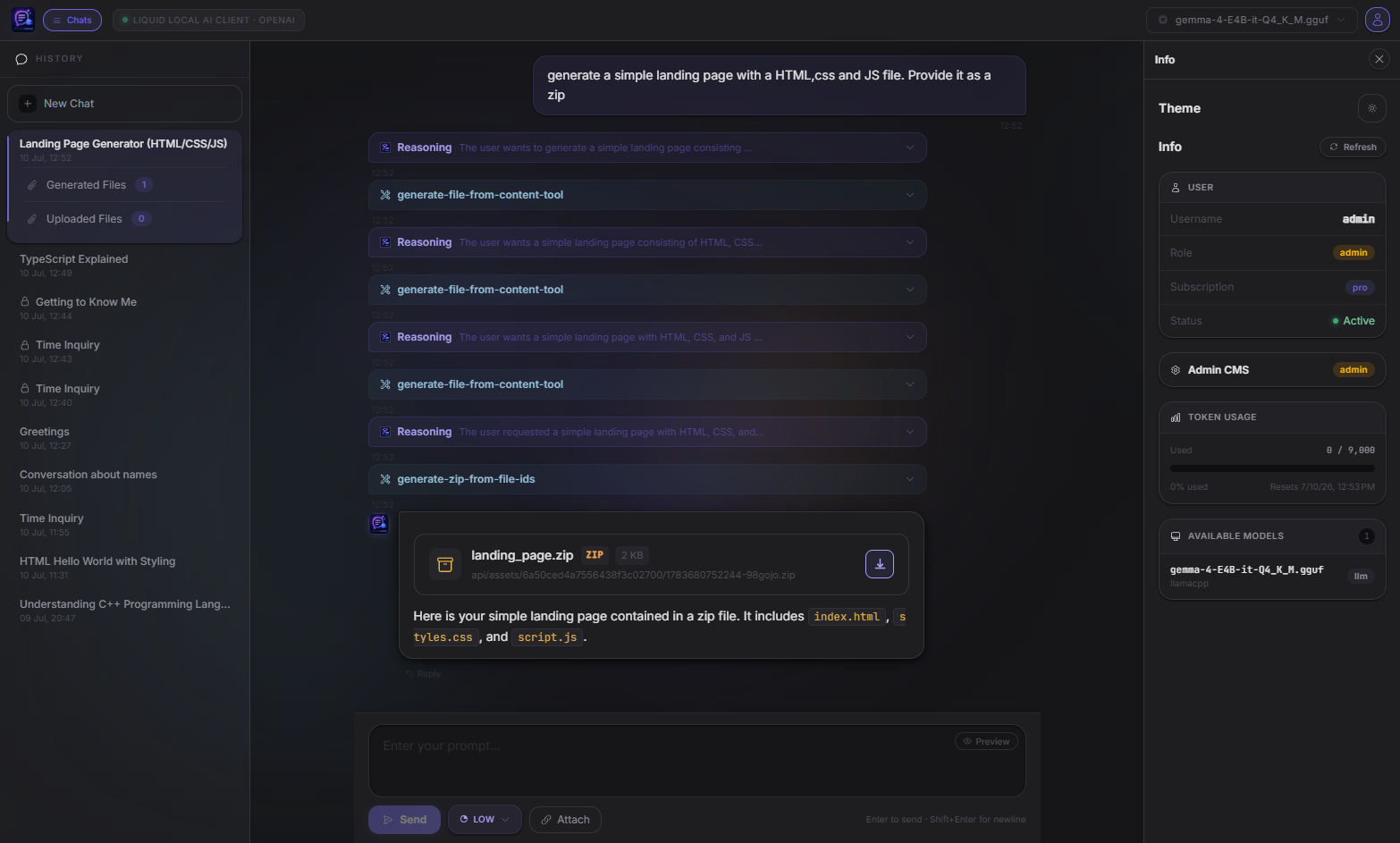
---
## Table of Contents
- [Overview](#overview)
- [Chat Completions API (current default)](#chat-completions-api-current-default)
- [Resilient Background Generation](#resilient-background-generation)
- [Architecture](#architecture)
- [Features](#features)
- [Tech Stack](#tech-stack)
- [Project Structure](#project-structure)
- [Prerequisites](#prerequisites)
- [Environment Variables](#environment-variables)
- [Getting Started](#getting-started)
- [MCP Tool Integration](#mcp-tool-integration)
- [Custom MCP Servers](#custom-mcp-servers)
- [Tool Approval](#tool-approval)
- [Custom MCP Progress Reporting](#custom-mcp-progress-reporting)
- [Image Generation (InvokeAI)](#image-generation-invokeai)
- [Image Upload](#image-upload)
- [Voice Input](#voice-input)
- [Voice Transcription](#voice-transcription)
- [Message Encryption](#message-encryption)
- [Authentication & Authorization](#authentication--authorization)
- [Token Usage & Rate Limiting](#token-usage--rate-limiting)
- [Admin CMS](#admin-cms)
- [API Overview](#api-overview)
---
## Overview
This monorepo hosts two applications:
| App | Location | Description |
|-----|----------|-------------|
| `api` | `apps/api` | NestJS REST backend, MCP server/client, and Chat Completions proxy |
| `ui` | `apps/ui` | Angular 21 single-page chat interface |
The backend acts as an authenticated proxy between the Angular frontend and your local inference server. All chat sessions are persisted in MongoDB, token usage is tracked per user, and the backend runs its own **MCP client** that calls tools on-demand as the model requests them — rather than relying on the inference server to orchestrate tool calls itself. The MCP toolset includes an image generation tool that connects to a local InvokeAI instance, and uploaded images are stored as binary blobs in MongoDB and served back through the API.
---
## Chat Completions API (current default)
LM Studio recently disabled connecting to localhost MCP servers, which broke this project's original architecture: the Responses API (`/v1/responses/create`) worked by handing LM Studio a `type: 'mcp'` tool pointing at this backend's MCP server, and relying on LM Studio itself to connect, list tools, call them, and feed results back to the model. With per-request localhost MCP connections disabled, that flow no longer works — and it was never portable to other backends anyway, since `type: 'mcp'` tool passthrough is a Responses-API-only convenience that virtually no other OpenAI-compatible server implements.
The fix was to stop depending on the inference server for MCP orchestration entirely and do it ourselves:
- The backend now runs its own MCP client (`apps/api/src/modules/mcp-client`) that connects directly to the MCP tool server, lists available tools, and translates them into plain OpenAI **function-tool** definitions.
- Chat requests go out over the standard **Chat Completions API** (`/v1/chat/completions`) with those function tools attached — no `type: 'mcp'` passthrough involved.
- When the model returns a `tool_calls` response, the backend executes the call itself via the MCP client, appends the result as a `tool` role message, and loops back into the model until it produces a final answer.
Because this only requires standard OpenAI function-calling support, it works against **any** OpenAI-compatible backend — LM Studio, Ollama, llama.cpp, vLLM, etc. — not just LM Studio.
**As a result:**
- LM Studio's own native `/api/v1/chat` API and its NestJS proxy module have been **removed** from this project, in favor of the OpenAI-compatible `/v1/chat/completions` route, which is the more broadly standardized way to talk to local inference servers.
- The OpenAI Responses API (`/v1/responses/create`) and all of its backend/UI code have been **removed**, since it depended entirely on the now-broken `type: 'mcp'` passthrough.
- **Chat Completions (`/v1/chat/completions`) is the only supported chat path.** Any chat sessions created under the old Responses/native-LM-Studio flow are no longer readable through the UI — only the rolling Chat Completions message array format is supported going forward.
One known limitation of the Chat Completions path: file attachments are text-only-friendly (images are inlined as vision content; other file types are referenced by ID and fetched on demand via the `get-content-from-file-ids` tool) — reasoning-effort and AI-decided chat naming are supported, matching the old Responses-API experience.
---
## Resilient Background Generation
A chat generation is no longer tied to the HTTP connection that started it. Refreshing the page, closing the tab, or switching to another chat while the AI is still responding doesn't lose or corrupt anything — the backend keeps generating in the background, and the frontend can reattach to it.
### How It Works
1. **The chat ID is sent to the client immediately** — `ChatMetadata` is created (and its name decided) before any model output starts, and a `created_chat` SSE event fires right away so the browser updates its URL well before the first token arrives. A refresh at any point afterwards reopens the same chat instead of losing track of it and creating a duplicate.
2. **Writes never abort the generation** — `OpenAiService.safeWrite()` swallows write errors from a dead client socket instead of throwing, so a disconnect can't cut the tool-call/completion loop short. The exchange is only unlocked and considered done once it actually finishes (or throws) server-side, in a `finally` block — never on `res.on('close')`.
3. **In-flight generations are tracked per chat** (`ActiveGenerationService`) — every SSE chunk sent is buffered and broadcast, keyed by `internalChatId`. Since the current turn's user message isn't in persisted history yet (that only happens once the whole exchange finishes), it's echoed into the buffer too via a `user_message_echo` event so a reconnecting client can render it.
4. **`GET /openai/completions-stream/resume?internalChatId=`** lets a client reattach — it replays everything buffered so far, then streams live chunks until the generation finishes. If nothing is in-flight for that chat, it just ends immediately with no data.
5. **The frontend resumes automatically** — if a chat's metadata comes back `locked: true` when it's opened (most commonly: the page was refreshed mid-response), `ChatCompletionsService.resumeStreaming()` reconnects and continues rendering exactly like a freshly-submitted message, including tool-call banners and reasoning. Shared chats are lightly polled (every 3s) so a viewer notices when the owner starts a new generation and attaches to it the same way.
6. **A distinct "generating" status** avoids a misleading message: watching someone else's (or your own resumed) generation shows *"AI is generating a response…"*, not the old *"Locked — someone else is generating a response"* text, which is reserved for the brief window before a poll has actually attached to the stream.
7. **The chat sidebar marks in-progress chats** with a subtle animated wave background and a pulsing dot on the row, driven by the same `locked` flag plus a 5-second self-healing poll that catches generations which finished after you navigated away from them (so the indicator doesn't get stuck on).
### Resume API
| Method | Path | Description |
|--------|------|--------------|
| `GET` | `/openai/completions-stream/resume?internalChatId=` | Reattach to an in-flight generation as SSE — replays buffered chunks, then streams live ones |
---
## Architecture
```
┌──────────────────────────────────────────────────────────┐
│ Angular UI (port 4200) │
│ OpenAI Chat Completions route │
└────────────────────────────┬──────────────────────────────┘
│ SSE stream
┌────────────────────────────▼──────────────────────────────┐
│ NestJS API (port 8888) │
│ │
│ ┌──────────────┐ ┌────────────────┐ │
│ │ OpenAI │ │ Auth / JWT │ │
│ │ Module │ │ Module │ │
│ └──────┬───────┘ └────────────────┘ │
│ │ tool_calls loop │
│ ┌──────▼───────┐ ┌────────────────┐ ┌────────────────┐│
│ │ McpClient │ │ Chats / │ │ MCP Server ││
│ │ Module │ │ ChatMetadata │ │ (@rekog/mcp- ││
│ │ (MCP client) │◄─┤ MongoDB │ │ nest) ││
│ └──────┬───────┘ │ persistence │ └────────┬───────┘│
│ │ └────────────────┘ ▲ │
│ └──────────── connects as MCP client ─────┘ │
│ ┌─────────────────────────────────────────┐ │
│ │ Assets Module │ │
│ │ Image blobs stored in MongoDB │ │
│ └─────────────────────────────────────────┘ │
└────────────────────────────┬──────────────────────────────┘
│ /v1/chat/completions
┌────────────────────────────▼──────────────────────────────┐
│ Any OpenAI-compatible inference server │
│ LM Studio │ Ollama │ llama.cpp │ vLLM │ ... │
└──────────────────────────────────────────────────────────┘
│ generate-image-tool triggers
┌──────────────────────────▼───────────────────────────────┐
│ InvokeAI (port 9090) │
│ /api/v2/models │ /api/v1/queue/default/enqueue │
│ Socket.IO (/ws/socket.io/) │
└──────────────────────────────────────────────────────────┘
```
Unlike the old Responses-API flow — where LM Studio itself connected to the MCP server mid-inference — the NestJS backend now acts as the MCP client itself: it lists tools from its own MCP server, attaches them to the Chat Completions request as plain function tools, and executes any `tool_calls` the model returns before looping back into the model. The inference server never talks to MCP directly, so this works with any backend that supports standard OpenAI function calling.
---
## Features
- **OpenAI-compatible Chat Completions** — talks to any backend that implements `/v1/chat/completions` (LM Studio, Ollama, llama.cpp, vLLM, ...); the only supported chat path — LM Studio's native API and the OpenAI Responses API have been removed (see [above](#chat-completions-api-current-default))
- **Client-side MCP orchestration** — the backend runs its own MCP client, translates MCP tools into OpenAI function-tool definitions, and executes `tool_calls` itself in a loop — no dependency on the inference server's own MCP support
- **Real-time SSE streaming** — responses are streamed token-by-token to the browser, including reasoning/"thinking" deltas where the model provides them
- **Persistent chat history** — every exchange is stored in MongoDB as a rolling message array and rehydrated on demand, including reconstructed tool-call banners and image attachments
- **Branch in new chat** — clone any chat's settings (model, MCP tools, crypto, invoke config, ...) into a brand-new chat seeded with history up to the assistant reply you branched from, mirroring ChatGPT's "branch in new chat"; generated and uploaded files referenced in that history are duplicated too — not just linked — so the branch keeps working after the source chat is deleted
- **Resilient background generation** — a response keeps generating server-side even if the client disconnects; refreshing the page or switching chats mid-response reattaches to the live stream instead of losing it (see [Resilient Background Generation](#resilient-background-generation))
- **Custom MCP servers** — users can register their own MCP servers on their account (endpoint auto-discovers name + tool list), toggle a server or individual tools on/off account-wide, and re-run discovery on demand; per-chat overrides let a specific chat opt out of a server/tool without affecting the account default (see [Custom MCP Servers](#custom-mcp-servers))
- **Tool approval** — per-chat opt-in that pauses a tool call for approval before it runs, without aborting the SSE stream; approve once, always allow for the rest of the chat, or deny — "always allow" decisions are persisted per chat and can be revoked individually from the chat settings dialog (see [Tool Approval](#tool-approval))
- **MCP tool server** — the backend registers itself as an MCP server and also calls itself as an MCP client
- `get-token-usage-tool` — returns the authenticated user's current token usage and limit
- `get-content-from-file-ids` — fetches uploaded file content on demand by file ID
- `generate-file-from-content-tool` / `generate-zip-from-file-ids` — lets the model generate downloadable files and bundle them into a ZIP
- `get-image-tool` — fetches an image from a URL
- `decrypt-message-tool` — decrypts an AES-encrypted user message at inference time
- `greeting-tool` — example tool with progress reporting
- `generate-image-tool` — generates an image via InvokeAI from a natural-language prompt and injects it into the chat as a persistent asset
- **AI image generation** — the model can call `generate-image-tool` during inference; the backend submits a txt2img job to InvokeAI, downloads the result, stores it in MongoDB, and returns a Markdown image reference to the chat
- **Image upload** — users can attach one or more images before sending a message; images are uploaded to MongoDB via the Assets API and forwarded to the model as vision content
- **Voice input** — a dedicated mic mode swaps the text editor for a recording panel (live bar visualiser, playback, re-record/remove) built on the raw Web Audio API; the recording is hand-encoded as WAV and sent as an `input_audio` content part, with an automatic system prompt telling the model to treat it as the user's message (see [Voice Input](#voice-input))
- **Voice transcription** — per-chat opt-in that transcribes recorded voice messages via a separate, untracked LLM call and replaces the audio with plain text before the main turn runs, so tool-calling, reasoning, and token accounting behave exactly like a typed message (see [Voice Transcription](#voice-transcription))
- **End-to-end AES message encryption** — per-chat opt-in; messages are encrypted with CryptoJS AES before leaving the browser, and the model decrypts them via MCP during inference
- **JWT authentication** — login / register with bcrypt-hashed passwords; tokens expire after 1 hour
- **Role-based access control** — `User` and `Admin` roles via `RolesGuard`
- **Subscription-aware token rate limiting** — configurable token budgets per subscription tier, with automatic reset intervals; tiers are **not** limited to `free`/`basic` — new tiers can be created on the fly (see [Admin CMS](#admin-cms))
- **Admin CMS** — role-gated `/admin` UI for managing users (role, subscription, activation, password, token-usage reset) and token-limit configs (including defining brand-new subscription tiers), built with Angular reactive forms
- **Model selector** — dynamically fetches available models from the running LM Studio instance
- **Reasoning mode** — pass reasoning effort (`off` / `low` / `medium` / `high`) to supported models
- **Swagger UI** — optional OpenAPI documentation (enabled via `USE_SWAGGER=true`)
- **Markdown rendering** — assistant responses rendered as formatted Markdown in the chat UI
---
## Tech Stack
| Layer | Technology |
|-------|-----------|
| Frontend | Angular 21, TailwindCSS 4, RxJS 7 |
| Backend | NestJS 11, TypeScript 5.9 |
| Database | MongoDB via Mongoose |
| MCP | `@rekog/mcp-nest` (Streamable HTTP + SSE transports) |
| Image generation | InvokeAI (local, via REST API + Socket.IO) |
| Image storage | MongoDB (`image_blobs` collection, binary Buffer) |
| File upload | `@nestjs/platform-express` / Multer (memory storage) |
| Encryption | `crypto-js` (AES) |
| Auth | JWT (`@nestjs/jwt`), bcrypt |
| HTTP client | `@nestjs/axios` |
| OpenAI SDK | `openai` npm package (pointed at LM Studio base URL) |
| API docs | Swagger / OpenAPI (`@nestjs/swagger`) |
---
## Project Structure
```
apps/
├── api/ # NestJS backend
│ └── src/
│ ├── app.module.ts # Root module — MCP, Mongo, guards
│ ├── main.ts # Bootstrap, CORS, Swagger, body-parser
│ ├── tools/
│ │ └── api.tools.ts # MCP server tools (token-usage, file gen/zip, image, decrypt, ...)
│ └── modules/
│ ├── auth/ # JWT auth, guards, user schema
│ ├── admin/ # Admin-only user CRUD + subscription-type discovery (role-gated)
│ ├── assets/ # Image blob storage & retrieval (MongoDB)
│ ├── chats/ # Chat message persistence (rolling Chat Completions message arrays)
│ ├── chat-metadata/ # Per-session metadata (model, crypto config, sharing, etc.)
│ ├── invoke/ # InvokeAI integration (image generation)
│ ├── mcp-client/ # MCP client — connects to the MCP server, executes tool_calls for Chat Completions
│ ├── openai/ # OpenAI-compatible Chat Completions proxy (only supported chat path)
│ └── token-limit/ # Token budget tracking & rate-limit enforcement (admin-gated CRUD)
└── ui/ # Angular frontend
└── src/app/
├── app.ts # Root component — JWT expiry guard
├── admin.guard.ts # Route guard — only allows role: 'admin' into /admin
├── client/ # Auto-generated API client DTOs
├── shared/
│ └── components/ # Cross-route UI: chat-messages, chat-sidebar, info panel, mcp-config-dialog, markdown pipe, ...
└── routes/
├── login.ts # Login / register page
├── admin.ts # Admin CMS — user & token-limit-config management (role: admin only)
├── admin/
│ └── admin.service.ts # Hand-written client for the admin-only backend endpoints
└── openai-api/ # Chat UI for the OpenAI Chat Completions endpoint (the only chat route)
├── chat-input.component.ts # Includes image/file attach button
├── chat-completions.service.ts # Chat Completions chat state
├── completions-openai-stream.service.ts # SSE client for Chat Completions
├── openai-stream-events.model.ts # Shared SSE event type definitions
└── model-selector.component.ts
```
---
## Prerequisites
- **Node.js** 18+
- **MongoDB** running locally (default: `mongodb://localhost:27017/lmStudioWrapper`) or a remote URI
- **An OpenAI-compatible inference server** running locally with its `/v1` API enabled (LM Studio, Ollama, llama.cpp, vLLM, ...) — default assumes on `http://localhost:1234`
- A loaded model that supports tool/function calling for MCP features
- **InvokeAI** *(optional)* — required only for AI image generation; default: `http://127.0.0.1:9090`
---
## Environment Variables
Create a `.env` file in `apps/api/` (or set variables in your shell):
```env
# MongoDB connection URI
MONGODB_URI=mongodb://localhost:27017/lmStudioWrapper
# OpenAI-compatible inference server base URL (LM Studio, Ollama, llama.cpp, vLLM, ...)
LM_STUDIO_BASE_URL=http://localhost:1234
LM_STUDIO_API_TOKEN= # optional — set if your backend requires a token
# JWT signing secret — use a long random string in production
JWT_SECRET=your-very-secret-key
# URL the backend's MCP client connects to in order to call MCP tools.
# This is the backend calling itself — safe to leave as localhost/LAN IP of this machine.
SELF_MCP_URL=http://192.168.0.34:8888/tools/mcp
# Additional external MCP servers to connect to, comma-separated (optional)
# MCP_SERVER_URLS=http://example.com/mcp,http://another-host:9000/mcp
# Public base URL of this backend — used to construct asset URLs returned by generate-image-tool
# Must be reachable from the browser (e.g. http://localhost:8888 or your LAN IP)
SELF_URL=http://localhost:8888
# Backend HTTP port (default: 8888)
PORT=8888
# Set to any non-empty value to enable Swagger UI at /api
USE_SWAGGER=true
```
> **Note on `SELF_MCP_URL`:** since the backend's own `McpClientService` is now what calls MCP tools (see [Chat Completions API](#chat-completions-api-current-default)), this only needs to be reachable from the backend process itself — it's no longer required to be reachable from LM Studio.
> **Note on `SELF_URL`:** Used by `generate-image-tool` to build the public image URL returned to the chat. Set this to the address the browser uses to reach the NestJS API. If omitted, asset links will be broken.
> **Note on InvokeAI base URL:** The InvokeAI base URL is currently hard-coded to `http://127.0.0.1:9090` in `app.module.ts` (`InvokeModule.forRoot(...)`). Change this value directly if your InvokeAI instance runs elsewhere.
---
## Getting Started
### 1. Install dependencies
```bash
# From the monorepo root
npm install
```
### 2. Start OpenAI server (LM Studio, Ollama, llama.cpp, vLLM, ...)
```bash
# Example with llama.cpp
llama-server.exe -m "gemma-4-E4B-it-Q4_K_M.gguf" --mmproj "mmproj-gemma-4-E4B-it-BF16.gguf" --host 0.0.0.0 --port 1234 -ngl 999 -c 8192 -ub 1024 -b 1024
```
### 3. Start the API
```bash
nx serve api
```
The API will be available at `http://localhost:8888`.
If `USE_SWAGGER=true`, Swagger UI is at `http://localhost:8888/api`.
### 4. Start the UI
```bash
nx serve ui
```
The UI will be available at `http://localhost:4200`.
### 5. Start both simultaneously
```bash
npm start
# runs: nx run-many --target=serve --projects=api,ui
```
### 6. Register a user
Either use the Swagger UI or send a `POST /auth/register` request:
```bash
curl -X POST http://localhost:8888/auth/register \
-H "Content-Type: application/json" \
-d '{"username": "alice", "password": "s3cret"}'
```
Then log in at `POST /auth/login` to receive a JWT.
---
## MCP Tool Integration
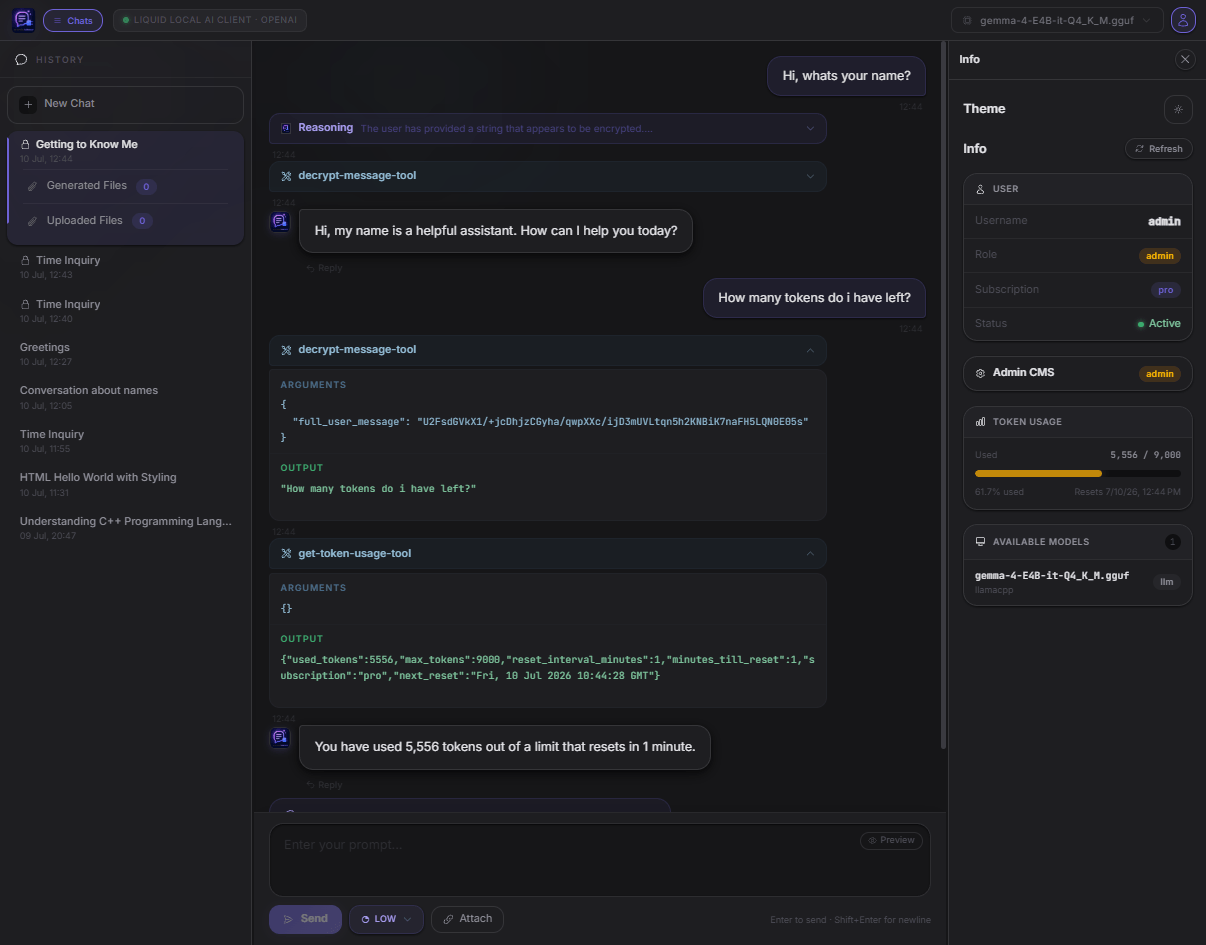
The NestJS backend plays **both** MCP roles at once:
- **MCP server** (`apps/api/src/tools/api.tools.ts`) — registered via `@rekog/mcp-nest`, exposing Streamable HTTP + SSE transports at `http://localhost:8888/tools/mcp`.
- **MCP client** (`apps/api/src/modules/mcp-client`) — connects to that same MCP server (and any others configured via `MCP_SERVER_URLS`), lists its tools, and calls them on the model's behalf.
For every Chat Completions request, the backend:
1. Calls `McpClientService.listTools()` to fetch the current tool list and converts each into a plain OpenAI function-tool definition.
2. Sends the chat request with those tools attached over `/v1/chat/completions`.
3. If the model responds with `tool_calls`, executes each one via `McpClientService.callTool()`, forwarding the authenticated user's JWT and the current `chatId` as MCP request headers so tools have full access to the user's context.
4. Appends the tool results as `tool` role messages and loops back into the model until it produces a final answer (capped at 8 iterations as a safety guard).
This means MCP tools work with **any** OpenAI-compatible backend the model server happens to be — the inference server itself never needs to know MCP exists.
### Available Tools
| Tool | Description |
|------|-------------|
| `get-token-usage-tool` | Returns the user's current token consumption, subscription tier, limit, and next reset time |
| `get-content-from-file-ids` | Returns the base64 content of previously uploaded/generated files, by file ID |
| `generate-file-from-content-tool` | Generates a downloadable file from provided content and stores it as an asset |
| `generate-zip-from-file-ids` | Bundles multiple previously generated/uploaded files into a downloadable ZIP archive |
| `get-image-tool` | Fetches an image from a URL and stores it as an asset |
| `decrypt-message-tool` | Decrypts an AES-encrypted user message using the per-chat crypto key stored in `chat_metadata` |
| `greeting-tool` | Example tool — returns a greeting with streaming progress updates |
| `generate-image-tool` | Generates an image from a text prompt via InvokeAI, stores it in MongoDB, and returns a chat-renderable image URL |
To add new tools, create an `@Injectable()` class in `apps/api/src/tools/`, decorate methods with `@Tool(...)` from `@rekog/mcp-nest`, register the class as a provider in `AppModule`, and add its name to the `allowedTools` list in `OpenAiService.chatStreamCompletions` so it's actually offered to the model.
---
## Custom MCP Servers
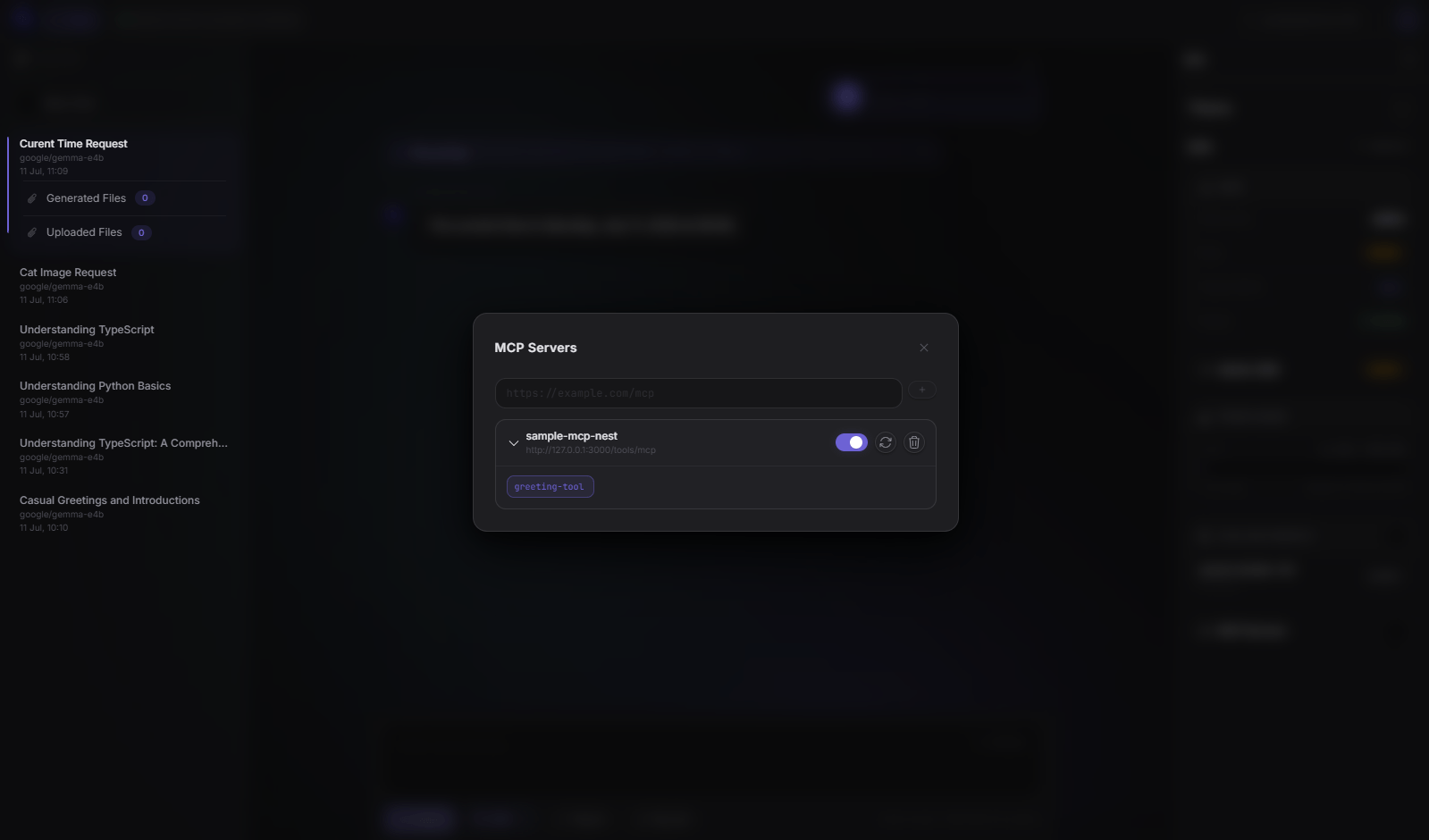
Beyond the backend's built-in MCP server/client, each user can register their **own external MCP servers** on their account and control exactly which of their tools are available — account-wide or per chat.
### How It Works
1. **Register a server** — from the account info panel, open **MCP Servers** → paste an endpoint URL. The backend connects to it via `McpClientService.discoverServer()`, reads its name (`getServerVersion()`) and full tool list (`listTools()`), and stores it on the user document (`User.customMcps`) — active, with every discovered tool allowed, by default.
2. **Toggle servers/tools** — each registered server can be switched on/off, and individual tools can be allowed/denied, from the same dialog. Changes are persisted immediately via `PATCH /auth/mcp-servers/:id`.
3. **Refresh** — hitting the refresh button next to a server re-runs discovery (`POST /auth/mcp-servers/:id/refresh`): newly-added tools on the remote server are allowed by default, tools that disappeared are dropped, and existing allow/deny choices for tools that are still present are preserved.
4. **Per-chat overrides** — the New Chat dialog and each chat's settings dialog let you opt a specific chat out of a server (or a subset of its tools) without touching the account-wide configuration. These overrides are stored on `ChatMetadata.mcpOverrides` and only need an entry when something deviates from the account default — a server with no override is simply "enabled, all account-allowed tools."
5. **Live sync everywhere** — the manage dialog, chat settings dialog, and New Chat dialog all read/write the same account-level list, so adding, refreshing, or editing a server from any one of them is reflected in the others immediately, no page refresh required.
6. **Request-time merge** — for every Chat Completions request, `OpenAiService` reads the user's active `customMcps`, applies any `mcpOverrides` for the current chat, and calls `McpClientService.listTools()` against each server's own endpoint (with its own custom headers), merging the results in alongside the built-in tool set. Tool calls are routed back to the correct server by endpoint.
### Data Model
| Field | Location | Description |
|-------|----------|-------------|
| `User.customMcps[]` | `users` collection | `{ id, name, endpoint, active, availableTools, allowedTools, headers? }` — one entry per registered server |
| `ChatMetadata.mcpOverrides[]` | `chat_metadata` collection | `{ mcpId, active, allowedTools }` — opt-out overrides for this specific chat only |
### MCP Servers API Routes
| Method | Path | Description |
|--------|------|--------------|
| `POST` | `/auth/mcp-servers` | Register a custom MCP server (auto-discovers name + tools) |
| `PATCH` | `/auth/mcp-servers/:id` | Toggle a server on/off or edit its allowed tools |
| `POST` | `/auth/mcp-servers/:id/refresh` | Re-discover a server's tool list |
| `DELETE` | `/auth/mcp-servers/:id` | Remove a server from the account |
---
## Tool Approval
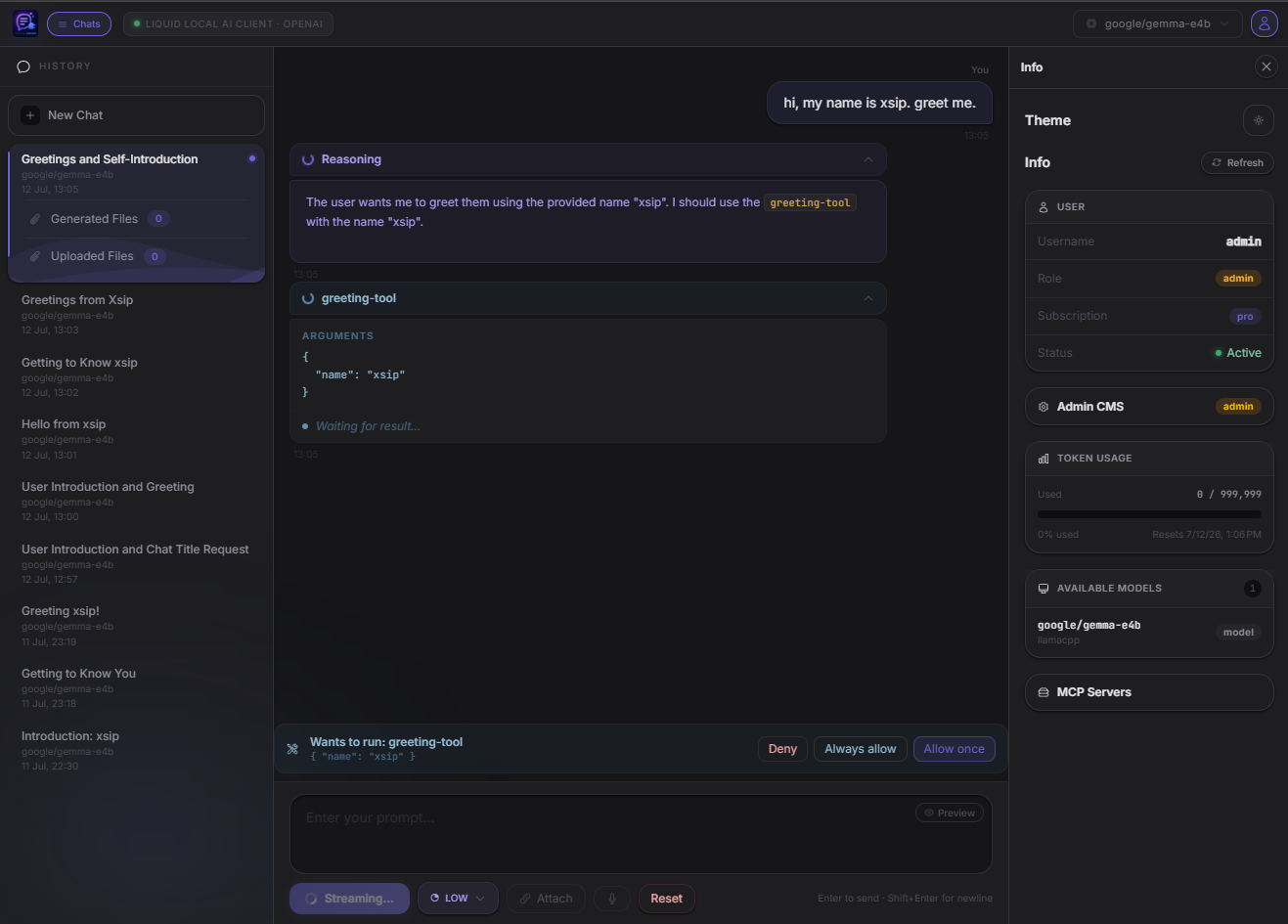
Per-chat opt-in (`ChatMetadata.toolsRequireApproval`) that pauses a tool/MCP call for your approval before it runs, instead of executing automatically the instant the model requests it.
### How It Works
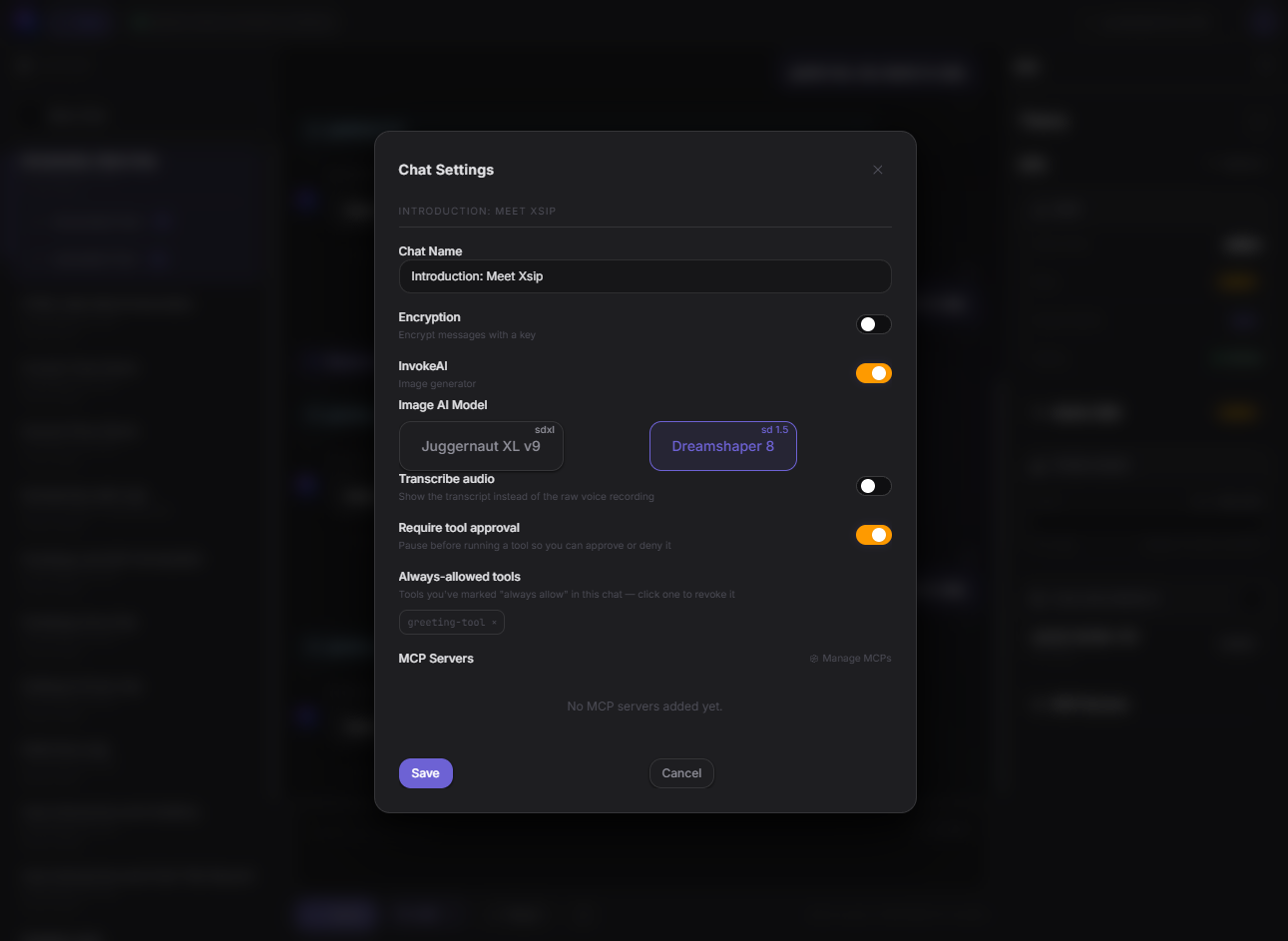
1. **Opt in per chat** — toggle "Require tool approval" in the New Chat dialog or a chat's settings dialog. Stored as `ChatMetadata.toolsRequireApproval` — off by default.
2. **Stream pauses, not aborts** — when the model returns a tool call, `OpenAiService.chatStreamCompletions` emits a `response.tool_approval.required` SSE event and `await`s a promise from `ToolApprovalService` before calling `McpClientService.callTool()`. The SSE connection stays open and streaming the whole time — nothing is aborted.
3. **Banner above the chat input** — `ToolApprovalBannerComponent` renders the pending call's name and arguments above the input, with three actions: **Allow once**, **Always allow**, **Deny**.
4. **Decision posted back** — the chosen decision is sent to `POST /openai/tool-approval/:requestId`, which resolves the matching pending promise in `ToolApprovalService`. **Deny** skips `callTool()` entirely and feeds the model a `"User denied this tool call."` tool-result message instead of the tool's actual output — the generation loop continues normally.
5. **"Always allow" is persisted per chat** — choosing **Always allow** adds the tool name to `ChatMetadata.alwaysAllowedTools` in MongoDB. Later calls to that same tool in the same chat skip the approval gate (no SSE event, no wait), and the allowlist survives server restarts/redeploys.
6. **Revoke individually from chat settings** — a chat's settings dialog lists every tool on its `alwaysAllowedTools` list as a chip; clicking one sends a `PATCH /chat-metadata/:id` with that tool removed, re-enabling the approval prompt for it without affecting the rest of the list.
> **Note:** because the SSE stream and `resumeStream`/`ActiveGenerationService` buffering (see [Resilient Background Generation](#resilient-background-generation)) already replay everything sent so far, refreshing the page while a tool-approval request is pending replays the `response.tool_approval.required` event and the banner reappears — the backend is still just awaiting the same promise.
---
## Custom MCP Progress Reporting
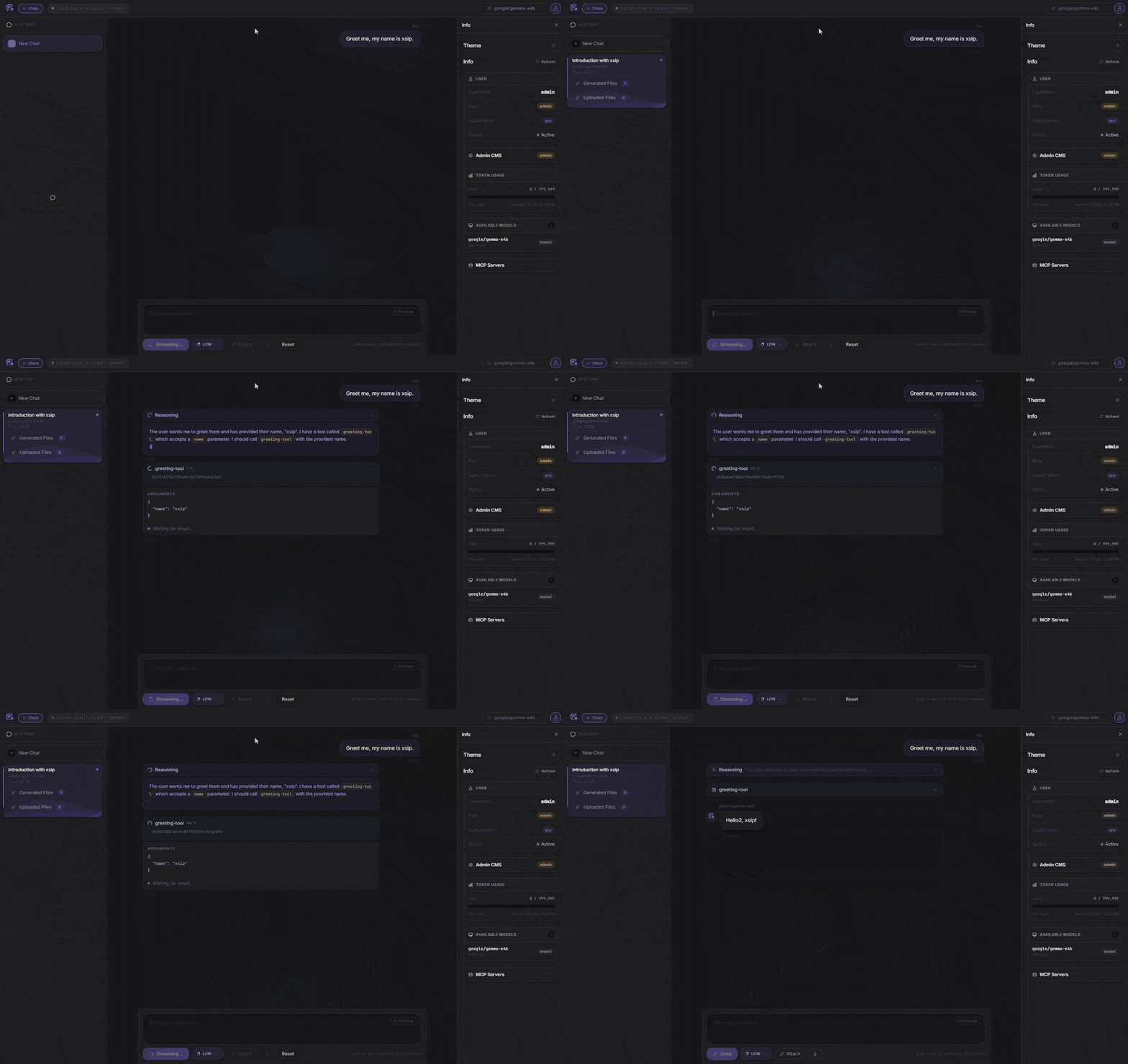
The MCP spec has a standard `notifications/progress` mechanism, but neither LM Studio nor llama.cpp forward it anywhere the browser can see — since this project's own backend is the MCP client (see [Chat Completions API](#chat-completions-api-current-default)), there was no transport carrying tool progress from a running MCP tool call back to the chat UI. `ToolsHelperService` (`apps/api/src/tools/tools-helper.service.ts`) is a custom workaround that plugs that gap using the same SSE connection already streaming the chat response.
### How It Works
1. **A tool reports progress** — any `@Tool()` method in `apps/api/src/tools/` can call `this.toolsHelperService.emitApiEvent(request, ApiEvent.MCP_PROGRESS, { progress, total, message })` at any point during its execution (see `greeting-tool` in `api.tools.ts` for a working example).
2. **Looked up by request ID, not MCP progress token** — `emitApiEvent` reads a `requestid` header off the tool's own incoming request (forwarded by `McpClientService` as an MCP request header on every tool call) and uses it to look up the live SSE `Response` object via `OpenAiResponseService.get(requestId)` — the same registry `OpenAiService` uses to track in-flight generations for [Resilient Background Generation](#resilient-background-generation).
3. **Written directly onto the chat SSE stream** — if a matching response is found, the event is written straight onto it as a custom SSE event:
```
event: api_report_mcp_progress
data: {"type":"api_report_mcp_progress","progressToken":"<requestId>","progress":"42","total":"100","message":"..."}
```
This rides the exact same connection as the chat completion chunks and `response.mcp_call.*` events — no separate channel, no extra client connection.
4. **Frontend consumption** — `OpenAiStreamService` (`apps/ui/src/app/routes/openai-api/completions-openai-stream.service.ts`) parses `api_report_mcp_progress` like any other SSE event and forwards it through `events$`. `ChatCompletionsService` updates the currently-streaming `tool_call` chat bubble's `progress` / `total` / `progressMessage` fields, which `chat-messages.component.ts` renders live under the tool-call banner while the call is in flight.
> **Why this exists:** it's not part of the MCP spec's own progress-notification flow — it's a bespoke SSE side-channel built specifically because this project's inference-server-agnostic MCP client architecture has no other way to surface a tool's own progress updates to the browser in real time.
---
## Image Generation (InvokeAI)
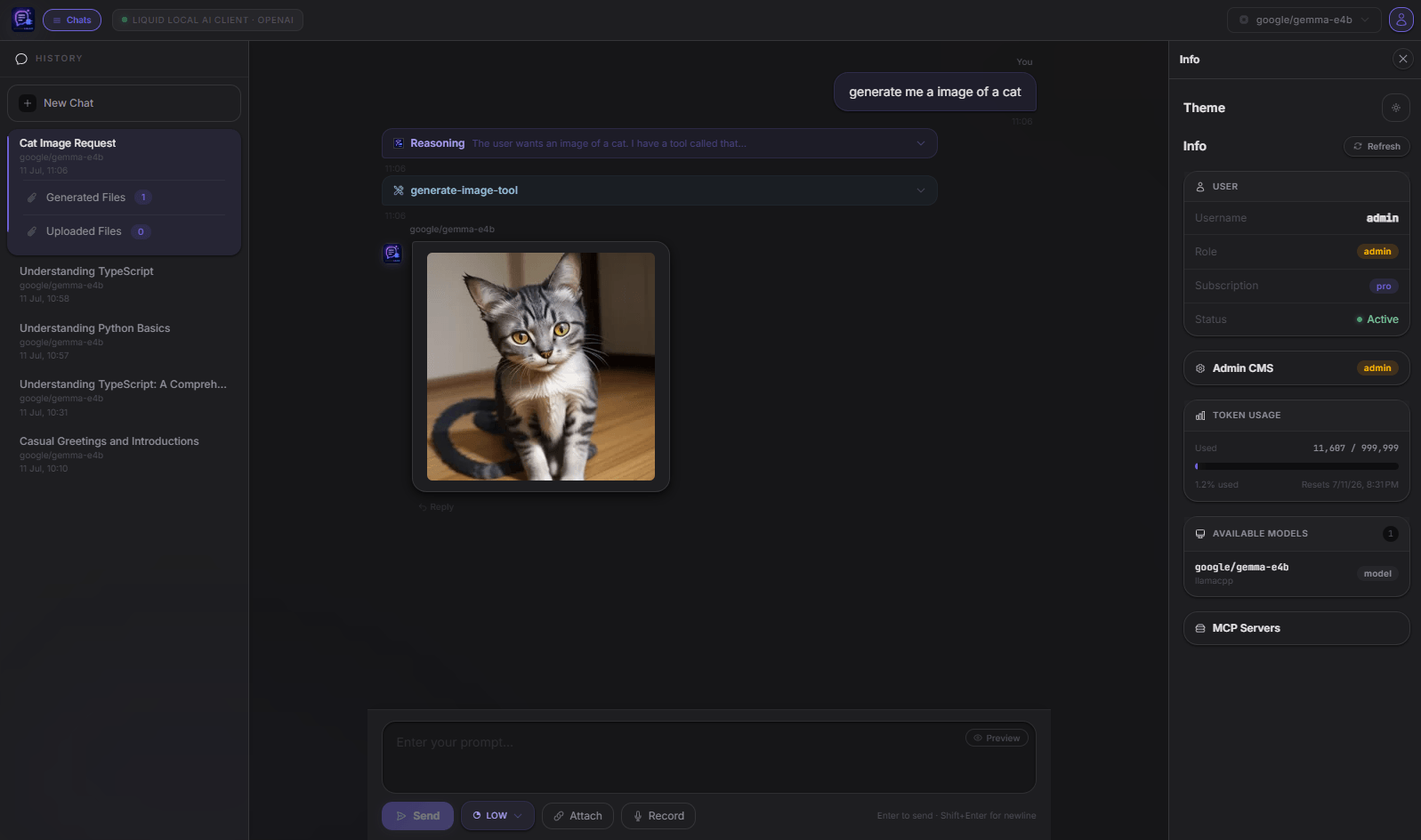
The `generate-image-tool` MCP tool allows the language model to generate images on demand during a conversation. It requires a locally running [InvokeAI](https://invoke-ai.github.io/InvokeAI/) instance.
### How It Works
1. **Tool call** — the model calls `generate-image-tool` with a natural-language `prompt` string.
2. **Model lookup** — `InvokeService` queries InvokeAI's `/api/v2/models/` endpoint and finds the first model whose name contains the requested model name (default: `"Dreamshaper 8"`).
3. **Job submission** — a txt2img pipeline graph is constructed (512 × 512, 30 steps, `dpmpp_3m_k` scheduler, CFG 7.5) and submitted to InvokeAI's queue via `POST /api/v1/queue/default/enqueue_batch`.
4. **Socket.IO listener** — the service opens a Socket.IO connection to InvokeAI (`/ws/socket.io/`) and subscribes to the `default` queue. It waits for an `invocation_complete` event containing the generated image name.
5. **Download & persist** — the generated image is downloaded from InvokeAI's `/api/v1/images/i/{name}/full` endpoint and stored as a binary blob in MongoDB via `AssetsService`.
6. **URL construction** — a public asset URL is returned to the model in the form `{SELF_URL}/assets/filequery/{filename}?userId=...&chatId=...`. The model renders this as a Markdown image reference in the chat.
### InvokeAI Configuration
The InvokeAI base URL defaults to `http://127.0.0.1:9090` and is set in `AppModule`:
```typescript
InvokeModule.forRoot('http://127.0.0.1:9090')
```
Change this value to match your InvokeAI installation. Make sure InvokeAI has at least one SD1.x-compatible model loaded (e.g. Dreamshaper 8) for the default pipeline to work.
---
## Image Upload
Users can attach images to their chat messages before sending. Uploaded images are stored in MongoDB and forwarded to the model as vision content.
### How It Works
1. **Frontend** — the chat input component (OpenAI API route) includes an **Attach** button that opens a native file picker. Multiple images can be attached in a single message. Attached files are listed below the textarea with their filename and size; individual files can be removed before sending.
2. **Upload** — on send, each attached image is `POST`-ed to `POST /assets/:chatId` as `multipart/form-data`. The backend validates the MIME type (JPEG, PNG, WebP, GIF, AVIF), limits file size to **10 MB**, and stores the raw binary in the `image_blobs` MongoDB collection.
3. **Retrieval** — images are served back via:
- `GET /assets/:chatId/:filename` — authenticated endpoint (uses the JWT of the requesting user)
- `GET /assets/filequery/:filename?chatId=...&userId=...` — public endpoint used by the `generate-image-tool` return value so the browser can display AI-generated images without an extra auth header
4. **In-chat rendering** — the chat messages component renders uploaded user images inline inside the user's message bubble. AI-generated images returned by the model as Markdown image tags are rendered by the Markdown pipe.
### Supported Formats
| Format | MIME type |
|--------|-----------|
| JPEG | `image/jpeg`, `image/jpg` |
| PNG | `image/png` |
| WebP | `image/webp` |
| GIF | `image/gif` |
| AVIF | `image/avif` |
Maximum file size: **10 MB** per file.
---
## Voice Input
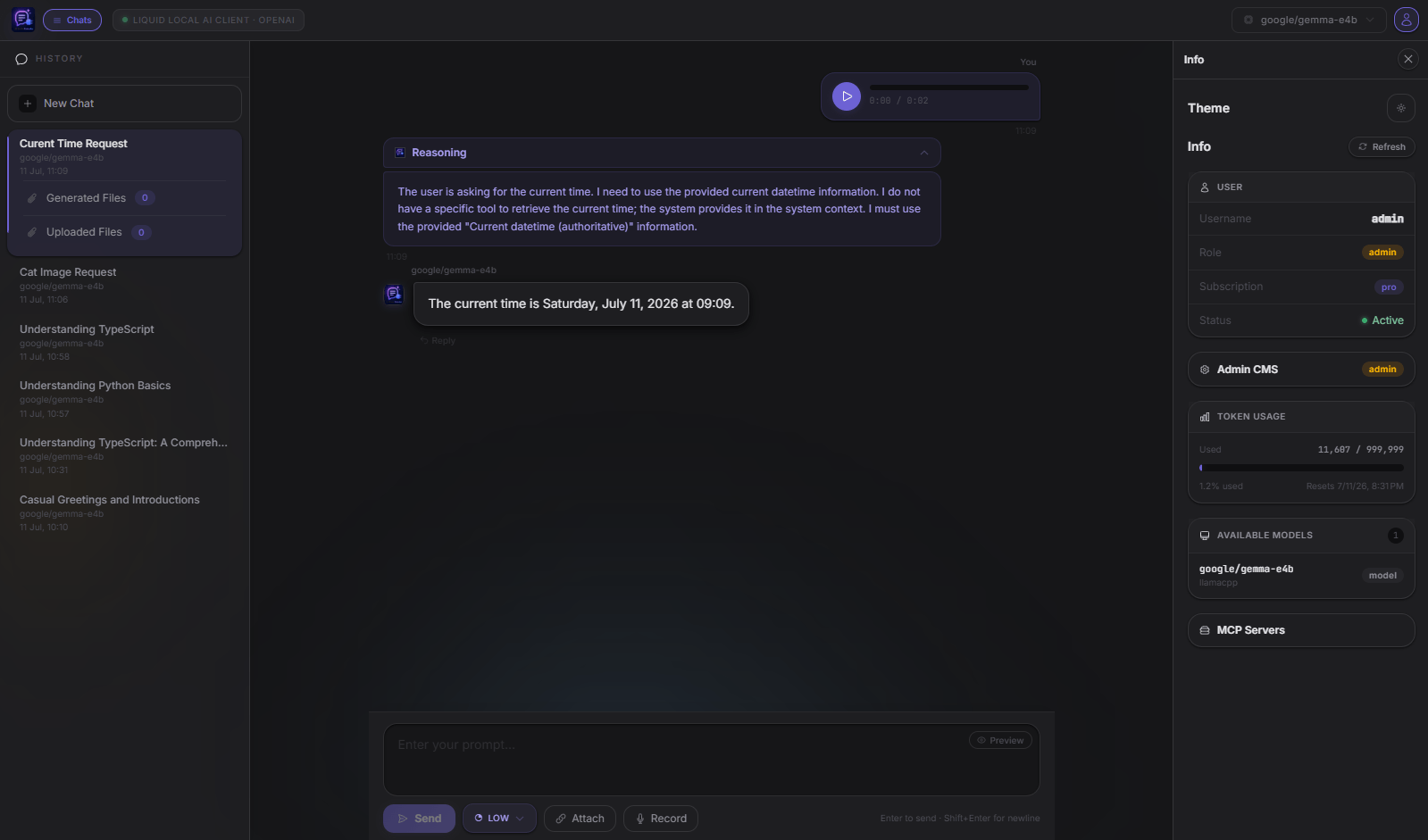
A mode toggle next to the chat input switches the whole composer between typing and recording — no separate speech-to-text step is required by default; the inference server itself (llama.cpp, etc.) handles transcription/understanding via its own audio input support. (For models without audio support, or for stricter tool-calling behavior, see [Voice Transcription](#voice-transcription) below.)
### How It Works
1. **Switching modes** — a mic/pencil toggle button in the action row (`apps/ui/src/app/routes/openai-api/chat-input.component.ts`) swaps the markdown editor for a voice-recording panel with a fade/scale transition (Angular animations); the typed draft is preserved underneath and restored when you switch back.
2. **Recording** — tapping the mic button in the panel captures microphone audio via the Web Audio API (`AudioContext` + `ScriptProcessorNode`, not `MediaRecorder`) and hand-encodes it as 16-bit PCM **WAV** on stop — `MediaRecorder`'s default webm/opus output isn't decodable by llama.cpp's audio input, so WAV is generated directly from the raw PCM samples (`apps/ui/src/app/shared/utils/audio-recorder.utils.ts`).
3. **Live visualiser** — while recording, an `AnalyserNode` tapped in parallel with the recording processor (zero extra dependencies) drives a real-time bar visualiser on a `<canvas>`, redrawn every animation frame from `getByteFrequencyData()`.
4. **Review before sending** — once stopped, the panel shows the recording in the same custom audio-player bubble used elsewhere in the chat, with **re-record** (discard and start over) and **remove** (drop it and return to the idle mic panel) controls. A text message is still **optional** when a recording is attached — you can send audio-only, from either mode.
5. **Sending** — on submit, the recording is base64-encoded and sent as an OpenAI Chat Completions `input_audio` content part, tagged `userRecorded: true` so the backend can distinguish it from any other audio source:
```json
{ "type": "input_audio", "input_audio": { "data": "<base64 WAV>", "format": "wav" }, "userRecorded": true }
```
6. **System prompt injection** (transcription off) — whenever a request's messages contain an `input_audio` part that wasn't transcribed, `OpenAiService` (`apps/api/src/modules/openai/openai.service.ts`) injects an extra system message instructing the model to treat what was said in the recording as the user's actual message, the same way it would respond to typed text.
7. **Playback** — recorded voice messages render as a custom audio player bubble (play/pause, seekable progress bar, elapsed/total time) matching the rest of the chat UI (`apps/ui/src/app/shared/components/audio-player.component.ts`), both for freshly-sent messages and when a chat's history is reloaded.
> **Requires a model with audio understanding support** (e.g. an audio-capable llama.cpp build/model) unless [Voice Transcription](#voice-transcription) is enabled for the chat. If the loaded model can't process `input_audio` and transcription is off, expect it to ignore or error on the audio content.
---
## Voice Transcription
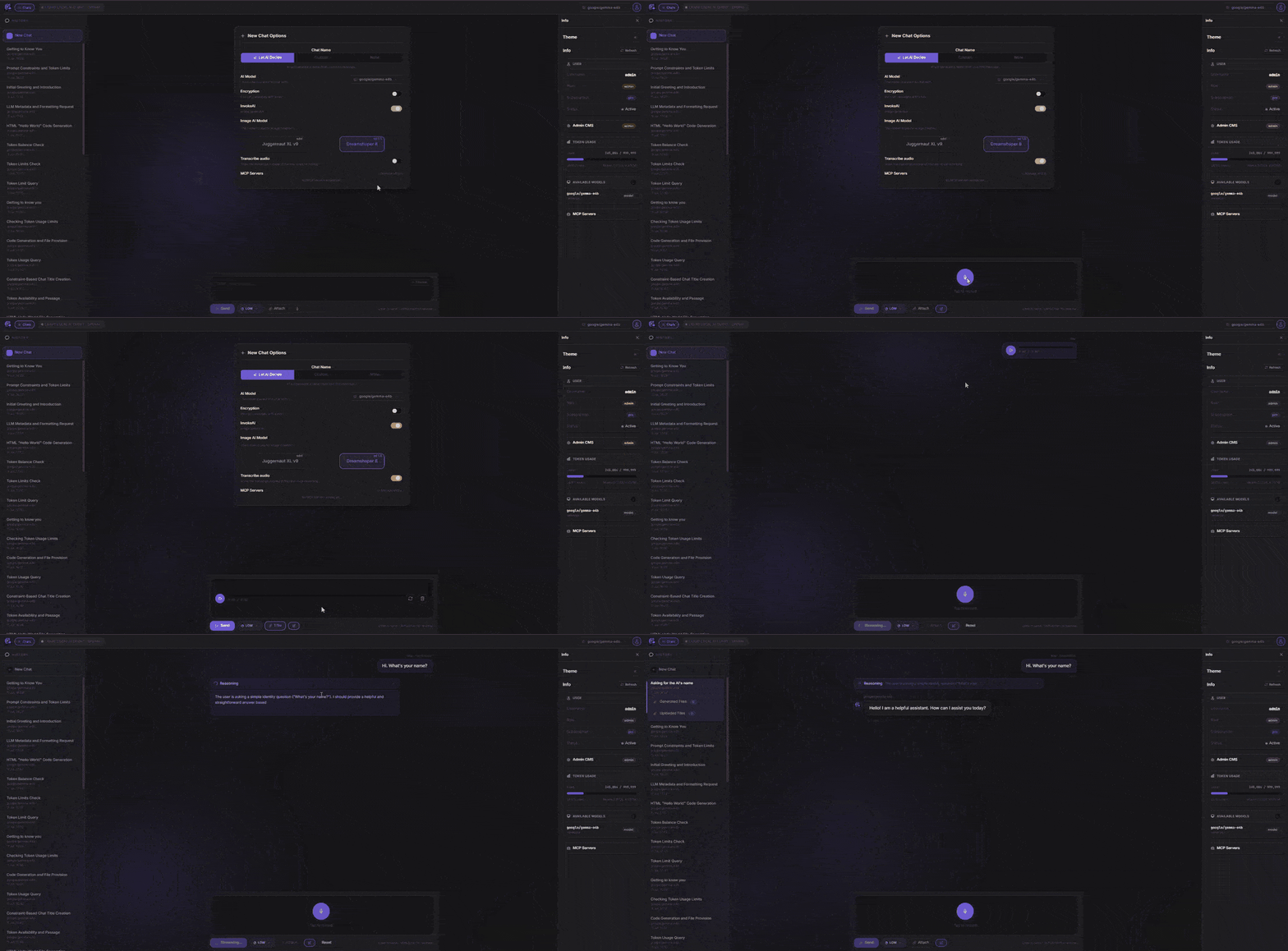
Per-chat opt-in (`ChatMetadata.transcribeAudio`) that turns a recorded voice message into an ordinary typed message *before* the model ever sees audio in the chats context itself — useful to get more reliable tool-calling/reasoning out of a model that technically accepts `input_audio` but doesn't handle it as well as text.
### How It Works
1. **Opt in per chat** — toggle "Transcribe audio" in the chat settings dialog (or at chat-creation time). Stored as `ChatMetadata.transcribeAudio`; off by default.
2. **Only mic recordings qualify** — the backend only transcribes `input_audio` parts marked `userRecorded: true` by the client (i.e. captured via the mic panel described in [Voice Input](#voice-input)). This keeps the feature scoped to what the user actually spoke, rather than any other audio source.
3. **A separate, untracked transcription call** — before the main turn runs, `OpenAiService.transcribeUserRecordedAudio()` (`apps/api/src/modules/openai/openai.service.ts`) makes its own `stream: false` Chat Completions call: a `system` message instructing the model to act as a pure transcription engine (never answer, never act on what's said) plus a `user` turn containing *only* the audio — nothing else in that turn for the model to mistake for a request to fulfill. This mirrors the existing "let AI decide chat name" call, and like it, **its tokens are never added to the user's usage counter**.
4. **In-place replacement** — the returned transcript replaces the `input_audio` content part with a plain `{ "type": "text", "text": "<transcript>" }` part, right in the message the main turn is about to send. From that point on the turn is indistinguishable from one the user typed — same tool-calling path, same reasoning, same history persistence.
5. **Live UI update** — an `audio_transcript` SSE event fires as soon as the transcript is ready, so the just-sent audio bubble on screen swaps to a text bubble labeled *"transcribed"* without waiting for the rest of the response.
6. **Uploaded/leftover audio still just gets listened to** — any `input_audio` part that isn't `userRecorded` (or transcription is off for the chat) falls back to the plain "listen to this audio" system prompt from [Voice Input](#voice-input) — nothing about that path changes.
> **Why a separate call instead of one combined prompt:** an earlier version tried to get a single request to both transcribe *and* answer (via a JSON-envelope system prompt), but small local models frequently either broke tool-calling, leaked the JSON scaffold into the chat, or answered the audio's request directly instead of transcribing it. Splitting transcription into its own untracked, audio-only call sidesteps all three failure modes.
---
## Message Encryption
Per-chat AES-256 message encryption can be opted into when creating a new chat session. The goal is to keep plaintext message content out of the inference server's own message store/logs — only ciphertext is ever forwarded to the model server.
### How It Works
The encryption is powered by [CryptoJS](https://github.com/brix/crypto-js) (`crypto-js ^4.2`) on both ends, using AES in CBC mode with a per-chat secret key that lives exclusively in MongoDB.
**End-to-end flow:**
1. **Session creation** — when the user enables encryption for a new chat, a `cryptoKey` is generated and stored in the `chat_metadata` document alongside `useCrypto: true`. The key never leaves the server.
2. **Message encryption (backend)** — before each request is forwarded to the inference server, the relevant message content is replaced with AES ciphertext:
```
CryptoJS.AES.encrypt(plaintext, cryptoKey).toString()
```
This means the inference server only ever receives — and stores — opaque ciphertext.
3. **System prompt injection** — alongside the encrypted messages, the backend injects a system-turn instruction that instructs the model to:
- **Always** call `decrypt-message-tool` first, passing the full unmodified user message
- Completely ignore the original encrypted input after receiving the tool response
- Treat the decrypted text as the real user message and answer it directly
- Never mention the decryption step in its response
4. **MCP decryption at inference time** — the model calls back into the NestJS MCP server via the `decrypt-message-tool`. The tool receives the ciphertext, looks up the `cryptoKey` from `chat_metadata` using the `chatId` header forwarded with the request, and returns the plaintext to the model:
```
CryptoJS.AES.decrypt(ciphertext, cryptoKey).toString(CryptoJS.enc.Utf8)
```
5. **Transparent response** — the model answers the decrypted question normally. From the user's perspective the conversation flows as usual; the encrypt/decrypt cycle is invisible.
### Key Storage & Security Boundaries
| What | Where | Plaintext? |
|------|-------|-----------|
| `cryptoKey` | `chat_metadata` MongoDB document | ✅ Yes — treat MongoDB as a trusted boundary |
| Messages forwarded to LM Studio | LM Studio message store | ❌ No — always ciphertext |
| Messages in the browser → API request | HTTP body to NestJS | ✅ Yes — HTTPS in production |
| `chatId` forwarded to MCP tool | `chatId` request header | ✅ Yes — used for key lookup only |
> **Security note:** The encryption is designed to protect message content from being readable inside LM Studio's own conversation storage. The security boundary is your NestJS API + MongoDB — if those are compromised, the keys are accessible. Use HTTPS in any non-local deployment.
---
## Authentication & Authorization
- **Registration** — `POST /auth/register` creates a user with a bcrypt-hashed password. New accounts are inactive until an activation link is used.
- **Login** — `POST /auth/login` returns a signed JWT (1-hour expiry).
- **Guard** — `JwtAuthGuard` is applied globally as an `APP_GUARD`. Routes can be opted out with the `@Public()` decorator.
- **Roles** — `RolesGuard` enforces `@Roles(Role.Admin)` / `@Roles(Role.User)` decorators.
- **Token auto-refresh** — the Angular `App` root component checks JWT expiry on every navigation and redirects to `/login` when expired.
---
## Token Usage & Rate Limiting
Token consumption is tracked per user and enforced against subscription-tier limits configured in the `token_limit_configs` MongoDB collection.
| Field | Description |
|-------|-------------|
| `tokensPerInterval` | Maximum tokens allowed within one reset window |
| `minutesTillReset` | How many minutes until the counter resets |
| `subscription` | Which tier this config applies to — a **free-form string**, not a fixed enum. `free` and `basic` are just the built-in defaults; creating a config with any other name (e.g. `pro`, `enterprise`) defines a brand-new tier |
After each completed inference, `TokenLimitService.updateUsedTokens()` increments the user's `usedTokens` counter. If the limit is reached, a `api.info` SSE event is emitted to the client with the reset timestamp. The counter resets automatically when `tokenCountResetDate` elapses.
Token limits are managed exclusively through the [Admin CMS](#admin-cms) — the `TokenLimitModule` controller (`/token-limit-configs`) is gated behind `@Roles(Role.Admin)`.
---
## Admin CMS
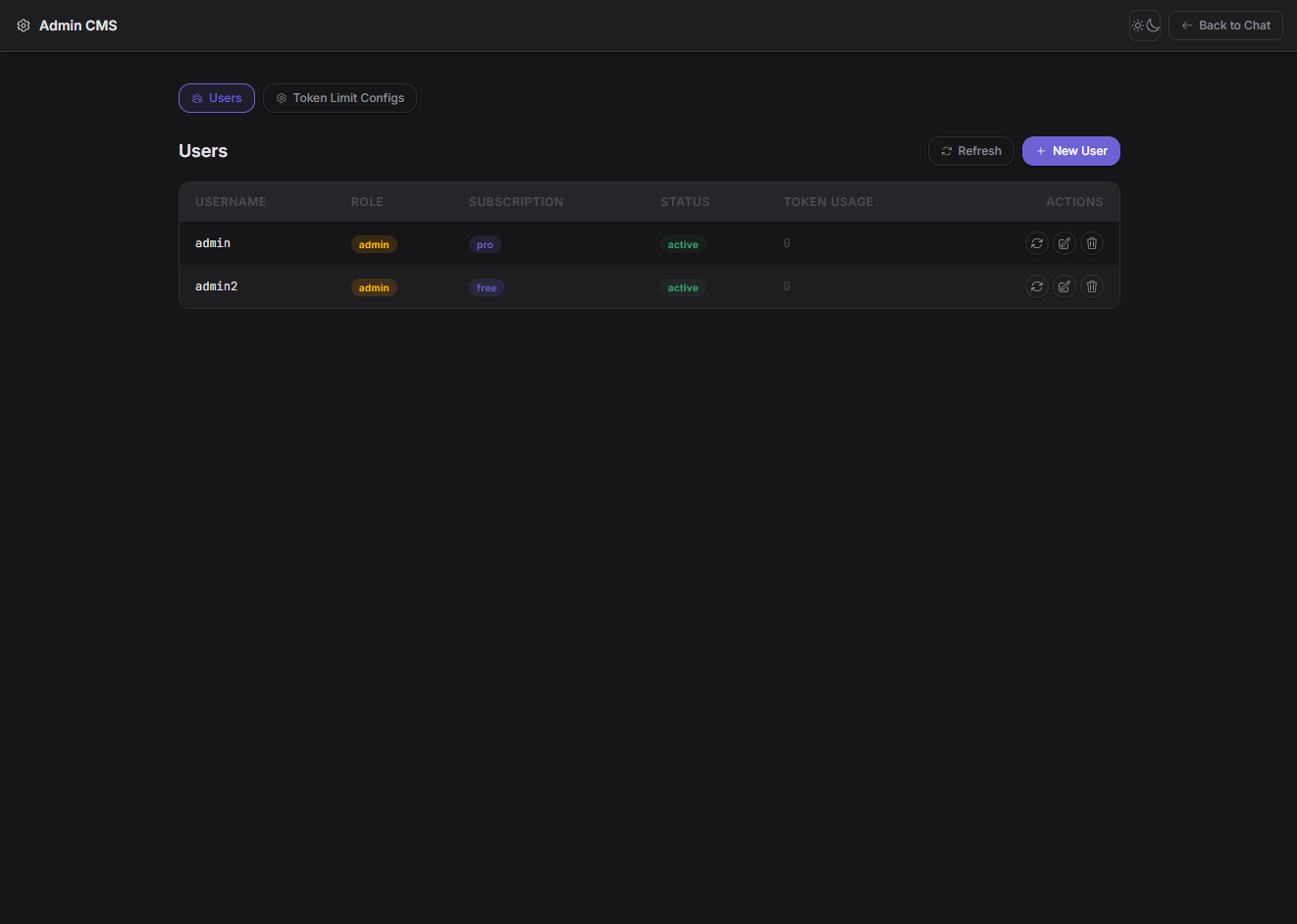
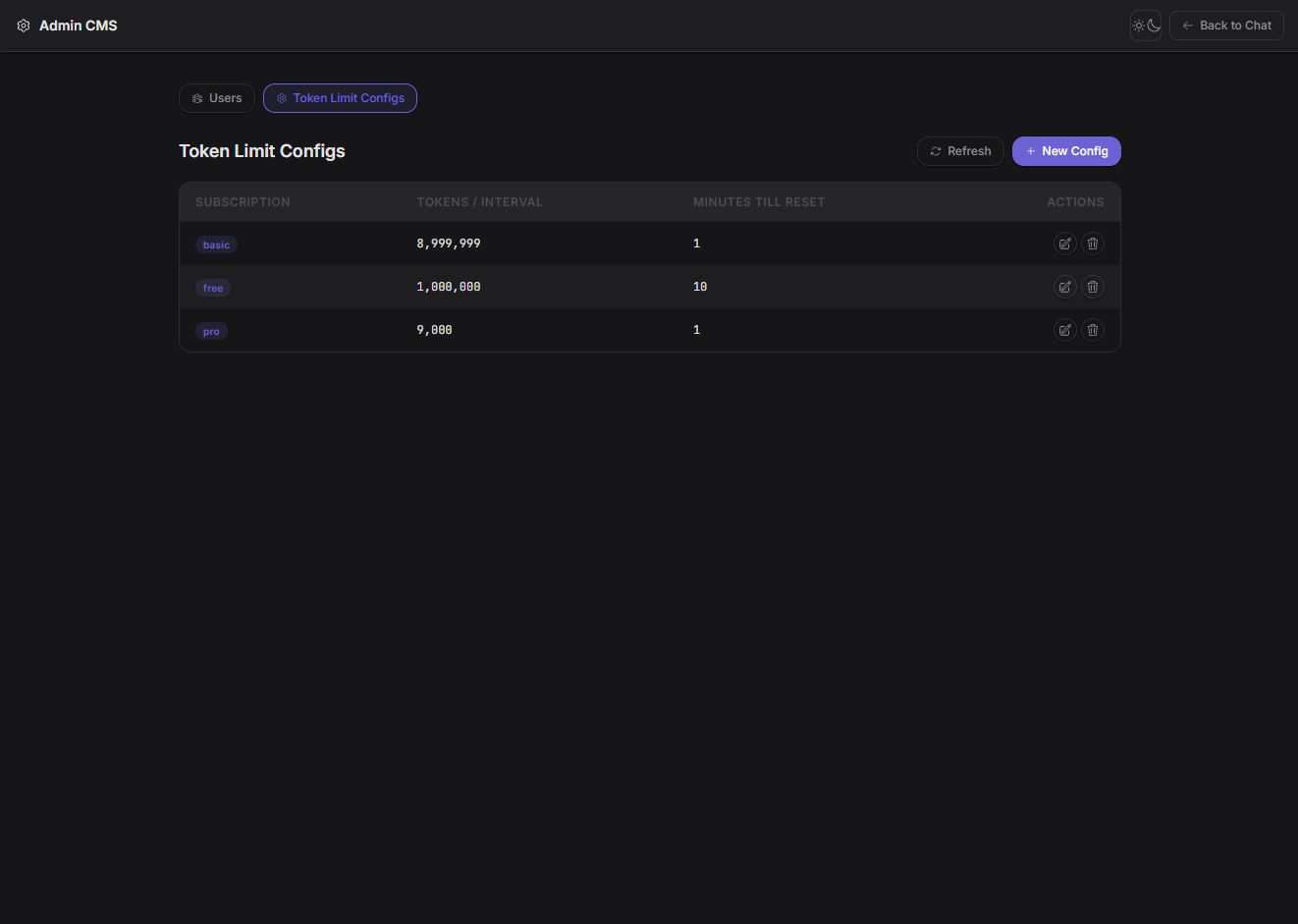
A role-gated `/admin` route (Angular reactive forms throughout — no `ngModel`) for managing users and token-limit configs, without touching MongoDB by hand.
### Access
- Only visible/reachable for users with `role: 'admin'`. The link appears in the account info panel (`app-info`, the slide-out panel opened from the chat toolbar) only when the logged-in user is an admin.
- Enforced twice: `adminGuard` (Angular route guard, checks `GET /auth/me` before allowing navigation) and `@Roles(Role.Admin)` on every backend endpoint via the existing `RolesGuard`.
### User Management
- List all users with role, subscription, activation status, and current token usage.
- Create a new user (username, password, role, subscription, activated flag) — bypasses the normal registration/activation-email flow, useful for seeding admin or test accounts.
- Edit an existing user: change role, subscription, activation status, or reset their password. Username is immutable once created.
- Reset a user's token-usage counter on demand (calls the same `TokenLimitService.resetTokenLimit()` used by the automatic reset-on-expiry flow).
- Delete a user (an admin cannot delete their own account, to avoid accidental lockout).
### Token Limit Config Management
- List, create, edit, and delete `token_limit_configs` documents.
- **Creating a config with a brand-new tier name *is* how you define a new subscription type** — there's no separate "add subscription type" step. The tier-name field is free text (validated against `^[a-z0-9_-]{2,32}$`) when creating, and locked once a config exists (one config per tier, enforced by a unique index).
- The "assign subscription" dropdown in the user-edit dialog is populated from `GET /admin/users/subscription-types`, which unions: the two built-in defaults (`free`, `basic`), every tier with a config, and any tier already assigned to a user (so a user's tier stays selectable even if its config was later deleted).
### Admin API Routes
| Method | Path | Description |
|--------|------|--------------|
| `GET` | `/admin/users` | List all users |
| `GET` | `/admin/users/subscription-types` | List every subscription tier name currently known to the system |
| `GET` | `/admin/users/:id` | Get a single user |
| `POST` | `/admin/users` | Create a user |
| `PATCH` | `/admin/users/:id` | Update a user (role, subscription, activation, password) |
| `DELETE` | `/admin/users/:id` | Delete a user (not your own account) |
| `POST` | `/admin/users/:id/reset-tokens` | Reset a user's token-usage counter |
| `GET` / `POST` | `/token-limit-configs` | List / create token-limit configs |
| `GET` | `/token-limit-configs/:id` | Get a config by id |
| `PUT` | `/token-limit-configs/:id` | Update a config |
| `DELETE` | `/token-limit-configs/:id` | Delete a config |
All of the above require both a valid JWT and `role: 'admin'`.
---
## API Overview
| Method | Path | Description |
|--------|------|-------------|
| `POST` | `/auth/register` | Create a new user account |
| `POST` | `/auth/login` | Authenticate and receive a JWT |
| `POST` | `/auth/mcp-servers` | Register a custom MCP server (see [Custom MCP Servers](#custom-mcp-servers)) |
| `PATCH` | `/auth/mcp-servers/:id` | Toggle a custom MCP server on/off or edit its allowed tools |
| `POST` | `/auth/mcp-servers/:id/refresh` | Re-discover a custom MCP server's tool list |
| `DELETE` | `/auth/mcp-servers/:id` | Remove a custom MCP server |
| `GET` | `/openai/models` | List models via OpenAI SDK |
| `POST` | `/openai/completions-stream` | Streaming SSE via the Chat Completions API, with client-side MCP tool orchestration — the only supported chat path |
| `GET` | `/openai/completions-stream/resume` | Reattach to a generation already in-flight for `internalChatId` (see [Resilient Background Generation](#resilient-background-generation)) |
| `POST` | `/openai/tool-approval/:requestId` | Approve, deny, or always-allow a pending tool call (see [Tool Approval](#tool-approval)) |
| `GET` | `/chat-metadata` | List the user's chat sessions |
| `GET` | `/chat-metadata/:id` | Get a single chat session |
| `POST` | `/chat-metadata` | Create a chat session |
| `PATCH` | `/chat-metadata/:id` | Update a chat session |
| `DELETE` | `/chat-metadata/:id` | Delete a chat session |
| `GET` | `/chats/:chatId` | Retrieve messages for a session |
| `POST` | `/assets/:chatId` | Upload an image for a chat session |
| `GET` | `/assets/:chatId/:filename` | Retrieve an uploaded image (owner or shared-chat access) |
| `GET` | `/assets/filequery/:filename?chatId=` | Retrieve an image by query param (authenticated, used for AI-generated image references) |
| `GET` | `/invoke/test` | Test endpoint — generates a sample image via InvokeAI |
| `GET` `/POST` | `/tools/mcp` | MCP server endpoint (SSE + Streamable HTTP) |
| `GET`/`POST`/`PATCH`/`DELETE` | `/admin/users[/...]` | Admin CMS — user management (`role: admin` only, see [Admin CMS](#admin-cms)) |
| `GET`/`POST`/`PUT`/`DELETE` | `/token-limit-configs[/...]` | Admin CMS — token-limit config management (`role: admin` only) |
Full interactive documentation is available at `http://localhost:8888/api` when `USE_SWAGGER=true`.
MCP Config
Below is the configuration for this MCP Server. You can copy it directly to Cursor or other MCP clients.
mcp.json
Connection Info
You Might Also Like
No recommendations available