

Content
<div align="center" id="trendradar">
> **📢 Announcement:** **v4.0.0** version has been released! Featuring major updates including storage architecture refactoring, database optimization, and modular improvements.
<a href="https://github.com/sansan0/TrendRadar" title="TrendRadar">
<img src="/_image/banner.webp" alt="TrendRadar Banner" width="80%">
</a>
🚀 The fastest <strong>30-second</strong> deployment of a hot spot assistant - goodbye to invalid brushing, only see the news information you really care about.
<a href="https://trendshift.io/repositories/14726" target="_blank"><img src="https://trendshift.io/api/badge/repositories/14726" alt="sansan0%2FTrendRadar | Trendshift" style="width: 250px; height: 55px;" width="250" height="55"/></a>
<a href="https://share.302.ai/mEOUzG" target="_blank" title="One-stop AI model and API platform"><img src="_image/302ai.png" alt="302.AI logo" height="50"/></a>
<a href="https://shandianshuo.cn" target="_blank" title="AI voice input, 4 times faster than typing ⚡"><img src="_image/shandianshuo.png" alt="闪电说 logo" height="51"/></a>
[](https://github.com/sansan0/TrendRadar/stargazers)
[](https://github.com/sansan0/TrendRadar/network/members)
[](LICENSE)
[](https://github.com/sansan0/TrendRadar)
[](https://github.com/sansan0/TrendRadar)
[](https://work.weixin.qq.com/)
[](https://weixin.qq.com/)
[](https://telegram.org/)
[](#)
[](https://www.feishu.cn/)
[](#)
[](https://github.com/binwiederhier/ntfy)
[](https://github.com/Finb/Bark)
[](https://slack.com/)
[](https://github.com/sansan0/TrendRadar)
[](https://sansan0.github.io/TrendRadar)
[](https://hub.docker.com/r/wantcat/trendradar)
[](https://modelcontextprotocol.io/)
</div>
<div align="center">
**English** | **[English](README-EN.md)**
</div>
> This project aims to be lightweight and easy to deploy.
<br>
<details>
<summary>🚨 <strong>【Must Read】Important Announcement: v4.0.0 Deployment and Storage Architecture Changes</strong></summary>
<br>
### 🛠️ Choose Your Deployment Method
#### 🅰️ Option 1: Docker Deployment (Recommended 🔥)
* **Features**: Most stable, simplest, data stored in **local SQLite**, fully controllable.
* **Applicable**: For those with their own server, NAS, or long-running computer.
* 👉 [Jump to Docker Deployment Tutorial](#6-docker-部署)
---
#### 🅱️ Option 2: GitHub Actions Deployment (Recovered ✅)
* **Features**: Data no longer directly written to the repository (Git Commit), but stored in **remote cloud storage** (supporting S3 compatible protocol: Cloudflare R2, Aliyun OSS, Tencent Cloud COS, etc.).
* **Requirements**: **Must** configure an S3 compatible object storage service (recommended free Cloudflare R2).
> **⚠️ Note**: When choosing this option, please make sure to complete the following two configuration steps:
#### 1. 🚀 Recommended Start Method: Use this template
To keep the repository clean and avoid redundant history records, I **recommend** using the Template mode:
1. **Click** the green **[Use this template]** button on the original repository page.
2. **Select** "Create a new repository".
> **💡 Why do it this way?**
> * **Use this template**: Create a brand new, clean repository without historical baggage.
> * **Fork**: Keep the complete commit history and association, occupying more GitHub resources.
#### 2. ☁️ About Remote Storage Required for GitHub Actions
If you choose **Option 2 (GitHub Actions)**, you must configure an S3 compatible object storage service.
**Supported Storage Services:**
- **Cloudflare R2** (recommended, sufficient free quota)
- Other S3 compatible services
**⚠️ Configuration Prerequisites for Cloudflare R2:**
According to Cloudflare platform rules, opening R2 requires binding a payment method.
* **Purpose**: Only for verification (Verify Only), **no charge incurred**.
* **Payment**: Supports dual-currency credit cards or PayPal in China.
* **Usage**: R2's free quota (10GB storage/month) is sufficient to cover the daily operation of this project, no need to worry about payment.
👉 **[Click to View Detailed Configuration Tutorial](#-快速开始)**
</details>
<br>
## 📑 Quick Navigation
<div align="center">
| [🚀 Quick Start](#-快速开始) | [🤖 AI Intelligent Analysis](#-ai-智能分析) | [⚙️ Configuration Details](#配置详解) | [📝 Update Log](#-更新日志) | [❓ Q\&A and Discussion](#问题答疑与交流) |
|:---:|:---:|:---:|:---:|:---:|
| [🐳 Docker Deployment](#6-docker-部署) | [🔌 MCP Client](#-mcp-客户端) | [📚 Project Related](#-项目相关) | [🪄 Sponsors](#-赞助商) | |
</div>
- Thanks to contributors who **patiently report bugs**, every piece of feedback makes the project more perfect 😉;
- Thanks to viewers who **star** the project, **fork** as you wish, **star** as I wish, and both are the best support for open-source spirit 😍;
- Thanks to readers who **follow the public account** , your messages, likes, shares, and recommendations make the content more engaging 😎.
<details>
<summary>👉 Click to expand: <strong>Acknowledgement List</strong> (current <strong>🔥73🔥</strong> people)</summary>
### Infrastructure Support
Thanks to **GitHub** for providing free infrastructure, which is the biggest prerequisite for this project to **one-click fork** and run conveniently.
### Data Support
This project uses the API of [newsnow](https://github.com/ourongxing/newsnow) to obtain multi-platform data, and special thanks to the author for providing the service.
After contact, the author indicates that there is no need to worry about server pressure, but this is based on his goodwill and trust. Please:
- **Go to [newsnow project](https://github.com/ourongxing/newsnow) and star to support**
- When deploying with Docker, please reasonably control the push frequency and do not overfish.
### Promotion and Help
> Thanks to the following platforms and individuals for their recommendations (in chronological order)
- [Small Software](https://mp.weixin.qq.com/s/fvutkJ_NPUelSW9OGK39aA) - Open-source software recommendation platform
- [LinuxDo Community](https://linux.do/) - A gathering place for tech enthusiasts
- [Ruan Yifeng's Weekly](https://github.com/ruanyf/weekly) - A weekly with influence in the tech circle
</details>
### Audience Support
> Thanks to **those who have financially supported** the project. Your generosity has transformed into snacks and drinks beside the keyboard, accompanying the project through every iteration.
>
> **"One-click appreciation" has been suspended**. If you still want to support the author, you can go to the [public account](# and click "Like the author" at the bottom of the article.
>
> A friend with a cute cat avatar, I don't know where you found my collection code, and you gave 1.8 three times. Your intention has been received, thank you for your kindness.
| Liker | Amount | Date | Remarks |
| :-------------------------: | :----: | :----: | :-----------------------: |
| D*5 | 1.8 * 3 | 2025.11.24 | |
| *鬼 | 1 | 2025.11.17 | |
| *超 | 10 | 2025.11.17 | |
| R*w | 10 | 2025.11.17 | This agent is awesome, brother |
| J*o | 1 | 2025.11.17 | Thanks for open source, wish you success |
| *晨 | 8.88 | 2025.11.16 | The project is great, I'm studying it |
| *海 | 1 | 2025.11.15 | |
| *德 | 1.99 | 2025.11.15 | |
| *疏 | 8.8 | 2025.11.14 | Thanks for open source, the project is great |
| M*e | 10 | 2025.11.14 | Open source is not easy, thanks for your hard work |
| **柯 | 1 | 2025.11.14 | |
| *云 | 88 | 2025.11.13 | Good project, thanks for open source |
| *W | 6 | 2025.11.13 | |
| *凯 | 1 | 2025.11.13 | |
| 对*. | 1 | 2025.11.13 | Thanks for your TrendRadar |
| s*y | 1 | 2025.11.13 | |
| **翔 | 10 | 2025.11.13 | Good project, I wish I had seen it earlier, thanks for open source! |
| *韦 | 9.9 | 2025.11.13 | TrendRadar is great, please have a cup of coffee~ |
| h*p | 5 | 2025.11.12 | Support China's open source power, come on! |
| c*r | 6 | 2025.11.12 | |
| a*n | 5 | 2025.11.12 | |
| 。*c | 1 | 2025.11.12 | Thanks for open source sharing |
| *记 | 1 | 2025.11.11 | |
| *主 | 1 | 2025.11.10 | |
| *了 | 10 | 2025.11.09 | |
| *杰 | 5 | 2025.11.08 | |
| *点 | 8.80 | 2025.11.07 | It's not easy to develop, support it. |
| Q*Q | 6.66 | 2025.11.07 | Thanks for open source! |
| C*e | 1 | 2025.11.05 | |
| Peter Fan | 20 | 2025.10.29 | |
| M*n | 1 | 2025.10.27 | Thanks for open source |
| *许 | 8.88 | 2025.10.23 | Teacher, I'm a newbie, I've been trying to figure it out for a few days, and I need your guidance |
| Eason | 1 | 2025.10.22 | I haven't figured it out yet, but you're doing a good thing |
| P*n | 1 | 2025.10.20 | |
| *杰 | 1 | 2025.10.19 | |
| *徐 | 1 | 2025.10.18 | |
| *志 | 1 | 2025.10.17 | |
| *😀 | 10 | 2025.10.16 | Like |
| **杰 | 10 | 2025.10.16 | |
| *啸 | 10 | 2025.10.16 | |
| *纪 | 5 | 2025.10.14 | TrendRadar |
| J*d | 1 | 2025.10.14 | Thanks for your tool, it's great... |
| *H | 1 | 2025.10.14 | |
| 那*O | 10 | 2025.10.13 | |
| *圆 | 1 | 2025.10.13 | |
| P*g | 6 | 2025.10.13 | |
| Ocean | 20 | 2025.10.12 | ...it's really great!!! I'm a newbie and I can use it directly... |
| **培 | 5.2 | 2025.10.2 | github-yzyf1312: Open source is great |
| *椿 | 3 | 2025.9.23 | Keep going, it's great |
| *🍍 | 10 | 2025.9.21 | |
| E*f | 1 | 2025.9.20 | |
| *记 | 1 | 2025.9.20 | |
| z*u | 2 | 2025.9.19 | |
| **昊 | 5 | 2025.9.17 | |
| *号 | 1 | 2025.9.15 | |
| T*T | 2 | 2025.9.15 | Like |
| *家 | 10 | 2025.9.10 | |
| *X | 1.11 | 2025.9.3 | |
| *飙 | 20 | 2025.8.31 | From old Tong, thanks |
| *下 | 1 | 2025.8.30 | |
| 2*D | 88 | 2025.8.13 PM | |
| 2*D | 1 | 2025.8.13 AM | |
| S*o | 1 | 2025.8.05 | Support it |
| *侠 | 10 | 2025.8.04 | |
| x*x | 2 | 2025.8.03 | TrendRadar great project, like |
| *远 | 1 | 2025.8.01 | |
| *邪 | 5 | 2025.8.01 | |
| *梦 | 0.1 | 2025.7.30 | |
| **龙 | 10 | 2025.7.29 | Support it |
<br>
## ✨ Core Features
### **All-Network Hotspot Aggregation**
- Zhihu
- Douyin
- Bilibili Hot Search
- Wall Street Insights
- Tieba
- Baidu Hot Search
- Financial Association Hotspot
- Pengpai News
- Phoenix Network
- Today's Headlines
- Weibo
Default monitoring of 11 mainstream platforms, and additional platforms can be added
> 💡 For detailed configuration tutorials, see [Configuration Details - Platform Configuration](#1-platform-configuration)
### **Intelligent Push Strategy**
**Three push modes**:
| Mode | Applicable Scenario | Push Characteristics |
|------|---------|---------|
| **Daily Summary** (daily) | Enterprise managers/ordinary users | Push all matching news for the day (including previously pushed ones) |
| **Current List** (current) | Self-media people/content creators | Push current list matching news (continuously on the list will appear every time) |
| **Incremental Monitoring** (incremental) | Investors/traders | Only push new content, zero repetition |
> 💡 **Quick Selection Guide:**
> - 🔄 Don't want to see repetitive news → Use `incremental` (incremental monitoring)
> - 📊 Want to see the complete list trend → Use `current` (current list)
> - 📝 Need daily summary reports → Use `daily` (daily summary)
>
> For detailed comparison and configuration tutorials, see [Configuration Details - Push Mode Details](#3-push-mode-details)
**Additional Features** (optional):
| Feature | Description | Default |
|------|------|------|
| **Push Time Window Control** | Set push time range (e.g., 09:00-18:00), avoid disturbing non-working hours | Off |
| **Content Order Configuration** | Adjust the display order of "Hot Word Statistics" and "New Hot News" (added in v3.5.0) | Statistics first |
> 💡 For detailed configuration tutorials, see [Configuration Details - Report Configuration](#7-report-configuration) and [Configuration Details - Push Time Window](#8-push-time-window-configuration)
### **Precise Content Filtering**
Set personal keywords (e.g., AI, BYD, education policy), only push relevant hotspots, and filter out irrelevant information
**Basic Syntax** (5 types):
- Ordinary words: basic matching
- Must words `+`: limit scope
- Filter words `!`: exclude interference
- Quantity limit `@`: control display quantity (added in v3.2.0)
- Global filter `[GLOBAL_FILTER]`: globally exclude specified content (added in v3.5.0)
**Advanced Features** (added in v3.2.0):
- 🔢 **Keyword Sorting Control**: prioritize by heat or configuration order
- 📊 **Display Quantity Precise Limit**: global configuration + individual configuration, flexible control of push length
**Phrase Management**:
- Separate with empty lines, independently count different theme hotspots
> 💡 **Basic Configuration Tutorial**: [Keyword Configuration - Basic Syntax](#keyword-basic-syntax)
>
> 💡 **Advanced Configuration Tutorial**: [Keyword Configuration - Advanced Configuration](#keyword-advanced-configuration)
>
> 💡 You can also not do filtering and push all hotspots (leave `frequency_words.txt` empty)
### **Hotspot Trend Analysis**
Real-time tracking of news heat changes, let you know not only "what's on the hot search" but also "how hotspots evolve"
- **Time Axis Tracking**: record the complete time span of each news from appearance to disappearance
- **Heat Change**: statistics of news ranking changes and appearance frequency in different time periods
- **New Detection**: real-time identification of new hot topics, marked with 🆕 to remind at the first time
- **Sustainability Analysis**: distinguish one-time hot topics and continuously fermented in-depth news
- **Cross-Platform Comparison**: same news ranking performance on different platforms, see differences in media attention
> 💡 For push format description, see [Configuration Details - Push Format Reference](#5-push-format-reference)
### **Personalized Hotspot Algorithm**
No longer be led by the algorithms of each platform, TrendRadar will reorganize the entire network's hot search:
- **Pay attention to high-ranking news** (60%): prioritize news in top ranks on each platform
- **Focus on sustained appearance topics** (30%): repeated appearance of news is more important
- **Consider ranking quality** (10%): not only repeated appearance but also frequently ranked high
> 💡 These three proportions can be adjusted, see [Configuration Details - Hotspot Weight Adjustment](#4-hotspot-weight-adjustment)
### **Multi-Channel Real-Time Push**
Support **Enterprise WeChat** (+ WeChat push solution), **Feishu**, **DingTalk**, **Telegram**, **Email**, **ntfy**, **Bark**, **Slack**, messages directly to mobile phones and email
**📌 Multi-account push instructions (added in v3.5.0)**:
- ✅ **Support multi-account configuration**: all push channels (Feishu, DingTalk, Enterprise WeChat, Telegram, ntfy, Bark, Slack) support multiple account configurations
- ✅ **Configuration method**: use English semicolon `;` to separate multiple account values
- ✅ **Example**: `FEISHU_WEBHOOK_URL`'s Secret value fill in `https://webhook1;https://webhook2`
- ⚠️ **Pairing configuration**: Telegram and ntfy need to ensure the number of matching parameters consistent (e.g., token and chat_id are both 2)
- ⚠️ **Quantity limit**: default up to 3 accounts per channel, exceeding will be truncated
### **Flexible Storage Architecture** (major update in v4.0.0)
**Multi-storage backend support**:
- ☁️ **Remote Cloud Storage**: GitHub Actions environment default, support S3 compatible protocol (R2/OSS/COS, etc.), data stored in the cloud, no repository pollution
- 💾 **Local SQLite Database**: Docker/local environment default, data completely controllable
- 🔄 **Automatic backend selection**: intelligently switch storage methods according to the running environment
**Data format**:
| Format | Purpose | Description |
|------|------|------|
| **SQLite** | Main storage | single file database, fast query, support MCP AI analysis |
| **TXT** | Optional snapshot | readable text format, convenient direct view |
| **HTML** | Report display | beautiful visualization page, PC/mobile end adaptation |
**Data Management**:
- ✅ Automatic cleanup of expired data (configurable retention days)
- ✅ Time zone configuration support (global time zone)
> 💡 For detailed description, see [Configuration Details - Storage Configuration](#9-storage-configuration)
### **Multi-End Deployment**
- **GitHub Actions**: scheduled automatic crawling + remote cloud storage (need to sign in for renewal)
- **Docker Deployment**: support multi-architecture containerized operation, data local storage
- **Local Running**: Windows/Mac/Linux direct operation
### **AI Intelligent Analysis** (added in v3.0.0)
MCP (Model Context Protocol) protocol-based AI dialogue analysis system, let you use natural language to deeply mine news data
- **Conversational Query**: use natural language to ask questions, such as "query yesterday's hotspots on Zhihu", "analyze Bitcoin's recent heat trend"
- **13 Analysis Tools**: cover basic query, intelligent retrieval, trend analysis, data insights, sentiment analysis, etc.
- **Multi-Client Support**: Cherry Studio (GUI configuration), Claude Desktop, Cursor, Cline, etc.
- **Deep Analysis Capability**:
- Topic trend tracking (heat change, life cycle, hot spot detection, trend prediction)
- Cross-platform data comparison (active statistics, keyword co-occurrence)
- Intelligent summary generation, similar news lookup, historical association retrieval
> **💡 Usage tips**: AI function needs local news data support
> - The project comes with **November 1-15** test data, can be experienced immediately
> - Suggest self-deployment and operation of the project to get more real-time data
>
> See [AI Intelligent Analysis](#-ai-intelligent-analysis)
### **Zero Technical Threshold Deployment**
GitHub one-click Fork can be used, no programming foundation required.
> 30s deployment: GitHub Pages (web browsing) supports one-click save as a picture, share with others >
>
> 1-minute deployment: Enterprise WeChat (mobile notification)
**💡 Tip**: Want **real-time update** web version? fork and enter your repository Settings → Pages, enable GitHub Pages. [Effect preview](https://sansan0.github.io/TrendRadar/).
2025/12/13 - mcp-v1.1.0 **MCP Module Update:**
- Compatible with v4.0.0, while also supporting v3.x data
- New storage synchronization tools - `sync_from Pull data from remote storage to local
- `get_storage_status`: Get storage configuration and status
- `list_available_dates`: List available date ranges locally/remotely
<details>
<summary>👉 Click to expand: <strong>Historical Updates</strong></summary>
### 2025/12/03 - v3.5.0
**Core Feature Enhancements**
1.-Account Push Support**
- All push channels (Feishu, DingTalk, Enterprise WeChat, Telegram, ntfy, Bark, Slack) support multi-account configuration
- Use semicolons `;` to separate multiple accounts, e.g., `FEISHU_WEBHOOK_URL=url1;url - Automatic verification configuration (e.g., Telegram's token and chat_id)
2. ** Push Content Order**
- New `reverse_content_order` configuration item
- Supports customizing the display order of hot word statistics and new hot news
3. **Global Filtering Keywords**
- New `[GLOBAL_FILTER]` section marker, filtering of unwanted content
- Applicable scenarios: filtering marketing, low-quality content**🐳 Docker Dual-Path HTML Generation Optimization**
- **Bug Fix**: Res issue of `index.html syncing to the in Docker environments
- ** Generation**: Generate HTML in two locations
`index.html` (project root directory): for Git access
-/index.html`: mounted through Docker Volume, accessible directly from the host machine
- **Compatibilityured that Docker, GitHub Actions, and local running the web report normally
**🐳 Docker MCP**
- New independent image `wantcat/tr-mcp`
- deployment of AI analysis providing services through HTTP interface (port 3333)
- Dual-container architecture: news push service and MCP service run independently be scaled and restarted separately See [Docker Deployment - MCP Service](#6-docker-部署)
**🌐 Web Server Support**
- New built-in web server, supports accessing generated reports through a browser
- Control startup/stop through `manage.py` command: `docker exec -it trend-radar python manage.py start_webserver`
- Access address: `http://localhost:8080` (port configurable)
- Security features: static file service, directory restrictions access
- Supports and manual control modes
**📖 Documentation Optimization**
[Report Configuration](#7-报告配置) chapter: of report-related parameters
- New [Push Time Window Configuration](#8-推送时间窗口配置) chapter: push tutorial
- New [ Configuration](#9-执行频率配置) chapter: Cron expression instructions and common examples
- New [Multi-Account Push Configuration](#10-多账号) detailed explanation of multi-account push configuration
- Optimized configuration sections: unified addition of "configuration location" instructions
- Simplified quick start configuration instructions: three core files at a glance
- Optimized [Docker Deployment](#6-docker-部署) chapter: added image instructions, recommended git clone reorganized deployment methods
**🔧**:
- **GitHub**: update `main.py`, `config/config.yamladded multi-account, no need to modify existing configuration)
- **Multi-Account Push**: new feature, not enabled by default, existing single-account configuration remains unaffected
### 2025/11/26 - mcp-v1.0.3
**MCP Module Update:**
- New date parsing tool `resolve_date_range`, solves the issue of inconsistent date calculations in AI models
- Supports natural language date expression parsing (this week, last 7 days, last month, etc.)
- Total tools increased from 13 to 14
### 2025/11/28 - v3.4.1
**🔧 Format Optimization**
1. **Bark Push Enhancement**
- Bark now supports Markdown rendering
- Enables native Markdown format: bold, links, lists, code blocks, etc.
- Removed plain text conversion, fully utilizing Bark's native rendering capabilities
2. **Slack Format Precision**
- Uses dedicated mrkdwn format to process batched content
- Improves byte size estimation accuracy (avoids message exceeding limits)
izes link format: `<url|text>` and bold syntax: `*text*`
3. **Performance Boost**
- Format conversion completed during batch processing, avoiding secondary processing
- Accurately estimates message size, reduces send failure rate
**🔧 Upgrade Instructions**:
- **GitHub Fork Users**: update `main `config.yaml`
### 2025/11/25 - v3.4.0
** Slack Push Support**
**Team Collaboration Push Channel**
- Supports Slack Webhooks (popular team)
- Centralized message management, suitable for team-shared hot information
- Supports mrkdwn format (bold, links, etc.)
2. **Multiple Deployment Methods**
- GitHub Actions: configure `SLACK_WEBHOOK_URL` Secret
- Docker: environment variable `SLACK_WEBHOOK_URL`
- Local run:/config.yaml` configuration file
> 📖 **Detailed Configuration Tutorial**: [Quick Start - Slack Push](#-快速开始)
- Optimized setup-windows.bat and setup-windows-en.bat for one-click MCP installation
**🔧 Upgrade Instructions**:
- **GitHub Fork Users**: update `main.py`, `config/config.yaml`, `.github/workflows/crawler.yml`
### 2025/11/24 - v3.3.0
**🎉 New Bark Push Support**
1. **iOS Exclusive Push Channel**
- Supports Barkbased on APNs, iOS platform)
- Free, open-source, efficient, and ad-free
- Supports official servers and self-built servers
2. **Multiple Deployment Methods**
- GitHub Actions: configure `_URL` Secret
: environment variable `BARK_URL`
- Local run: `config/config.yaml` configuration file
> 📖 **Detailed Configuration TutorialQuick Start - Bark Push](#-快速开始)
**🐛 Bug Fix**
- Fixed `config.yaml` `ntfy_server_url` configuration not taking effect ([#345](https://github.com/sansan0/TrendRadar/issues/345))
**🔧 Upgrade Instructions**:
GitHub Fork Users**: update `main.py`, `config/config.yaml`, `.github/workflows/crawler.yml`
### 2025/11/23 - v3.2.0
**🎯 New Advanced Customization Features**
1. **Keyword Sorting Priority Configuration**
- Supports two sorting strategies: heat priority vs. configuration order priority
- Meets different usage scenarios: hot spot tracking or personalized focus
2. **Display Quantity Prec**
- Global configuration: unified limit on display quantity for all keywords
- Separate configuration: use `@number` syntax to set limits for specific keywords
- Effectively controls push length, highlights key content
> 📖 **Detailed Configuration Tutorial**: [Keyword Configuration - Advanced Configuration](#关键词高级配置)
**🔧 Upgrade Instructions**:
- ** Fork Users**: update `main.py`, `config/config.yaml`
### 2025/11/18 - mcp-v1.0
**MCP Module Update:**
- Optimized query for today's news, avoiding incorrect returns of past dates
### 2025/11/22 - v3.1.1
- **Fixed data anomaly leading to crash**: Solved the `'float' object has no attribute 'lower'` error encountered by some users in GitHub Actions environments
- Added dual protection mechanism: filters invalid titles (None, float, empty string) during data acquisition, and added type checks at function calls
- Improved system stability, ensuring normal operation even when data source returns abnormal format
**Upgrade Instructions** (GitHub Fork Users):
- Must update: `main.py`
- version upgrade: copy and replace the above files
### 2025/11/20 - v3.1.0
- **New Personal WeChat Push Support**: Enterprise WeChat applications can push to personal WeChat without installing the Enterprise WeChat APP Supports two message formatsmarkdown` (Enterprise group robot) and `text` (personal WeChat application)
- Added `WEWORK_MSG_TYPE` environment variable configuration, supporting GitHub Docker, docker-compose other deployment methods
- `text` mode automatically clears Markdown syntax, providing pure text push effect
- "Personal WeChat Push" configuration instructions in the
**Upgrade Instructions** (GitHub Fork Users):
- Must update: `main.py`, `config/config.yaml`
- Optional update: `.github/workflows/crawler.yml` (if using GitHub Actions deployment)
- Recommended small version upgrade: copy and replace the above files
###5/11/12 - v3.0.5
- Fixed email sending SSL/TLS port configuration logic error
email service providers (163/126) port 465) by default
Added Docker environment**: core configuration items_crawler`, ``, `push_window`, etc.) support coverage through environment variables, solving the issue of NAS users' configuration file modifications not taking effect (see [🐳 Docker Deployment](#-docker-部署) chapter)
### 2025/10/26 - mcp-v1.0.1
**MCP Module Update:**
- Fixed date query parameter passing error
- Unified time parameter format for all tools
### 2025/10/31 - v3.0.4
- Solved the error caused by Feishu pushing content that is too long and implemented batched pushing
### 20210/23 - v3.0.3
- Expanded ntfy error information display range
### 2025/10/21 - v3.0.2
- Fixed ntfy push encoding issue
### 2025/10/20 - v3.0
**Major Update - AI Analysis Function Launched**
- **Core Features**:
- New MCP (Model Context Protocol) based AI analysis server
- Supports 13 intelligent analysis tools: basic query, intelligent search, advanced analysis, system management
- Natural language interaction: query and analyze through dialogue
- Multi-client support: Claude Cherry Studio, Cursor, Cline, etc.
- **Analysis Capabilities**:
- Topic trend analysis (heat tracking, life cycle, explosion detection, trend prediction)
- Data insights (platform comparison, activity statistics, keyword co-occurrence)
- Sentiment analysis, similar news search, intelligent summary generation - Historical related, multi-mode search
- **Update Tips**:
- This is an independent AI analysis feature, not affecting existing push functions
- Optional use, no need to upgrade existing deployment
### 2025/15 - v2.4.4
- **Update Content**:
- Fixed ntf encoding issue + 1
- Fixed push time window judgment issue
- Tips**:
- Recommended [minor version upgrade]
### 2025/10/10 - v2.4.3
> Thanks to [nidaye996](https://github.com/sansan0/TrendRadar/issues/98) for discovering the experience issue
- **Update Content**:
- Refactored "silent push mode" to "push time window control", improving functional understanding
- Clearly positioned push time window as an optional additional feature, can be used with three push modes
- Improved comments and documentation descriptions for clearer functional positioning
- **Update Tips**:
- This is just a refactoring, no need to upgrade
### 2025/10/8 - v2.4.2
- **Update Content**:
- Fixed ntfy push encoding issue
- Fixed missing configuration file issue
- Optimized ntfy push effect
- Added GitHub page image segmented export functionality
- **Update Tips**:
- Recommended [major version update]
### 2025/10/2 - v2.4.0
**New ntfy Push Notification**
- **Core Features**:
- Supports ntfy.sh public service and self-hosted- **Usage Scenarios**:
- Suitable for users pursuing privacy (supports self-hosting)
- Cross-platform push (iOS, Android, Desktop, Web)
- No account (public server)
- Open-source and free (MIT protocol)
- **Update Tips**:
- Recommended [major version update]
### 2025/ - v2.3.2
- Corrected the email notification configuration check being overlooked ([#88](https://github.com/sansan0/TrendRadar/issues/88))
**Fix Description**:
- Solved the issue where even with correct email notification configuration, the system still prompts "no webhook configured"
### 2025/09/22 - v2.3.1
- **New Email Push Function**, supports sending hot news reports to email
- **Intelligent SMTP Identification**: automatically identifies 10+ email service providers' configurations, including Gmail, QQ邮箱, Outlook, and more
HTML Format**: uses the same HTML format as the web version, with beautiful layout and mobile adaptation
- **Batch Sending Support**: supports multiple recipients, separated by commas
- **Custom SMTP**: customizable SMTP server and port
- Fixed Docker build network connection issue
**Usage Instructions**:
- Applicable scenarios: suitable for users needing email archiving, team sharing, and scheduled reports
- Supported email services: Gmail, QQ邮箱, Outlook/Hotmail, 163/126邮箱, Sina邮箱, Sohu邮箱, etc.
**Update Tips**:
- This update involves significant changes; for a smooth upgrade, consider a [major version upgrade]
### 2025/09/17 - v2.2.0
- Added one-click save news image feature, making it easy to share focused hotspots
**Usage Instructions**:
- Applicable scenarios: when you enable the web version feature (GitHub Pages)
- Usage: open the web link on your mobile or computer, click the "Save as Image" button at the top of the page
- Actual effect: the system automatically generates a beautiful image of the current news report and saves it to your mobile album or computer desktop
- Convenient sharing: you can directly share the image with friends, post it on your timeline, or share it to your work group, allowing others to see the important information you've discovered
### 2025/09/13 - v2.1.2
- Solved the DingTalk push capacity limit issue leading to news push failure (adopted batched pushing)
### 2025/09/04 - v2.1.1
- Fixed Docker not running normally on certain architectures
- Officially released the Docker image `wantcat/trendradar`, supporting multiple architectures
- Optimized Docker deployment process, no local build required for quick usage
### 2025/08/30 - v2.1.0
**Core Improvements**:
- **Push Logic Optimization**: changed from "pushing every execution" to "controllable pushing within a time window"
- **Time Window Control**: settable push time range, avoiding disturbances during non-working hours
- **Push Frequency Optional**: supports single or multiple pushes within a time segment
**Update Tips**:
- This feature is disabled by default; manual enablement required in `config.yaml`
- Upgrade requires updating both `main.py` and `config.yaml`
### 2025/08/27 - v2.0.4
- This version is not a feature fix but an important reminder
- Please properly keep your webhooks secure, do not expose them publicly
- If you deployed this project on GitHub using fork, fill your webhooks in GitHub Secrets, not in `config.yaml`
- If you your webhooks or filled them in `config.yaml`, consider deleting and regenerating them
### 2025/08/06 - v2.0.3
- Optimized GitHub page for better mobile experience
### 2025/07/28 - v2.0.2
- Code refactoring
- Solved the issue of version number easily being overlooked and modified
###5/07/27 - v2.1
**Fixed Issues**:
1 shell script execution exception due to CRLF line endings
2. The logic issue when `frequency_words.txt` is empty, causing news sending to also be empty
- Fixed, when youfrequency_words.txt` to be empty, it will **push all news**, but limited by message push size restrictions, consider the following:
- Scheme 1: disable mobile push, only choose GitHub Pages deployment (this is the best scheme to get complete information, reorder hotspots by your **custom algorithm**)
- Scheme 2: reduce push platforms, prioritize **Enterprise WeChat** or **Telegram**, which have batched push functionality (due to alleviate push experience, but at least ensure information integrity)
- Scheme 3: Combine with Scheme 2, mode selection `current` or `incremental` can effectively reduce one-time push content
### 2025/07/17 - v2.0.0
**Major Refactoring**:
- Configuration management refactoring: all configurations now managed through `config/config.yaml` file (`main.py` not split for easy copying and upgrading)
- Runtime mode upgrade: supports three modes - `daily` (today's summary), `current` (current ranking), `incremental` (incremental monitoring)
- Docker support: complete Docker deployment solution, supports containerized operation
**Configuration File Instructions**:
- `config/config.yaml` - main configuration file (application settings, crawler configuration, notification configuration, platform configuration, etc.)
- `config/frequency_words.txt` - keyword configuration (monitor vocabulary settings)
### 2025/07/09 - v1.4.1
**New Feature**: Increase incremental push (configured at the beginning of `main.py`, this switch only cares about new topics, not sustained heat, and only sends notifications when new content is available).
**Fixed Issue**: Certain cases of occasional layout anomalies due to special news.
### 2025/06/23 - v3.0
WeChat push message length limits addressed messages for pushing. Documentation available at [WeChat](https://developer.work.weixin.qq.com/document/path/91770) and [Telegram](https://core.telegram.org/bots/api)
### 2025/06/21 - v1.2.For versions prior to this, both `main.py` and `crawler.yml` need to be copied and replaced
https://github.com/sansan0/TrendRadar/blob/master/.github/workflows/crawler.yml
### 2025/06/191.2.0
> Thanks to claude research for organizing platform APIs, making it quick to complete platform adaptations increased~)
1. Supports Telegram, Enterprise WeChat, and DingTalk push channels, with multi-channel configuration and simultaneous pushing
</details>
### 2025/06/18 - v1.1.0
> **200 star⭐**, let's keep going~ Recently, many people have liked, shared, and recommended my public account, and I've seen the specific account encouragement data in the background. Many of you have become long-time fans (I've been playing with public accounts for just over a month, although I registered about 8 years ago, haha, which means I got on the train early but started late). However, since you didn't leave a comment or send me a private message, I couldn't respond and thank you one by one. Thank you all here!
1. An important update, I added weights, and the news you see now are the hottest and most concerned ones appearing at the top.
2. Updated documentation usage, as many new features have been added recently, and my previous documentation was simple (see the complete tutorial for ⚙️ frequency_words.txt configuration below).
### 2025/06/16 - v1.0.0
1. A new project version update prompt was added, which is turned on by default. If you want to turn it off, you can change `True` to `False` in `main.py` for `"FEISHU_SHOW_VERSION_UPDATE": True`.
### 2025/06/13+14
1. Compatibility code was removed. If you forked the project earlier, copying the code directly will show an exception on that day (it will return to normal the next day).
2. A new news display was added at the bottom of `feishu` and `html`.
### 2025/06/09
**100 star⭐**, let's add a small feature to cheer you up!
The `frequency_words.txt` file adds a 'must-have word' feature using the `+` symbol.
1. The syntax for must-have words is as follows:
If Tang Sanz and Zhu Bajie must appear in the title together, they will be included in the pushed news.
```
+Tang Sanz
+Zhu Bajie
```
2. The priority of filter words is higher:
If the filter word matches "Tang Sanz reciting scriptures", even if Tang Sanz is in the must-have words, it will not be displayed.
```
+Tang Sanz
!Tang Sanz reciting scriptures
```
### 2025/06/02
1. **Web pages** and **Feishu messages** support mobile devices to jump to detailed news directly.
2. Display effect optimization + 1.
### 2025/05/26
1. Feishu message display effect optimization.
<table>
<tr>
<td align="center">
Before optimization<br>
<img src="_image/before.jpg" alt="Feishu message interface - before optimization" width="400"/>
</td>
<td align="center">
After optimization<br>
<img src="_image/after.jpg" alt="Feishu message interface - after optimization" width="400"/>
</td>
</tr>
</table>
</details>
<br>
## 🚀 Quick Start
> **📖 Reminder**: Fork users are advised to **[check the latest official documentation](https://github.com/sansan0/TrendRadar?tab=readme-ov-file)** to ensure the configuration steps are up-to-date.
### ⚠️ GitHub Actions Usage
**v4.0.0 Important Change**: Introduced an 'activity detection' mechanism. GitHub Actions need to check in regularly to maintain operation.
#### 🔄 Check-in Mechanism
- **Operation Cycle**: Valid for **7 days**, and the service will automatically suspend after the countdown ends.
- **Renewal Method**: Manually trigger the "Check In" workflow on the Actions page to reset the 7-day validity period.
- **Operation Path**: `Actions` → `Check In` → `Run workflow`
- **Design Concept**:
- If you forget to check in for 7 days, perhaps these news are not essential for you. Timely pauses can help you detach from the information flow and give your brain a breather.
- GitHub Actions are valuable public computing resources. The check-in mechanism aims to avoid invalid idle computing, ensuring resources are allocated to active and needed users. Thank you for your understanding and support.
#### 📦 Data Storage (Required Configuration)
Under the GitHub Actions environment, data is stored in **remote cloud storage** (supporting S3 compatible protocol, recommend free Cloudflare R2), which won't pollute the repository (see **Required Configuration: Remote Cloud Storage** below).
#### 🚀 Recommended: Docker Deployment
For long-term stable operation, it is recommended to use [Docker deployment](#6-docker-deployment), where data is stored locally, and no sign-in is required. However, you need to pay extra for a cloud server.
<br>
> 🎉 **Supported: Multi-Cloud Storage Solutions**
>
> This project now supports the S3 compatible protocol, and you can choose:
> - **Cloudflare R2** (recommended, with sufficient free quota)
> - Other S3 compatible storage services
>
> Simply configure the corresponding environment variables such as `S3_ENDPOINT_URL`, `S3_BUCKET_NAME`, etc., to switch.
---
1. **Fork this project** to your GitHub account
- Click the "Fork" button in the top right corner of this page
2. **Set GitHub Secrets (required + optional platforms)**:
In your forked repository, go to `Settings` > `Secrets and variables` > `Actions` > `New repository secret`
**📌 Important Notes (please read carefully):**
- ✅ **One Name corresponds to one Secret**: For each configuration item, click the "New repository secret" button once and fill in a pair of "Name" and "Secret"
- ✅ **You won't see the value after saving**: For security reasons, after saving, you can only see the Name when re-editing, but not the Secret content
- ⚠️ **Do not create names arbitrarily**: The Name of the Secret must **strictly use** the names listed below (such as `WEWORK_WEBHOOK_URL`, `FEISHU_WEBHOOK_URL`, etc.), and cannot be modified or created randomly, otherwise, the system cannot identify
- 💡 **Multiple platforms can be configured**: The system will send notifications to all configured platforms
**📌 Multi-account push instructions (added in v3.5.0):**
- ✅ **Support for multiple account configurations**: All push channels (Feishu, DingTalk, WeChat, Telegram, ntfy, Bark, Slack) support configuring multiple accounts
- ✅ **Configuration method**: Use English semicolons `;` to separate multiple account values
- ✅ **Example**: For `FEISHU_WEBHOOK_URL`, fill in `https://webhook1;https://webhook2`
- ⚠️ **Pair configuration**: For Telegram and ntfy, ensure that the number of paired parameters is consistent (such as token and chat_id are both 2)
- ⚠️ **Quantity limit**: By default, each channel has a maximum of 3 accounts, and excess accounts will be truncated
**Multi-account configuration example**:
| Name | Secret example |
|-------------|-----------------|
| `FEISHU_WEBHOOK_URL` | `https://webhook1;https://webhook2;https://webhook3` |
| `TELEGRAM_BOT_TOKEN` | `token1;token2` |
| `TELEGRAM_CHAT_ID` | `chatid1;chatid2` |
| `NTFY_TOPIC` | `topic1;topic2` |
| `NTFY_TOKEN` | `;token2` (leave blank for the first token) |
**Configuration example**:
<img src="_image/secrets.png" alt="GitHub Secrets configuration example"/>
As shown above, each line is a configuration item:
- **Name**: Must use the fixed name listed below (such as `WEWORK_WEBHOOK_URL`)
- **Secret**: Fill in the actual content you obtained from the corresponding platform (such as Webhook address, Token, etc.)
<br>
<details>
<summary>⚠️ <strong>Required Configuration: Remote Cloud Storage</strong> (required for GitHub Actions environment, Cloudflare R2 recommended)</summary>
<br>
**GitHub Secret configuration (⚠️ the following 4 configuration items are required):**
| Name | Secret description |
|-------------|-----------------|
| `S3_BUCKET_NAME` | Bucket name (e.g., `trendradar-data`) |
| `S3_ACCESS_KEY_ID` | Access key ID |
| `S3_SECRET_ACCESS_KEY` | Access key |
| `S3_ENDPOINT_URL` | S3 API endpoint (e.g., R2: `https://<account-id>.r2.cloudflarestorage.com`) |
<br>
**How to obtain credentials (using Cloudflare R2 as an example):**
1. **Enter R2 overview**:
- Log in to [Cloudflare Dashboard](https://dash.cloudflare.com/).
- Find and click `R2 object storage` in the left sidebar.
<br>
2. **Create a bucket**:
- Click `Overview`.
- Click `Create bucket` in the top right corner.
- Enter a name (e.g., `trendradar-data`) and click `Create bucket`.
<br>
3. **Create an API token**:
- Go back to the **Overview** page.
- Click `Manage` next to `Account Details`.
- You will see `S3 API`: `https://<account-id>.r2.cloudflarestorage.com` (this is `S3_ENDPOINT_URL`)
- Click `Create Account API token`.
- **⚠️ Key settings**:
- **Token name**: Fill in arbitrarily (e.g., `github-action-write`).
- **Permissions**: Select `Read and write administrator`.
- **Specify bucket**: For security, select `Only applies to specified buckets` and select your bucket (e.g., `trendradar-data`).
- Click `Create API token` and **copy immediately** the displayed `Access Key ID` and `Secret Access Key` (only shown once!).
<br>
- **R2 free quota**: 10GB storage + 100,000 reads per month, which is sufficient for this project.
- **Payment verification**: Even for the free quota, Cloudflare requires binding PayPal or credit card for identity verification (no actual charge unless exceeded).
</details>
<details>
<summary>👉 Click to expand: <strong>WeChat Robot</strong> (easiest configuration)</summary>
<br>
**GitHub Secret configuration (⚠️ Name must be consistent):**
- **Name**: `WEWORK_WEBHOOK_URL` (please copy and paste this name)
- **Secret**: Your WeChat robot Webhook address
<br>
**Robot setup steps**:
#### Mobile setup:
1. Open the WeChat app and enter the target group chat.
2. Click the "..." button in the top right corner and select "Message push".
3. Click "Add" and enter "TrendRadar".
4. Copy the Webhook address, click Save, and copy the content to the GitHub Secret above.
#### PC setup process is similar
</details>
<details>
<summary>👉 Click to expand: <strong>Personal WeChat push</strong> (based on WeChat application, push to personal WeChat)</summary>
<br>
> This solution is based on WeChat's plugin mechanism, and the push style is plain text (without markdown format), but it can be pushed directly to personal WeChat without installing the WeChat app.
**GitHub Secret configuration (⚠️ Name must be consistent):**
- **Name**: `WEWORK_WEBHOOK_URL` (please copy and paste this name)
- **Secret**: Your WeChat application Webhook address
- **Name**: `WEWORK_MSG_TYPE` (please copy and paste this name)
- **Secret**: `text`
<br>
**Setup steps**:
1. Complete the WeChat robot Webhook setup above.
2. Add `WEWORK_MSG_TYPE` Secret with a value of `text`.
3. Follow the image operation to associate personal WeChat.
4. After configuration, the WeChat app on your phone can be deleted.
<img src="_image/wework.png" title="Personal WeChat push configuration"/>
**Description**:
- Use the same Webhook address as the WeChat robot.
- The difference lies in the message format: `text` is plain text, and `markdown` is rich text (default).
- The plain text format will automatically remove all markdown syntax (bold, links, etc.).
</details>
<details>
<summary>👉 Click to expand: <strong>Feishu Robot</strong> (most friendly message display)</summary>
<br>
**GitHub Secret configuration (⚠️ Name must be consistent):**
- **Name**: `FEISHU_WEBHOOK_URL` (please copy and paste this name)
- **Secret**: Your Feishu robot Webhook address (the link starts with https://www.feishu.cn/flow/api/trigger-webhook/********)
<br>
There are two solutions, **Solution 1** is simple to configure, and **Solution 2** is complex but stable.
**Solution 1**:
> For some people, additional operations are required; otherwise, a "system error" will be reported. You need to search for the robot on your phone and then enable the Feishu robot app (this suggestion comes from a user).
1. Open https://botbuilder.feishu.cn/home/my-command in your browser.
2. Click "Create a new robot command".
3. Click "Select trigger" and slide down to click "Webhook trigger".
4. You will see the "Webhook address". Copy this link to a local note and continue with the next operation.
5. Place the following content in "Parameters" and click "Complete".
```json
{
"message_type": "text",
"content": {
"total_titles": "{{content}}",
"timestamp": "{{content}}",
"report_type": "{{content}}",
"text": "{{content}}"
}
}
```
6. Click "Select operation" > "Send a message through the official robot".
7. Fill in the message title as "TrendRadar Hotspot Monitoring".
8. The crucial part is to click the + button, select "Webhook trigger", and arrange according to the image below.

9. After configuration, copy the Webhook address from step 4 and configure it to `FEISHU_WEBHOOK_URL` in GitHub Secrets.
<br>
**Solution 2**:
1. Open https://botbuilder.feishu.cn/home/my-app in your browser.
2. Click "Create a new robot application".
3. After entering the created application, click "Process involves" > "Create process" > "Select trigger".
4. Slide down and click "Webhook trigger".
5. You will see the "Webhook address". Copy this link to a local note and continue with the next operation.
6. Place the following content in "Parameters" and click "Complete".
```json
{
"message_type": "text",
"content": {
"total_titles": "{{content}}",
"timestamp": "{{content}}",
"report_type": "{{content}}",
"text": "{{content}}"
}
}
```
7. Click "Select operation" > "Send a Feishu message", select "Group message", and click the input box below.
8. Fill in the message title as "TrendRadar Hotspot Monitoring".
9. The crucial part is to click the + button, select "Webhook trigger", and arrange according to the image below.

10. After configuration, copy the Webhook address from step 5 and configure it to `FEISHU_WEBHOOK_URL` in GitHub Secrets.
</details>
<details>
<summary>👉 Click to expand: <strong>DingTalk Robot</strong></summary>
<br>
**GitHub Secret configuration (⚠️ Name must be consistent):**
- **Name**: `DINGTALK_WEBHOOK_URL` (please copy and paste this name)
- **Secret**: Your DingTalk robot Webhook address
<br>
**Robot setup steps**:
1. **Create a robot (only PC supports)**:
- Open the DingTalk PC client and enter the target group chat.
- Click the group settings icon (⚙️) and find "Robot" and click.
- Select "Add robot" > "Custom".
2. **Configure the robot**:
- Set the robot name.
- **Security settings**:
- **Custom keywords**: Set "hotspot".
3. **Complete setup**:
- Check the service terms agreement and click "Complete".
- Copy the obtained Webhook URL.
- Configure the URL to `DINGTALK_WEBHOOK_URL` in GitHub Secrets.
**Note**: The mobile end can only receive messages and cannot create a new robot.
</details>
<details>
<summary>👉 Click to expand: <strong>Telegram Bot</strong></summary>
<br>
**GitHub Secret configuration (⚠️ Name must be consistent):**
- **Name**: `TELEGRAM_BOT_TOKEN` (please copy and paste this name)
- **Secret**: Your Telegram Bot Token
- **Name**: `TELEGRAM_CHAT_ID` (please copy and paste this name)
- **Secret**: Your Telegram Chat ID
**Description**: Telegram requires **two** Secrets to be configured. Please click the "New repository secret" button twice to add.
<br>
**Robot setup steps**:
1. **Create a robot**:
- Search for `@BotFather` on Telegram (pay attention to case sensitivity, with a blue badge and similar 37849827 monthly users, which is the official one).
- Send the `/newbot` command to create a new robot.
- Set the robot name (must end with "bot", and it's easy to encounter duplicate names).
- Obtain the Bot Token (format: `123456789:AAHfiqksKZ8WmR2zSjiQ7_v4TMAKdiHm9T0`).
2. **Obtain Chat ID**:
**Method 1: Obtain through the official API**:
- Send a message to your robot.
- Visit: `https://api.telegram.org/bot<your Bot Token>/getUpdates`.
- Find the number in `"chat":{"id":number}` in the returned JSON.
**Method 2: Use a third-party tool**:
- Search for `@userinfobot` and send `/start`.
- Obtain your user ID as Chat ID.
3. **Configure to GitHub**:
- `TELEGRAM_BOT_TOKEN`: Fill in the Bot Token obtained in step 1.
- `TELEGRAM_CHAT_ID`: Fill in the Chat ID obtained in step 2.
</details>
<details>
<summary>👉 Click to expand: <strong>Email push</strong> (supports all mainstream email boxes)</summary>
<br>
- Precautions: To prevent email mass mailing from being **abused**, the current mass mailing allows all recipients to see each other's email addresses.
- If you have not configured email sending before, it is not recommended to try.
> ⚠️ **Important configuration dependency**: Email push requires an HTML report file. Please ensure that `formats.html` is set to `true` in `config/config.yaml`:
> ```yaml
> formats:
> sqlite: true
> txt: false
> html: true # Must be enabled; otherwise, email push will fail
> ```
> If set to `false`, email push will report an error: `Error: HTML file does not exist or is not provided: None`
<br>
**GitHub Secret configuration (⚠️ Name must be consistent):**
- **Name**: `EMAIL_FROM` (please copy and paste this name)
- **Secret**: Sender's email address.
- **Name**: `EMAIL_PASSWORD` (please copy and paste this name)
- **Secret**: Email password or authorization code.
- **Name**: `EMAIL_TO` (please copy and paste this name)
- **Secret**: Recipient's email address (multiple recipients separated by English commas, can also be the same as EMAIL_FROM, sending to yourself).
- **Name**: `EMAIL_SMTP_SERVER` (optional configuration, please copy and paste this name)
- **Secret**: SMTP server address (can be left blank; the system will automatically identify).
- **Name**: `EMAIL_SMTP_PORT` (optional configuration, please copy and paste this name)
- **Secret**: SMTP port (can be left blank; the system will automatically identify).
**Description**: Email push requires at least **3 required** Secrets (EMAIL_FROM, EMAIL_PASSWORD, EMAIL_TO), and the last two are optional configurations.
<br>
**Supported email service providers** (automatically identify SMTP configuration):
## Tool List
| Email Service Provider | Domain | SMTP Server | Port | Encryption Method |
|----------------------|--------|-------------|------|--------------------|
| **Gmail** | gmail.com | smtp.gmail.com | 587 | TLS |
| **QQ Mail** | qq.com | smtp.qq.com | 465 | SSL |
| **Outlook** | outlook.com | smtp-mail.outlook.com | 587 | TLS |
| **Hotmail** | hotmail.com | smtp-mail.outlook.com | 587 | TLS |
| **Live** | live.com | smtp-mail.outlook.com | 587 | TLS |
| **163 Mail** | 163.com | smtp.163.com | 465 | SSL |
| **126 Mail** | 126.com | smtp.126.com | 465 | SSL |
| **Sina Mail** | sina.com | smtp.sina.com | 465 | SSL |
| **Sohu Mail** | sohu.com | smtp.sohu.com | 465 | SSL |
| **Tianyi Mail** | 189.cn | smtp.189.cn | 465 | SSL |
| **Aliyun Mail** | aliyun.com | smtp.aliyun.com | 465 | TLS |
> **Auto-Detection**: When using the above email services, you do not need to manually configure `EMAIL_SMTP_SERVER` and `EMAIL_SMTP_PORT`, as the system will automatically detect them.
>
> **Feedback**:
> - If you test other email services successfully, feel free to open an [Issues](https://github.com/sansan0/TrendRadar/issues) to let me know, and I will add it to the support list.
> - If the above email configurations are incorrect or unusable, please open an [Issues](https://github.com/sansan0/TrendRadar/issues) for feedback to help improve the project.
>
> **Special Thanks**:
> - Thanks to [@DYZYD](https://github.com/DYZYD) for contributing the Tianyi Mail (189.cn) configuration and completing self-sending and self-receiving tests ([#291](https://github.com/sansan0/TrendRadar/issues/291))
> - Thanks to [@longzhenren](https://github.com/longzhenren) for contributing the Aliyun Mail (aliyun.com) configuration and completing tests ([#344](https://github.com/sansan0/TrendRadar/issues/344))
## Common Email Settings:
### QQ Mail:
1. Log in to QQ Mail web version → Settings → Account
2. Enable POP3/SMTP service
3. Generate authorization code (16-character letter)
4. Fill in `EMAIL_PASSWORD` with the authorization code, not the QQ password
### Gmail:
1. Enable two-step verification
2. Generate app-specific password
3. Fill in `EMAIL_PASSWORD` with the app-specific password
### 163/126 Mail:
1. Log in to web version → Settings → POP3/SMTP/IMAP
2. Enable SMTP service
3. Set client authorization code
4. Fill in `EMAIL_PASSWORD` with the authorization code
<br>
## Advanced Configuration:
If auto-detection fails, you can manually configure SMTP:
- `EMAIL_SMTP_SERVER`: e.g., smtp.gmail.com
- `EMAIL_SMTP_PORT`: e.g., 587 (TLS) or 465 (SSL)
<br>
## For Multiple Recipients (Note: separated by English commas):
- EMAIL_TO="user1@example.com,user2@example.com,user3@example.com"
</details>
<details>
<summary>👉 Click to expand: <strong>ntfy Push</strong> (open-source, free, supports self-hosting)</summary>
<br>
## Two Usage Methods:
### Method 1: Free Use (Recommended for Beginners) 🆓
## Features:
- ✅ No need to register an account, use immediately
- ✅ 250 messages per day (enough for 90% of users)
- ✅ Topic name is the "password" (need to choose a difficult-to-guess name)
- ⚠️ Messages are not encrypted, not suitable for sensitive information, but suitable for non-sensitive information in this project
## Quick Start:
1. **Download ntfy App**:
- Android: [Google Play](https://play.google.com/store/apps/details?id=io.heckel.ntfy) / [F-Droid](https://f-droid.org/en/packages/io.heckel.ntfy/)
- iOS: [App Store](https://apps.apple.com/us/app/ntfy/id1625396347)
- Desktop: Visit [ntfy.sh](https://ntfy.sh)
2. **Subscribe to Topic** (choose a hard-to-guess name):
```
Suggested format: trendradar-{your initials}-{random number}
Do not use Chinese
✅ Good example: trendradar-zs-8492
❌ Bad example: news, alerts (too easy to guess)
```
3. **Configure GitHub Secret (⚠️ Name must be consistent)**:
- **Name**: `NTFY_TOPIC` (please copy and paste this name, do not type manually)
- **Secret**: fill in the topic name you just subscribed to
- **Name**: `NTFY_SERVER_URL` (optional configuration, please copy and paste this name)
- **Secret**: leave blank (default use ntfy.sh)
- **Name**: `NTFY_TOKEN` (optional configuration, please copy and paste this name)
- **Secret**: leave blank
**Note**: ntfy requires at least one required Secret (NTFY_TOPIC), and the other two are optional configurations
4. **Test**:
```bash
curl -d "Test Message" ntfy.sh/your topic name
```
---
### Method 2: Self-Hosting (Complete Privacy Control) 🔒
## Suitable People:
Have a server, pursue complete privacy, and have strong technical abilities
## Advantages:
- ✅ Completely open-source (Apache 2.0 + GPLv2)
- ✅ Data is completely under your control
- ✅ No restrictions
- ✅ Zero cost
## One-Click Deployment with Docker:
```bash
docker run -d \
--name ntfy \
-p 80:80 \
-v /var/cache/ntfy:/var/cache/ntfy \
binwiederhier/ntfy \
serve --cache-file /var/cache/ntfy/cache.db
```
## Configure TrendRadar:
```yaml
NTFY_SERVER_URL: https://ntfy.yourdomain.com
NTFY_TOPIC: trendradar-alerts # Self-hosting can use a simple name
NTFY_TOKEN: tk_your_token # Optional: enable access control
```
## Subscribe in the App:
- Click "Use another server"
- Enter your server address
- Enter topic name
- (Optional) Enter login credentials
---
## Frequently Asked Questions:
<details>
<summary><strong>Q1: Is the free version enough?</strong></summary>
250 messages per day are enough for most users. Calculated at 30 minutes per crawl, there are about 48 pushes per day, which is enough.
</details>
<details>
<summary><strong>Q2: Is the topic name really secure?</strong></summary>
If you choose a random, long enough name (e.g., `trendradar-zs-8492-news`), brute-force cracking is almost impossible:
- ntfy has strict rate limiting (1 request per second)
- 64 character choices (A-Z, a-z, 0-9, _, -)
- 10-character random string has 64^10 possibilities (takes years to crack)
</details>
---
## Recommendations:
| User Type | Recommended Solution | Reason |
|---------|---------|------|
| Ordinary Users | Method 1 (Free) | Simple and quick, enough |
| Technical Users | Method 2 (Self-Hosting) | Complete control, no restrictions |
| High-Frequency Users | Method 3 (Paid) | Check the official website |
## Related Links:
- [ntfy Official Documentation](https://docs.ntfy.sh/)
- [Self-Hosting Tutorial](https://docs.ntfy.sh/install/)
- [GitHub Repository](https://github.com/binwiederhier/ntfy)
</details>
<details>
<summary>👉 Click to expand: <strong>Bark Push</strong> (iOS exclusive, simple and efficient)</summary>
<br>
## GitHub Secret Configuration (⚠️ Name must be consistent):
- **Name**: `BARK_URL` (please copy and paste this name, do not type manually)
- **Secret**: your Bark push URL
<br>
## Bark Introduction:
Bark is a free and open-source push tool for iOS, characterized by simplicity, speed, and no ads.
## Usage:
### Method 1: Use Official Server (Recommended for Beginners) 🆓
1. **Download Bark App**:
- iOS: [App Store](https://apps.apple.com/cn/app/bark-给你的手机发推送/id1403753865)
2. **Get Push URL**:
- Open Bark App
- Copy the push URL displayed on the homepage (format: `https://api.day.app/your_device_key`)
- Configure the URL to `BARK_URL` in GitHub Secrets
### Method 2: Self-Build Server (Complete Privacy Control) 🔒
## Suitable People:
Have a server, pursue complete privacy, and have strong technical abilities
## One-Click Deployment with Docker:
```bash
docker run -d \
--name bark-server \
-p 8080:8080 \
finab/bark-server
```
## Configure TrendRadar:
```yaml
BARK_URL: http://your-server-ip:8080/your_device_key
```
---
## Notes:
- ✅ Bark uses APNs push, single message maximum 4KB
- ✅ Supports automatic batch push, no need to worry about long messages
- ✅ Push format is plain text (automatically remove Markdown syntax)
- ⚠️ Only supports iOS platform
## Related Links:
- [Bark Official Website](https://bark.day.app/)
- [Bark GitHub Repository](https://github.com/Finb/Bark)
- [Bark Server Self-Build Tutorial](https://github.com/Finb/bark-server)
</details>
<details>
<summary>👉 Click to expand: <strong>Slack Push</strong></summary>
<br>
## GitHub Secret Configuration (⚠️ Name must be consistent):
- **Name**: `SLACK_WEBHOOK_URL` (please copy and paste this name, do not type manually)
- **Secret**: your Slack Incoming Webhook URL
<br>
## Slack Introduction:
Slack is a team collaboration tool, and Incoming Webhooks can push messages to Slack channels.
## Setup Steps:
### Step 1: Create Slack App
1. **Access Slack API Page**:
- Open https://api.slack.com/apps?new_app=1
- If not logged in, log in to your Slack workspace
2. **Choose Creation Method**:
- Click **"From scratch"**
3. **Fill in App Information**:
- **App Name**: fill in the app name (e.g., `TrendRadar` or `Hot News Monitor`)
- **Workspace**: select your workspace from the drop-down list
- Click **"Create App"**
### Step 2: Enable Incoming Webhooks
1. **Navigate to Incoming Webhooks**:
- Find and click **"Incoming Webhooks"** in the left menu
2. **Enable Function**:
- Find **"Activate Incoming Webhooks"** switch
- Switch from `OFF` to `ON`
- The page will automatically refresh to display new configuration options
### Step 3: Generate Webhook URL
1. **Add New Webhook**:
- Scroll to the bottom of the page
- Click **"Add New Webhook to Workspace"**
2. **Select Target Channel**:
- The authorization page will pop up
- Select the channel to receive messages from the drop-down list (e.g., `#hot-news`)
- ⚠️ If you want to select a private channel, you must join the channel first
3. **Authorize App**:
- Click **"Allow"** to complete authorization
- The system will automatically jump back to the configuration page
### Step 4: Copy and Save Webhook URL
1. **View Generated URL**:
- In the "Webhook URLs for Your Workspace" area
- You will see the generated Webhook URL
- Format: `https://hooks.slack.com/services/T00000000/B00000000/XXXXXXXXXXXXXXXXXXXXXXXX`
2. **Copy URL**:
- Click the **"Copy"** button next to the URL
- Or manually select and copy the URL
3. **Configure to TrendRadar**:
- **GitHub Actions**: add the URL to `SLACK_WEBHOOK_URL` in GitHub Secrets
- **Local Test**: fill in the URL in `config/config.yaml`'s `slack_webhook_url` field
- **Docker Deployment**: add the URL to `docker/.env` file's `SLACK_WEBHOOK_URL` variable
---
## Notes:
- ✅ Supports Markdown format (automatically converted to Slack mrkdwn)
- ✅ Supports automatic batch push (each batch 4KB)
- ✅ Suitable for team collaboration, centralized message management
- ⚠️ Webhook URL contains key, do not expose
## Message Format Preview:
```
*[Part 1/2]*
📊 *Hot Word Statistics*
🔥 *[1/3] AI ChatGPT* : 2 messages
1. [Baidu Hot Search] 🆕 ChatGPT-5 officially released *[1]* - 09:15 (1 time)
2. [Today's Headlines] AI chip concept stocks surge *[3]* - [08:30 ~ 10:45] (3 times)
```
## Related Links:
- [Slack Incoming Webhooks Official Documentation](https://api.slack.com/messaging/webhooks)
- [Slack API App Management](https://api.slack.com/apps)
</details>
3. **Manually Test News Push**:
> 💡 **Complete steps 1-2 and test immediately!** Test successfully before adjusting configurations as needed.
>
> ⚠️ **Important Reminder: Please enter your forked project, not this project!**
## How to Find Your Actions Page:
- **Method 1**: Open your forked project homepage, click the **Actions** tab at the top
- **Method 2**: Directly access `https://github.com/your-username/TrendRadar/actions`
## Example Comparison:
- ❌ Author's project: `https://github.com/sansan0/TrendRadar/actions`
- ✅ Your project: `https://github.com/your-username/TrendRadar/actions`
## Test Steps:
1. Enter your project's Actions page
2. Find **"Get Hot News"** (must be this exact phrase), click into it, and click the **"Run workflow"** button on the right
- If you can't see the text, refer to [#109](https://github.com/sansan0/TrendRadar/issues/109) for a solution
3. About 3 minutes later, messages will be pushed to your configured platform
<br>
> ⏱️ **Test Tips**:
> - Manual testing should not be too frequent to avoid triggering GitHub Actions limits
> - After clicking Run workflow, you need to **refresh the browser page** to see the new log records
4. **Configuration Instructions (Optional)**:
> 💡 **Default configuration is already normal**, if you need personalized adjustments, understand the following three files
| File | Function |
|------|------|
| `config/config.yaml` | Main configuration file: push mode, time window, platform list, hot word weight, etc. |
| `config/frequency_words.txt` | Keyword file: set the words you care about, filter push content |
| `.github/workflows/crawler.yml` | Execution frequency: control how often to run (⚠️ be cautious when modifying) |
👉 **Detailed configuration tutorial**: [Configuration Details](#configuration-details)
5. **🎉 Deployment Successful! Share Your Experience**
Congratulations on completing TrendRadar's configuration! You can now start tracking hot news.
💬 **More partners are exchanging usage experiences on the public account, look forward to your sharing~**
Here is the translated document:
## Tool List
## ⚙️ Configuration Details
> **📖 Tip**: This section provides detailed configuration instructions. It is recommended to complete the basic configuration in [Quick Start](#-quick-start) before referring to this section for detailed options.
### 1. Platform Configuration
<details id="custom-platform">
<summary>👉 Click to expand: <strong>Custom Platform</strong></summary>
<br>
**Configuration Location:** `config/config.yaml` - `platforms` section
The information data for this project comes from [newsnow](https://github.com/ourongxing/newsnow). You can click on [the website](https://newsnow.busiyi.world/), click on [More], and check if the platform you want is available.
Specific additions can be accessed by visiting [project source code](https://github.com/ourongxing/newsnow/tree/main/server/sources). Based on the file names in the source code, modify the `platforms` configuration in `config/config.yaml`:
```yaml
platforms:
- id: "toutiao"
name: "Today's Toutiao"
- id: "baidu"
name: "Baidu Hot Search"
- id: "wallstreetcn-hot"
name: "Wall Street News"
# Add more platforms...
```
> 💡 **Shortcut**: If you don't know how to read the source code, you can copy others' organized [platform configuration summary](https://github.com/sansan0/TrendRadar/issues/95)
> ⚠️ **Note**: It's not necessary to have more platforms. It's recommended to choose 10-15 core platforms. Too many platforms can lead to information overload and reduce user experience.
</details>
### 2. Keyword Configuration
In the `frequency_words.txt` file, configure the keywords for monitoring, supporting five types of syntax, area marking, and phrase functions.
| Syntax Type | Symbol | Effect | Example | Matching Logic |
|---------|------|------|------|---------|
| **Ordinary Word** | None | Basic matching | `Huawei` | Contains any one |
| **Must-have Word** | `+` | Limited scope | `+Mobile` | Must contain simultaneously |
| **Filter Word** | `!` | Exclude interference | `!Advertisement` | Contains and directly excludes |
| **Quantity Limit** | `@` | Control display quantity | `@10` | Display up to 10 news articles (added in v3.2.0) |
| **Global Filter** | `[GLOBAL_FILTER]` | Globally exclude specified content | See example below | Filter in any case (added in v3.5.0) |
#### 2.1 Basic Syntax
<a name="keyword-basic-syntax"></a>
<details>
<summary>👉 Click to expand: <strong>Basic Syntax Tutorial</strong></summary>
<br>
**Configuration Location:** `config/frequency_words.txt`
##### 1. **Ordinary Keywords** - Basic Matching
```txt
Huawei
OPPO
Apple
```
**Effect:** News titles containing any of these words will be captured.
##### 2. **Must-have Word** `+Vocabulary` - Limited Scope
```txt
Huawei
OPPO
+Mobile
```
**Effect:** Must contain both ordinary words and must-have words to be captured.
##### 3. **Filter Word** `!Vocabulary` - Exclude Interference
```txt
Apple
Huawei
!Fruit
!Price
```
**Effect:** News containing filter words will be directly excluded, even if keywords are present.
##### 4. **Quantity Limit** `@Number` - Control Display Quantity (added in v3.2.0)
```txt
Tesla
Musk
@5
```
**Effect:** Limit the number of news articles displayed for the keyword group.
**Configuration Priority:** `@Number` > Global configuration > No limit
##### 5. **Global Filter** `[GLOBAL_FILTER]` - Globally Exclude Specified Content (added in v3.5.0)
```txt
[GLOBAL_FILTER]
Advertisement
Promotion
Marketing
Shock
Title Party
[WORD_GROUPS]
Technology
AI
Huawei
Harmony
!Car
```
**Effect:** Filter out news containing specified words in any case, with the highest priority.
**Usage Scenarios:**
- Filter low-quality content: Shock, title party, scoop, etc.
- Filter marketing content: Advertisement, promotion, sponsorship, etc.
- Filter specific topics: Entertainment, gossip (according to needs)
**Filter Priority:** Global filter > Word group filter (`!` prefix) > Word group matching
**Area Description:**
- `[GLOBAL_FILTER]`: Global filter area, containing words that will be filtered in any case.
- `[WORD_GROUPS]`: Word group area, maintaining existing syntax (`!`, `+`, `@`)
- If no area marker is used, default all as word group processing (backward compatible)
**Matching Example:**
```txt
[GLOBAL_FILTER]
Advertisement
[WORD_GROUPS]
Technology
AI
```
- ❌ "Advertisement: Latest technology product release" ← Contains global filter word "Advertisement", directly rejected
- ✅ "Technology company releases AI new product" ← Does not contain global filter word, matches "Technology" word group
- ✅ "AI technology breakthrough attracts attention" ← Does not contain global filter word, matches "Technology" word group
**Notes:**
- Global filter words should be used with caution to avoid excessive filtering and missing valuable content.
- It is recommended to control global filter words within 5-15.
- For specific word group filtering, prioritize using word group filter words (`!` prefix).
---
#### 🔗 Word Group Function - Important Role of Empty Lines
**Core Rule:** Use **empty lines** to separate different word groups, with each word group independently counted.
##### Example Configuration:
```txt
iPhone
Huawei
OPPO
+Release
A-share
Shanghai Stock Exchange
Shenzhen Stock Exchange
+Ups and downs
!Prediction
World Cup
European Cup
Asian Cup
+Match
```
##### Word Group Explanation and Matching Effect:
**Group 1 - Mobile New Product Category:**
- Keywords: iPhone, Huawei, OPPO
- Must-have word: Release
- Effect: Must contain mobile brand name and "Release"
**Matching Example:**
- ✅ "iPhone 15 officially released, price announced" ← Has "iPhone" + "Release"
- ✅ "Huawei Mate60 series release live broadcast" ← Has "Huawei" + "Release"
- ✅ "OPPO Find X7 release time confirmed" ← Has "OPPO" + "Release"
- ❌ "iPhone sales hit a new high" ← Has "iPhone" but lacks "Release"
**Group 2 - Stock Market Category:**
- Keywords: A-share, Shanghai Stock Exchange, Shenzhen Stock Exchange
- Must-have word: Ups and downs
- Filter word: Prediction
- Effect: Focus on stock market ups and downs, excluding prediction content
**Matching Example:**
- ✅ "A-share today's ups and downs analysis" ← Has "A-share" + "Ups and downs"
- ✅ "Shanghai Stock Exchange index ups and downs hit a new high" ← Has "Shanghai Stock Exchange" + "Ups and downs"
- ❌ "Expert predicts A-share ups and downs trend" ← Has "A-share" + "Ups and downs" but contains "Prediction"
**Group 3 - Football Event Category:**
- Keywords: World Cup, European Cup, Asian Cup
- Must-have word: Match
- Effect: Only focus on match-related news
---
#### 📝 Configuration Tips
##### 1. **From Loose to Strict**
```txt
# Step 1: Test with loose keywords
Artificial intelligence
AI
ChatGPT
# Step 2: Add must-have words to limit scope after finding mismatched content
Artificial intelligence
AI
ChatGPT
+Technology
# Step 3: Add filter words after finding interference content
Artificial intelligence
AI
ChatGPT
+Technology
!Advertisement
!Training
```
##### 2. **Avoid Overly Complex**
❌ **Not recommended:** A word group contains too many words
```txt
Huawei
OPPO
Apple
Samsung
Vivo
OnePlus
Meizu
+Mobile
+Release
+Sales
!Fake
!Maintenance
!Second-hand
```
✅ **Recommended:** Split into multiple precise word groups
```txt
Huawei
OPPO
+New Product
Apple
Samsung
+Release
Mobile
Sales
+Market
```
</details>
#### 2.2 Advanced Configuration (added in v3.2.0)
<a name="keyword-advanced-configuration"></a>
<details>
<summary>👉 Click to expand: <strong>Advanced Configuration Tutorial</strong></summary>
<br>
##### Keyword Sorting Priority
**Configuration Location:** `config/config.yaml`
```yaml
report:
sort_by_position_first: false # Sorting priority configuration
```
| Configuration Value | Sorting Rule | Applicable Scenario |
|--------|---------|---------|
| `false` (default) | Hotspot count ↓ → Configuration position ↑ | Focus on heat trend |
| `true` | Configuration position ↑ → Hotspot count ↓ | Focus on personal priority |
**Example:** Configure order A, B, C, hotspot count A (3 articles), B (10 articles), C (5 articles)
- `false`: B (10 articles) → C (5 articles) → A (3 articles)
- `true`: A (3 articles) → B (10 articles) → C (5 articles)
##### Global Display Quantity Limit
```yaml
report:
max_news_per_keyword: 10 # Each keyword displays up to 10 articles (0 = no limit)
```
**Docker Environment Variable:**
```bash
SORT_BY_POSITION_FIRST=true
MAX_NEWS_PER_KEYWORD=10
```
**Comprehensive Example:**
```yaml
# config.yaml
report:
sort_by_position_first: true # Prioritize by configuration order
max_news_per_keyword: 10 # Global default 10 articles per keyword
```
```txt
# frequency_words.txt
Tesla
Musk
@20 # Focus on displaying 20 articles (overrides global configuration)
Huawei # Use global configuration, display 10 articles
BYD
@5 # Limit to 5 articles
```
**Final Effect:** Display by configuration order: Tesla (20 articles) → Huawei (10 articles) → BYD (5 articles)
</details>
### 3. Push Mode Details
<details>
<summary>👉 Click to expand: <strong>Three Push Mode Detailed Comparison</strong></summary>
<br>
**Configuration Location:** `config/config.yaml` - `report.mode`
```yaml
report:
mode: "daily" # Optional: "daily" | "incremental" | "current"
```
**Docker Environment Variable:** `REPORT_MODE=incremental`
#### Detailed Comparison Table
| Mode | Applicable User | Push Timing | Display Content | Typical Usage Scenario |
|------|----------|----------|----------|------------|
| **Daily Summary**<br/>`daily` | 📋 Enterprise Manager/Ordinary User | Push by time (default hourly push) | Daily matching news<br/>+ New news area | **Case**: Check all important news of the day at 6 pm<br/>**Features**: See the complete trend of the day, without missing any hotspots<br/>**Reminder**: Includes previously pushed news |
| **Current List**<br/>`current` | 📰 Self-Media/Content Creator | Push by time (default hourly push) | Current list matching news<br/>+ New news area | **Case**: Track "What topics are hot now"<br/>**Features**: Real-time understand current popularity ranking changes<br/>**Reminder**: Continuously ranked news will appear every time |
| **Incremental Monitoring**<br/>`incremental` | 📈 Investor/Trader | Push only when new | New matching frequency word news | **Case**: Monitor "Tesla", only notify when new news appears<br/>**Features**: Zero repetition, only see first-appearing news<br/>**Suitable**: High-frequency monitoring, avoid information disturbance |
#### Actual Push Effect Example
Assume you monitor the "Apple" keyword, executed hourly:
| Time | daily Mode Push | current Mode Push | incremental Mode Push |
-----|--------------|----------------|-------------------|
| 10:00 | News A, News B | News A, News B | News A, News B |
| 11:00 | News A, News B, News C | News B, News C, News D | **Only** News C |
| 12:00 | News A, News B, News C | News C, News D, News E | **Only** News D, News E |
**Description:**
- `daily`: Accumulate and display all news of the day (A, B, C are retained)
- `current`: Display current list news (ranking changes, News D on the list, News A off the list)
- `incremental`: **Only push newly appeared news** (avoid repetitive interference)
#### Common Questions
> **💡 Encounter this problem?** 👉 "Each hour executed once, the news output at the first execution will still appear at the next hour"
> - **Cause**: You may have chosen `daily` (daily summary) or `current` (current list) mode
> - **Solution**: Change to `incremental` (incremental monitoring) mode, only push new content
#### ⚠️ Important Tips for Incremental Mode
> **Users who choose `incremental` (incremental monitoring) mode, please note:**
>
> 📌 **Incremental mode only pushes when new matching news appears**
>
> **If you don't receive a push for a long time, it may be because:**
> 1. No new hotspots matching your keywords appear in the current period
> 2. Keyword configuration is too strict or too loose
> 3. The number of monitored platforms is relatively small
>
> **Solution:**
> - Solution 1: 👉 [Optimize keyword configuration](#2-keyword-configuration) - Adjust keyword accuracy, add or modify monitoring words
> - Solution 2: Switch push mode - Change to `current` or `daily` mode, can receive push regularly
> - Solution 3: 👉 [Increase monitoring platforms](#1-platform-configuration) - Add more news platforms, expand information sources
</details>
### 4. Hotspot Weight Adjustment
<details>
<summary>👉 Click to expand: <strong>Hotspot Weight Adjustment</strong></summary>
<br>
**Configuration Location:** `config/config.yaml` - `weight` section
```yaml
weight:
rank_weight: 0.6 # Ranking weight
frequency_weight: 0.3 # Frequency weight
hotness_weight: 0.1 # Hotspot weight
```
The current default configuration is a balanced configuration.
#### Two Core Scenarios
**Pursue Real-time Hotspots:**
```yaml
weight:
rank_weight: 0.8 # Mainly look at ranking
frequency_weight: 0.1 # Don't care much about sustainability
hotness_weight: 0.1
```
**Applicable User:** Self-media blogger, marketing personnel, users who want to quickly understand current hot topics.
**Pursue In-depth Topics:**
```yaml
weight:
rank_weight: 0.4 # Moderately look at ranking
frequency_weight: 0.5 # Focus on daily sustainability
hotness_weight: 0.1
```
**Applicable User:** Investors, researchers, news workers, users who need in-depth analysis of trends.
#### Adjustment Method
1. **Three numbers must add up to 1.0**
2. **Which is important, adjust which**: If you care about ranking, adjust `rank_weight`. If you care about sustainability, adjust `frequency_weight`.
3. **Recommend adjusting 0.1-0.2 at a time**, observe the effect.
Core idea: Users pursuing speed and timeliness increase ranking weight, users pursuing depth and stability increase frequency weight.
</details>
### 5. Push Format Reference
<details>
<summary>👉 Click to expand: <strong>Push Format Description</strong></summary>
<br>
#### Push Example
📊 Hotspot Vocabulary Statistics
🔥 [1/3] AI ChatGPT : 2 Articles
1. [Baidu Hot Search] 🆕 ChatGPT-5 Officially Released [**1**] - 09:15 (1 time)
2. [Today's Toutiao] AI Chip Concept Stocks Soar [**3**] - [08:30 ~ 10:45] (3 times)
━━━━━━━━━━━━━━━━━━━
📈 [2/3] BYD Tesla : 2 Articles
1. [Weibo] 🆕 BYD Monthly Sales Break Record [**2**] - 10:20 (1 time)
2. [Douyin] Tesla Price Promotion [**4**] - [07:45 ~ 09:15] (2 times)
━━━━━━━━━━━━━━━━━━━
📌 [3/3] A-share Stock Market : 1 Article
1. [Wall Street News] A-share Mid-day Review Analysis [**5**] - [11:30 ~ 12:00] (2 times)
🆕 New Hotspot News (Total 2 Articles)
**Baidu Hot Search** (1 Article):
1. ChatGPT-5 Officially Released [**1**]
**Weibo** (1 Article):
1. BYD Monthly Sales Break Record [**2**]
Update Time: 2025-01-15 12:30:15
#### Message Format Description
| Format Element | Example | Meaning | Description |
| ------------- | --------------------------- | ------------ | ------------------------------------------- |
| 🔥📈📌 | 🔥 [1/3] AI ChatGPT | Heat Level | 🔥High Heat (≥10) 📈Medium Heat (5-9) 📌Normal Heat (<5) |
| [Number/Total] | [1/3] | Sorting Position | Current word group's ranking among all matched groups |
| Frequency Group | AI ChatGPT | Keyword Group | Word group in the configuration file, the title must contain the vocabulary |
| : N Items | : 2 Items | Match Count | Total number of news items matched by the word group |
| [Platform] | [Baidu Hot Search] | Source Platform | Platform name where the news item belongs to |
| 🆕 | 🆕 ChatGPT-5 Officially Released | New Mark | First appearance in this round of crawling |
| [**Number**] | [**1**] | High Ranking | Hot search with ranking ≤ threshold, displayed in red and bold |
| [Number] | [7] | Normal Ranking | Hot search with ranking > threshold, displayed normally |
| - Time | - 09:15 | First Time | Time when the news item was first discovered |
| [Time~Time] | [08:30 ~ 10:45] | Duration | Time range from first appearance to last appearance |
| (N Times) | (3 Times) | Frequency | Total number of times it appeared during monitoring |
| **New Area** | 🆕 **New Hot News** | New Topic Summary | New hot topics that appeared in this round |
</details>
### 6. Docker Deployment
<details>
<summary>👉 Click to expand: <strong>Complete Docker Deployment Guide</strong></summary>
<br>
**Image Description:**
TrendRadar provides two independent Docker images that can be deployed according to your needs:
| Image Name | Purpose | Description |
|---------|------|------|
| `wantcat/trendradar` | News Push Service | Regularly crawl news and push notifications (required) |
| `wantcat/trendradar-mcp` | AI Analysis Service | MCP protocol support, AI conversation analysis (optional) |
> 💡 **Suggestion**:
> - Only need push function: deploy `wantcat/trendradar` image only
> - Need AI analysis function: deploy both images
---
#### Method 1: Using Docker Compose (Recommended)
1. **Create Project Directory and Configuration**:
**Method 1-A: Using Git Clone (Recommended, Easiest)**
```bash
# Clone project to local
git clone https://github.com/sansan0/TrendRadar.git
cd TrendRadar
```
**Method 1-B: Download Configuration File Using Wget**
```bash
# Create directory structure
mkdir -p trendradar/{config,docker}
cd trendradar
# Download configuration file template
wget https://raw.githubusercontent.com/sansan0/TrendRadar/master/config/config.yaml -P config/
wget https://raw.githubusercontent.com/sansan0/TrendRadar/master/config/frequency_words.txt -P config/
# Download Docker Compose configuration
wget https://raw.githubusercontent.com/sansan0/TrendRadar/master/docker/.env -P docker/
wget https://raw.githubusercontent.com/sansan0/TrendRadar/master/docker/docker-compose.yml -P docker/
```
> 💡 **Description**: The key directory structure required for Docker deployment is as follows:
```
Current Directory/
├── config/
│ ├── config.yaml
│ └── frequency_words.txt
└── docker/
├── .env
└── docker-compose.yml
```
2. **Configuration File Description**:
- `config/config.yaml` - Main application configuration (report mode, push settings, etc.)
- `config/frequency_words.txt` - Keyword configuration (set hot words you care about)
- `.env` - Environment variable configuration (webhook URLs and scheduled tasks)
**⚙️ Environment Variable Override Mechanism (v3.0.5+)**
If you encounter **modifying `config.yaml` but the configuration does not take effect** in NAS or other Docker environments, you can override the configuration using environment variables:
| Environment Variable | Corresponding Configuration | Example Value | Description |
|---------|---------|-------|------|
| `ENABLE_CRAWLER` | `crawler.enable_crawler` | `true` / `false` | Whether to enable crawler |
| `ENABLE_NOTIFICATION` | `notification.enable_notification` | `true` / `false` | Whether to enable notification |
| `REPORT_MODE` | `report.mode` | `daily` / `incremental` / `current`| Report mode |
| `MAX_ACCOUNTS_PER_CHANNEL` | `notification.max_accounts_per_channel` | `3` | Maximum number of accounts per channel |
| `PUSH_WINDOW_ENABLED` | `notification.push_window.enabled` | `true` / `false` | Push time window switch |
| `PUSH_WINDOW_START` | `notification.push_window.time_range.start` | `08:00` | Push start time |
| `PUSH_WINDOW_END` | `notification.push_window.time_range.end` | `22:00` | Push end time |
| `ENABLE_WEBSERVER` | - | `true` / `false` | Whether to automatically start the web server |
| `WEBSERVER_PORT` | - | `8080` | Web server port (default 8080) |
| `FEISHU_WEBHOOK_URL` | `notification.webhooks.feishu_url` | `https://...` | Feishu Webhook (support multiple accounts, separated by `;`) |
**Configuration Priority**: Environment variable > config.yaml
**Usage**:
- Modify the `.env` file, uncomment and fill in the required configurations
- Or add environment variables directly in the NAS/Synology Docker management interface
- Restart the container to take effect: `docker compose up -d`
3. **Start Service**:
**Option A: Start All Services (Push + AI Analysis)**
```bash
# Pull the latest image
docker compose pull
# Start all services (trend-radar + trend-radar-mcp)
docker compose up -d
```
**Option B: Start News Push Service Only**
```bash
# Start trend-radar only (regular crawling and pushing)
docker compose pull trend-radar
docker compose up -d trend-radar
```
**Option C: Start MCP AI Analysis Service Only**
```bash
# Start trend-radar-mcp only (provide AI analysis interface)
docker compose pull trend-radar-mcp
docker compose up -d trend-radar-mcp
```
> 💡 **Hint**:
> - Most users only need to start `trend-radar` to achieve news push function
> - Only when you need to use Claude/ChatGPT for AI conversation analysis, you need to start `trend-radar-mcp`
> - The two services are independent and can be combined flexibly according to your needs
4. **View Running Status**:
```bash
# View news push service logs
docker logs -f trend-radar
# View MCP AI analysis service logs
docker logs -f trend-radar-mcp
# View all container status
docker ps | grep trend-radar
# Stop specific service
docker compose stop trend-radar # Stop push service
docker compose stop trend-radar-mcp # Stop MCP service
```
#### Method 2: Local Build (Developer Option)
If you need to customize and modify the code or build your own image:
```bash
# Clone project
git clone https://github.com/sansan0/TrendRadar.git
cd TrendRadar
# Modify configuration file
vim config/config.yaml
vim config/frequency_words.txt
# Use built version of Docker Compose
cd docker
cp docker-compose-build.yml docker-compose.yml
```
**Build and Start Service**:
```bash
# Option A: Build and start all services
docker compose build
docker compose up -d
# Option B: Build and start news push service only
docker compose build trend-radar
docker compose up -d trend-radar
# Option C: Build and start MCP AI analysis service only
docker compose build trend-radar-mcp
docker compose up -d trend-radar-mcp
```
> 💡 **Architecture Parameter Description**:
> - Default build `amd64` architecture image (suitable for most x86_64 servers)
> - If you need to build `arm64` architecture (Apple Silicon, Raspberry Pi, etc.), set environment variable:
> ```bash
> export DOCKER_ARCH=arm64
> docker compose build
> ```
#### Image Update
```bash
# Method 1: Manual update (crawler + MCP image)
docker pull wantcat/trendradar:latest
docker pull wantcat/trendradar-mcp:latest
docker compose down
docker compose up -d
# Method 2: Update using Docker Compose
docker compose pull
docker compose up -d
```
**Available Images**:
| Image Name | Purpose | Description |
|---------|------|------|
| `wantcat/trendradar` | News Push Service | Regularly crawl news and push notifications |
| `wantcat/trendradar-mcp` | MCP Service | AI analysis function (optional) |
#### Service Management Commands
```bash
# View running status
docker exec -it trend-radar python manage.py status
# Manually execute a crawler
docker exec -it trend-radar python manage.py run
# View real-time logs
docker exec -it trend-radar python manage.py logs
# Display current configuration
docker exec -it trend-radar python manage.py config
# Display output files
docker exec -it trend-radar python manage.py files
# Web server management (for browser access to generated reports)
docker exec -it trend-radar python manage.py start_webserver # Start web server
docker exec -it trend-radar python manage.py stop_webserver # Stop web server
docker exec -it trend-radar python manage.py webserver_status # View web server status
# View help information
docker exec -it trend-radar python manage.py help
# Restart container
docker restart trend-radar
# Stop container
docker stop trend-radar
# Delete container (retain data)
docker rm trend-radar
```
> 💡 **Web Server Description**:
> - After startup, you can access `http://localhost:8080` through the browser to view the latest report
> - Access historical reports through directory navigation (e.g., `http://localhost:8080/2025-xx-xx/`)
> - Port can be configured in `.env` file with `WEBSERVER_PORT` parameter
> - Automatic startup: set `ENABLE_WEBSERVER=true` in `.env`
> - Security tip: only provides static file access, restricted to output directory, bound to local access only
#### Data Persistence
Generated reports and data are saved in the `./output` directory by default, and the data will be retained even if the container is restarted or deleted.
**📊 Web Report Access Path**:
TrendRadar generated daily summary HTML reports are saved in two locations:
| File Location | Access Method | Applicable Scenario |
|---------|---------|---------|
| `output/index.html` | Direct access on host machine | **Docker Deployment** (visible through Volume mount) |
| `index.html` | Root directory access | **GitHub Pages** (repository root directory, Pages automatically identified) |
| `output/YYYY-MM-DD/html/Daily Summary.html` | Historical report access | All environments (archived by date) |
**Local Access Example**:
```bash
# Method 1: Access through web server (recommended, Docker environment)
# 1. Start web server
docker exec -it trend-radar python manage.py start_webserver
# 2. Access in browser
http://localhost:8080 # Access latest report (default index.html)
http://localhost:8080/2025-xx-xx/ # Access report for specified date
http://localhost:8080/2025-xx-xx/html/ # Browse all HTML files for that date
# Method 2: Open file directly (local environment)
open ./output/index.html # macOS
start ./output/index.html # Windows
xdg-open ./output/index.html # Linux
# Method 3: Access historical archive
open ./output/2025-xx-xx/html/Daily Summary.html
```
**Why are there two index.html files?**
- `output/index.html`: Docker Volume mounted to host machine, can be opened directly locally
- `index.html`: GitHub Actions pushed to repository, GitHub Pages automatically deployed
> 💡 **Hint**: The two files have the same content, choose either one to access.
#### Troubleshooting
```bash
# Check container status
docker inspect trend-radar
# View container logs
docker logs --tail 100 trend-radar
# Enter container for debugging
docker exec -it trend-radar /bin/bash
# Verify configuration file
docker exec -it trend-radar ls -la /app/config/
```
#### MCP Service Deployment (AI Analysis Function)
If you need to use the AI analysis function, you can deploy an independent MCP service container.
**Architecture Description**:
```mermaid
flowchart TB
subgraph trend-radar["trend-radar"]
A1[Regularly crawl news]
A2[Push notifications]
end
subgraph trend-radar-mcp["trend-radar-mcp"]
B1[127.0.0.1:3333]
B2[AI analysis interface]
end
subgraph shared["Shared Volume"]
C1["config/ (ro)"]
C2["output/ (ro)"]
end
trend-radar --> shared
trend-radar-mcp --> shared
```
**Quick Start**:
If you have already completed deployment using [Method 1: Using Docker Compose](#method-1-using-docker-compose-recommended), you only need to start the MCP service:
```bash
cd TrendRadar/docker
docker compose up -d trend-radar-mcp
# View running status
docker ps | grep trend-radar-mcp
```
**Start MCP Service Alone** (without using Docker Compose):
```bash
# ... (rest of the code remains the same)
```
# Linux/Mac
docker run -d --name trend-radar-mcp \
-p 127.0.0.1:3333:3333 \
-v $(pwd)/config:/app/config:ro \
-v $(pwd)/output:/app/output:ro \
-e TZ=Asia/Shanghai \
wantcat/trendradar-mcp:latest
# Windows PowerShell
docker run -d --name trend-radar-mcp `
-p 127.0.0.1:3333:3333 `
-v ${PWD}/config:/app/config:ro `
-v ${PWD}/output:/app/output:ro `
-e TZ=Asia/Shanghai `
wantcat/trendradar-mcp:latest
> ⚠️ **Note**: When running alone, ensure that there are `config/` and `output/` folders in the current directory, and they contain configuration files and news data.
**Verify Service**:
```bash
# Check MCP service health status
curl http://127.0.0.1:3333/mcp
# View MCP service logs
docker logs -f trend-radar-mcp
```
**Configure in AI Client**:
After the MCP service starts, configure according to different clients:
**Cherry Studio** (Recommended, GUI configuration):
- Settings → MCP Server → Add
- Type: `streamableHttp`
- URL: `http://127.0.0.1:3333/mcp`
**Claude Desktop / Cline** (JSON configuration):
```json
{
"mcpServers": {
"trendradar": {
"url": "http://127.0.0.1:3333/mcp",
"type": "streamableHttp"
}
}
}
```
> 💡 **Tip**: The MCP service only listens to the local port (127.0.0.1), ensuring security. If you need remote access, please configure a reverse proxy and authentication yourself.
</details>
### 7. Report Configuration
<details>
<summary>👉 Click to expand: <strong>Report-related parameter configuration</strong></summary>
<br>
**Configuration Location:** `config/config.yaml`'s `report` section
```yaml
report:
mode: "daily" # Push mode
rank_threshold: 5 # Ranking highlight threshold
sort_by_position_first: false # Sorting priority
max_news_per_keyword: 0 # Maximum display count per keyword
reverse_content_order: false # Content order configuration
```
#### Configuration Item Details
| Configuration Item | Type | Default Value | Description |
|-------|------|-------|------|
| `mode` | string | `daily` | Push mode, optional `daily`/`incremental`/`current`, see [Push Mode Details](#3-push-mode-details) |
| `rank_threshold` | int | `5` | Ranking highlight threshold, news with a ranking ≤ this value will be displayed in bold |
| `sort_by_position_first` | bool | `false` | Sorting priority: `false`=sorted by hot spot count, `true`=sorted by configuration position |
| `max_news_per_keyword` | int | `0` | Maximum display count per keyword, `0`=no limit |
| `reverse_content_order` | bool | `false` | Content order: `false`=hot spot statistics first, `true`=new hot spot news first |
#### Content Order Configuration (added in v3.5.0)
Control the display order of two parts of content in push messages and HTML reports:
| Configuration Value | Display Order |
|-------|---------|
| `false`(default) | ① Hot spot statistics → ② New hot spot news |
| `true` | ① New hot spot news → ② Hot spot statistics |
**Applicable Scenarios:**
- `false`(default): Suitable for users who focus on keyword matching results, first look at classification statistics
- `true`: Suitable for users who focus on the latest dynamics, prioritize viewing new hot spots
**Docker Environment Variables:**
```bash
REVERSE_CONTENT_ORDER=true
```
#### Sorting Priority Configuration
**Example Scenario:** Configure order A, B, C, hot spot count A(3), B(10), C(5)
| Configuration Value | Display Order | Applicable Scenario |
|-------|---------|---------|
| `false`(default) | B(10) → C(5) → A(3) | Focus on heat trend |
| `true` | A(3) → B(10) → C(5) | Focus on personal priority |
**Docker Environment Variables:**
```bash
SORT_BY_POSITION_FIRST=true
MAX_NEWS_PER_KEYWORD=10
```
</details>
### 8. Push Time Window Configuration
<details>
<summary>👉 Click to expand: <strong>Push time window control details</strong></summary>
<br>
**Configuration Location:** `config/config.yaml`'s `notification.push_window` section
```yaml
notification:
push_window:
enabled: false # Whether to enable
time_range:
start: "20:00" # Start time (Beijing time)
end: "22:00" # End time (Beijing time)
once_per_day: true # Push once a day
```
#### Configuration Item Details
| Configuration Item | Type | Default Value | Description |
|-------|------|-------|------|
| `enabled` | bool | `false` | Whether to enable push time window control |
| `time_range.start` | string | `"20:00"` | Push time window start time (Beijing time, HH:MM format) |
| `time_range.end` | string | `"22:00"` | Push time window end time (Beijing time, HH:MM format) |
| `once_per_day` | bool | `true` | `true`=push once a day in the window, `false`=push every time execution in the window |
#### Usage Scenarios
| Scenario | Configuration Example |
|------|---------|
| **Work time push** | `start: "09:00"`, `end: "18:00"`, `once_per_day: false` |
| **Evening summary push** | `start: "20:00"`, `end: "22:00"`, `once_per_day: true` |
| **Lunch break push** | `start: "12:00"`, `end: "13:00"`, `once_per_day: true` |
#### Important Note
> ⚠️ **GitHub Actions users note:**
> - GitHub Actions execution time is unstable, may have ±15 minutes deviation
> - Time range should leave at least **2 hours**
> - If you want precise timing push, it is recommended to use **Docker deployment** on a personal server
#### Docker Environment Variables
```bash
PUSH_WINDOW_ENABLED=true
PUSH_WINDOW_START=09:00
PUSH_WINDOW_END=18:00
PUSH_WINDOW_ONCE_PER_DAY=false
```
#### Complete Configuration Example
**Scenario: Push once a day from 8-10 pm**
```yaml
notification:
push_window:
enabled: true
time_range:
start: "20:00"
end: "22:00"
once_per_day: true
```
**Scenario: Push every hour during work hours**
```yaml
notification:
push_window:
enabled: true
time_range:
start: "09:00"
end: "18:00"
once_per_day: false
```
</details>
### 9. Execution Frequency Configuration
<details>
<summary>👉 Click to expand: <strong>Automatic operation frequency setting</strong></summary>
<br>
**Configuration Location:** `.github/workflows/crawler.yml`'s `schedule` section
```yaml
on:
schedule:
- cron: "0 * * * *" # Run once an hour
```
#### What is Cron Expression?
Cron is a timing task format, composed of 5 parts: `minute hour day month week`
```
┌───────────── minute (0-59)
│ ┌───────────── hour (0-23)
│ │ ┌───────────── day (1-31)
│ │ │ ┌───────────── month (1-12)
│ │ │ │ ┌───────────── week (0-6, 0=Sunday)
│ │ │ │ │
* * * * *
```
#### Common Configuration Examples
| Desired Effect | Cron Expression | Description |
|-----------|------------|------|
| Run once an hour | `0 * * * *` | Run at the 0th minute of every hour (default) |
| Run every 30 minutes | `*/30 * * * *` | Run every 30 minutes |
| Run at 8 am every day | `0 0 * * *` | UTC 0:00 = Beijing 8:00 |
| Run during work hours | `*/30 0-14 * * *` | Beijing 8:00-22:00, every 30 minutes |
| Run 3 times a day | `0 0,6,12 * * *` | Beijing 8:00, 14:00, 20:00 |
#### Important Note
> ⚠️ **Time zone note:** GitHub Actions use **UTC time**, Beijing time needs to **subtract 8 hours**
> - Want to run at 8:00 Beijing time → Set UTC 0:00
> - Want to run at 20:00 Beijing time → Set UTC 12:00
> ⚠️ **Frequency limit:** GitHub has a limit on the number of Actions runs per account
> - **Recommendation:** Do not set intervals shorter than 30 minutes
> - **Reason:** Too frequent may be considered abuse, risk of account ban
> - **Actual situation:** GitHub Actions execution time itself has deviation, setting too precise is meaningless
#### Modification Method
1. Open your forked repository
2. Find `.github/workflows/crawler.yml` file
3. Click edit (pencil icon)
4. Modify `cron: "0 * * * *"` expression
5. Click "Commit changes" to save
</details>
### 10. Multi-Account Push Configuration
<details>
<summary>👉 Click to expand: <strong>Multi-account push configuration details</strong></summary>
> ### ⚠️ **Security Warning**
> **GitHub Fork users please do not configure push information in `config.yaml`!**
>
> - **Risk description:** `config.yaml` will be submitted to a public Git repository, configuring push information (Webhook URL, Token, etc.) will leak sensitive data
> - **Recommended method:**
> - **GitHub Actions users** → Use GitHub Secrets environment variables
> - **Docker users** → Use [`.env` file configuration](#6-docker-deployment) (`.env` has been added to `.gitignore`, will not be submitted)
> - **Local development users:** Can configure in `config.yaml` (ensure not to push to a public repository)
#### Supported Channels
| Channel | Configuration Item | Whether pairing is required | Description |
|------|--------|-------------|------|
| **Feishu** | `feishu_url` | No | Multiple webhook URLs |
| **DingTalk** | `dingtalk_url` | No | Multiple webhook URLs |
| **Enterprise WeChat** | `wework_url` | No | Multiple webhook URLs |
| **Telegram** | `telegram_bot_token` + `telegram_chat_id` | ✅ Yes | Token and chat_id count must be consistent |
| **ntfy** | `ntfy_topic` + `ntfy_token` | ✅ Yes | Topic and token count must be consistent (token optional) |
| **Bark** | `bark_url` | No | Multiple push URLs |
| **Slack** | `slack_webhook_url` | No | Multiple webhook URLs |
| **Email** | `email_to` | - | Already supports multiple recipients (comma-separated), no need to modify |
#### Recommended Configuration Method 1: GitHub Actions Environment Variables
**Configuration Location:** GitHub Repo → Settings → Secrets and variables → Actions → Repository secrets
**Basic Configuration Example:**
```bash
# Maximum number of multi-accounts
MAX_ACCOUNTS_PER_CHANNEL=3
# Feishu multi-accounts (3 groups)
FEISHU_WEBHOOK_URL=https://hook1.feishu.cn/xxx;https://hook2.feishu.cn/yyy;https://hook3.feishu.cn/zzz
# DingTalk multi-accounts (2 groups)
DINGTALK_WEBHOOK_URL=https://oapi.dingtalk.com/xxx;https://oapi.dingtalk.com/yyy
# Enterprise WeChat multi-accounts (2 groups)
WEWORK_WEBHOOK_URL=https://qyapi.weixin.qq.com/cgi-bin/webhook/send?key=xxx;https://qyapi.weixin.qq.com/cgi-bin/webhook/send?key=yyy
# Bark multi-accounts (2 devices)
BARK_URL=https://api.day.app/key1;https://api.day.app/key2
# Slack multi-accounts (2 channels)
SLACK_WEBHOOK_URL=https://hooks.slack.com/xxx;https://hooks.slack.com/yyy
```
**Pairing Configuration Example (Telegram and ntfy)**:
<details>
<summary><strong>Telegram pairing configuration</strong></summary>
```bash
# ✅ Correct configuration: 2 tokens correspond to 2 chat_ids
TELEGRAM_BOT_TOKEN=123456:AAA-BBB;789012:CCC-DDD
TELEGRAM_CHAT_ID=-100111;-100222
# ❌ Incorrect configuration: inconsistent count, will skip push
TELEGRAM_BOT_TOKEN=token1;token2;token3
TELEGRAM_CHAT_ID=id1;id2
```
**Description:** `token` and `chat_id` counts must be completely consistent, otherwise the channel push will be skipped.
</details>
<details>
<summary><strong>ntfy pairing configuration</strong></summary>
```bash
# ✅ Correct configuration: 3 topics, only the 2nd needs a token
NTFY_TOPIC=topic1;topic2;topic3
NTFY_TOKEN=;token_for_topic2;
# ✅ Correct configuration: 2 topics both need tokens
NTFY_TOPIC=topic1;topic2
NTFY_TOKEN=token1;token2
# ❌ Incorrect configuration: topic and token counts do not match
NTFY_TOPIC=topic1;topic2
NTFY_TOKEN=token1;token2;token3
```
**Description:**
- If a topic does not need a token, leave blank (two semicolons)
- `topic` and `token` counts must be consistent
</details>
---
#### Recommended Configuration Method 2: Docker Environment Variables (`.env`)
**Configuration Location:** Project root directory `docker/.env` file
**Basic Configuration Example:**
```bash
# Maximum number of multi-accounts
MAX_ACCOUNTS_PER_CHANNEL=3
# Feishu multi-accounts (3 groups)
FEISHU_WEBHOOK_URL=https://hook1.feishu.cn/xxx;https://hook2.feishu.cn/yyy;https://hook3.feishu.cn/zzz
# DingTalk multi-accounts (2 groups)
DINGTALK_WEBHOOK_URL=https://oapi.dingtalk.com/xxx;https://oapi.dingtalk.com/yyy
# Enterprise WeChat multi-accounts (2 groups)
WEWORK_WEBHOOK_URL=https://qyapi.weixin.qq.com/cgi-bin/webhook/send?key=xxx;https://qyapi.weixin.qq.com/cgi-bin/webhook/send?key=yyy
# Bark multi-accounts (2 devices)
BARK_URL=https://api.day.app/key1;https://api.day.app/key2
# Slack multi-accounts (2 channels)
SLACK_WEBHOOK_URL=https://hooks.slack.com/xxx;https://hooks.slack.com/yyy
```
**Pairing Configuration Example (Telegram and ntfy)**:
<details>
<summary><strong>Telegram pairing configuration</strong></summary>
```bash
# ✅ Correct configuration: 2 tokens correspond to 2 chat_ids
TELEGRAM_BOT_TOKEN=123456:AAA-BBB;789012:CCC-DDD
TELEGRAM_CHAT_ID=-100111;-100222
# ❌ Incorrect configuration: inconsistent count, will skip push
TELEGRAM_BOT_TOKEN=token1;token2;token3
TELEGRAM_CHAT_ID=id1;id2
```
**Description:** `token` and `chat_id` counts must be completely consistent, otherwise the channel push will be skipped.
</details>
<details>
<summary><strong>ntfy pairing configuration</strong></summary>
```bash
# ✅ Correct configuration: 3 topics, only the 2nd needs a token
NTFY_TOPIC=topic1;topic2;topic3
NTFY_TOKEN=;token_for_topic2;
```
# Tool List
## ✅ Correct Configuration: 2 topics require tokens
NTFY_TOPIC=topic1;topic2
NTFY_TOKEN=token1;token2
## ❌ Incorrect Configuration: topic and token count mismatch
NTFY_TOPIC=topic1;topic2
NTFY_TOKEN=token1;token2;token3
**Note**:
- If a topic does not require a token, leave the corresponding position blank (between two semicolons).
- The number of `topic` and `token` must be consistent.
</details>
---
#### Push Behavior Description
1. **Independent Push**: Each account sends independently, one failure does not affect other accounts.
2. **Partial Success Judgment**: As long as one account sends successfully, the overall is considered successful.
3. **Log Distinction**: When multiple accounts are used, logs will display labels such as "Account 1", "Account 2", etc.
4. **Batch Interval**: Multiple accounts will increase the total sending time (each account calculates the batch interval independently).
---
#### Frequently Asked Questions
<details>
<summary><strong>Q1: What happens if there are more than 3 accounts?</strong></summary>
<br>
The system will automatically truncate to the configured maximum number and output a warning log. You can adjust the limit by `max_accounts_per_channel`.
**⚠️ GitHub Actions users, please note**:
- **It is not recommended to configure too many accounts** (suggest no more than 3), which may lead to:
- **Trigger GitHub Actions rate limit**: Frequent network requests may be identified as abnormal behavior.
- **Potential account risk**: Excessive use of GitHub Actions resources may affect account status.
</details>
<details>
<summary><strong>Q2: Will multiple accounts affect the push speed?</strong></summary>
<br>
Yes, each account sends independently, and the total time = number of accounts × single account sending time. It is recommended to control the number of accounts.
</details>
<details>
<summary><strong>Q3: How do local development users configure in config.yaml?</strong></summary>
<br>
If you are a local development user and **will not push the code to a public repository**, you can directly configure in `config/config.yaml`:
```yaml
notification:
enable_notification: true
max_accounts_per_channel: 3
webhooks:
feishu_url: "https://hook1.feishu.cn/xxx;https://hook2.feishu.cn/yyy"
telegram_bot_token: "token1;token2"
telegram_chat_id: "id1;id2"
```
**⚠️ Important reminder**:
- Ensure `config/config.yaml` is in `.gitignore` (if you will submit code).
- Or only use it in the local development environment, **never submit to a public repository**.
</details>
</details>
### 11. Storage Configuration
<details id="storage-config">
<summary>👉 Click to expand: <strong>Storage Architecture Configuration Details</strong></summary>
<br>
#### Storage Backend Selection
**Configuration location**: `storage` section in `config/config.yaml`
v4.0.0 refactored the storage architecture, supporting multiple storage backends:
```yaml
storage:
backend: auto # Storage backend: auto (automatic selection) / local (local SQLite) / remote (remote cloud storage)
formats:
sqlite: true # Whether to enable SQLite storage
txt: true # Whether to generate TXT snapshots
html: true # Whether to generate HTML reports
local:
data_dir: "output" # Local storage directory
retention_days: 0 # Local data retention days, 0 means permanent retention
remote:
endpoint_url: "" # S3 API endpoint
bucket_name: "" # Storage bucket name
access_key_id: "" # Access key ID
secret_access_key: "" # Access key
region: "" # Region (optional)
retention_days: 0 # Remote data retention days, 0 means permanent retention
pull:
enabled: false # Whether to enable pulling data from remote at startup
days: 7 # Pull recent N days of data
```
#### Backend Selection Strategy
| backend value | Description | Applicable scenario |
|-----------|------|---------|
| `auto` | **Automatic selection** (recommended) | Intelligent selection based on the running environment:<br>• GitHub Actions → Remote<br>• Docker/local → Local |
| `local` | Local SQLite database | Docker deployment, local development |
| `remote` | Remote cloud storage (S3 compatible, such as Cloudflare R2) | GitHub Actions, multi-machine synchronization |
#### Remote Cloud Storage Configuration
**Environment variables** (recommended way):
```bash
# GitHub Actions / Docker environment variables
STORAGE_BACKEND=remote # or auto
# Local/remote data retention days (0 means permanent retention)
LOCAL_RETENTION_DAYS=0
REMOTE_RETENTION_DAYS=0
# S3 compatible storage configuration (using Cloudflare R2 as an example)
S3_BUCKET_NAME=your-bucket-name
S3_ACCESS_KEY_ID=your-access-key-id
S3_SECRET_ACCESS_KEY=your-secret-access-key
S3_ENDPOINT_URL=https://<account-id>.r2.cloudflarestorage.com
S3_REGION=auto
# Data pull configuration (optional, synchronize from remote to local)
PULL_ENABLED=false
PULL_DAYS=7
```
**Get credentials**: See [Quick Start - Remote Storage Configuration](#-quick-start)
#### Data Cleanup Strategy
**Automatic cleanup**: Check and delete data exceeding the retention days at the end of each run.
```yaml
storage:
local:
retention_days: 30 # Locally retain recent 30 days of data
remote:
retention_days: 30 # Remotely retain recent 30 days of data
```
**Cleanup logic**:
- Local storage: Delete expired date folders (e.g., `output/2025-11-10/`)
- Remote storage: Batch delete expired cloud objects (e.g., `news/2025-11-10.db`)
#### Time Zone Configuration (v4.0.0 added)
**Global time zone support**: Solve the problem of push time window for non-China users.
```yaml
app:
timezone: "Asia/Shanghai" # Default China time zone
# Other examples:
# timezone: "America/Los_Angeles" # US West Coast time
# timezone: "Europe/London" # UK time
```
**Support all IANA time zone names**: [Time zone list](https://en.wikipedia.org/wiki/List_of_tz_database_time_zones)
#### Incompatible Changes
⚠️ **v4.0.0 is incompatible with v3.x data**:
1. Database structure completely refactored, cannot read old data.
2. File path format changed (ISO format).
**Migration suggestions**:
- Start collecting data from v4.0.0.
- If old data needs to be retained, manually rename the directory format (not recommended).
</details>
<br>
## 🤖 AI Intelligent Analysis
TrendRadar v3.0.0 added AI analysis capabilities based on **MCP (Model Context Protocol)**, allowing you to dialogue with news data through natural language for in-depth analysis.
### ⚠️ Read Before Use
**Important note**: AI functionality requires local news data support.
AI analysis functionality is **not** directly querying real-time network data but analyzing **local accumulated news data** (stored in the `output` folder).
#### Instructions:
1. **Project comes with test data**: The `output` directory defaults to contain **2025-11-01~2025-11-15** news data, which can be used for quick AI feature experience.
2. **Query restrictions**:
- ✅ Can only query data within the existing date range (November 1-15).
- ❌ Cannot query real-time news or future dates.
3. **Get the latest data**:
- Test data is only for quick experience, **suggested to deploy the project yourself** to get real-time data.
- Follow [Quick Start](#-quick-start) to deploy and run the project.
- Wait for at least 1 day to accumulate news data before querying the latest hotspots.
### 1. Quick Deployment
Cherry Studio provides a GUI configuration interface, 5-minute quick deployment, and complex parts are one-click installation.
**Graphic deployment tutorial**: Now updated to my [public account](#-problem-answering-and-communication), reply "mcp" to get it.
**Detailed deployment tutorial**: [README-Cherry-Studio.md](README-Cherry-Studio.md)
**Deployment mode description**:
- **STDIO mode (recommended)**: Configure once and no need to repeat, **graphic deployment tutorial** only takes this mode's configuration as an example.
- **HTTP mode (alternative)**: If STDIO mode configuration encounters problems, use HTTP mode. The configuration method is basically the same as STDIO, but the content copied and pasted is a line, not easy to make mistakes. The only thing to note is that you need to manually start the service before each use. For details, please refer to [README-Cherry-Studio.md](README-Cherry-Studio.md) at the bottom of the HTTP mode description.
### 2. Learn and AI Dialogue Posture
**Detailed dialogue tutorial**: [README-MCP-FAQ.md](README-MCP-FAQ.md)
<details>
<summary>👉 Click to expand: <strong>View AI Dialogue Example Diagram</strong></summary>
<br>
> 💡 **Hint**: In practice, it is not recommended to ask multiple questions at once. If your selected AI model cannot achieve the following sequential calls, it is recommended to change another.
<img src="/_image/ai3.png" alt="mcp usage effect diagram" width="600">
</details>
<br>
## 🔌 MCP Client
TrendRadar MCP service supports the standard Model Context Protocol (MCP) protocol and can access various MCP-supported AI clients for intelligent analysis.
### Supported Clients
**Note**:
- Replace `/path/to/TrendRadar` with your actual project path.
- Use double backslashes for Windows paths: `C:\\Users\\YourName\\TrendRadar`.
- Remember to restart after saving.
<details>
<summary>👉 Click to expand: <b>Claude Desktop</b></summary>
#### Configuration File Method
Edit Claude Desktop's MCP configuration file:
**Windows**:
`%APPDATA%\Claude\claude_desktop_config.json`
**Mac**:
`~/Library/Application Support/Claude/claude_desktop_config.json`
**Configuration content**:
```json
{
"mcpServers": {
"trendradar": {
"command": "uv",
"args": [
"--directory",
"/path/to/TrendRadar",
"run",
"python",
"-m",
"mcp_server.server"
],
"env": {},
"disabled": false,
"alwaysAllow": []
}
}
}
```
</details>
<details>
<summary>👉 Click to expand: <b>Cursor</b></summary>
#### Method 1: HTTP Mode
1. **Start HTTP service**:
```bash
# Windows
start-http.bat
# Mac/Linux
./start-http.sh
```
2. **Configure Cursor**:
**Project-level configuration** (recommended):
Create `.cursor/mcp.json` in the project root directory:
```json
{
"mcpServers": {
"trendradar": {
"url": "http://localhost:3333/mcp",
"description": "TrendRadar News Hotspot Aggregation Analysis"
}
}
}
```
**Global configuration**:
Create `~/.cursor/mcp.json` (with the same content).
3. **Usage steps**:
- Save the configuration file and restart Cursor.
- View the connected tools in "Available Tools".
- Start using: `Search today's "AI" related news`.
#### Method 2: STDIO Mode (Recommended)
Create `.cursor/mcp.json`:
```json
{
"mcpServers": {
"trendradar": {
"command": "uv",
"args": [
"--directory",
"/path/to/TrendRadar",
"run",
"python",
"-m",
"mcp_server.server"
]
}
}
}
```
</details>
<details>
<summary>👉 Click to expand: <b>VSCode (Cline/Continue)</b></summary>
#### Cline Configuration
Add to Cline's MCP settings:
**HTTP mode**:
```json
{
"trendradar": {
"url": "http://localhost:3333/mcp",
"type": "streamableHttp",
"autoApprove": [],
"disabled": false
}
}
```
**STDIO mode** (recommended):
```json
{
"trendradar": {
"command": "uv",
"args": [
"--directory",
"/path/to/TrendRadar",
"run",
"python",
"-m",
"mcp_server.server"
],
"type": "stdio",
"disabled": false
}
}
```
#### Continue Configuration
Edit `~/.continue/config.json`:
```json
{
"experimental": {
"modelContextProtocolServers": [
{
"transport": {
"type": "stdio",
"command": "uv",
"args": [
"--directory",
"/path/to/TrendRadar",
"run",
"python",
"-m",
"mcp_server.server"
]
}
}
]
}
}
```
**Usage example**:
```
Analyze the recent 7-day "Tesla" heat trend
Generate today's hotspot summary report
Search for "Bitcoin" related news and analyze sentiment tendency
```
</details>
<details>
<summary>👉 Click to expand: <b>Claude Code CLI</b></summary>
#### HTTP Mode Configuration
```bash
# 1. Start HTTP service
# Windows: start-http.bat
# Mac/Linux: ./start-http.sh
# 2. Add MCP server
claude mcp add --transport http trendradar http://localhost:3333/mcp
# 3. Verify connection (ensure service is started)
claude mcp list
```
#### Usage Example
```bash
# Query news
claude "Search today's Zhihu hotspots, top 10"
# Trend analysis
claude "Analyze the 'Artificial Intelligence' topic's recent one-week heat trend"
# Data comparison
claude "Compare Zhihu and Weibo platforms' attention to 'Bitcoin'"
```
</details>
<details>
<summary>👉 Click to expand: <b>MCP Inspector</b> (debugging tool)</summary>
<br>
MCP Inspector is an official debugging tool for testing MCP connections:
#### Usage steps
1. **Start TrendRadar HTTP service**:
```bash
# Windows
start-http.bat
# Mac/Linux
./start-http.sh
```
2. **Start MCP Inspector**:
```bash
npx @modelcontextprotocol/inspector
```
3. **Connect in the browser**:
- Visit: `http://localhost:3333/mcp`
- Test "Ping Server" function to verify connection
- Check "List Tools" to return 13 tools:
- Basic query: get_latest_news, get_news_by_date, get_trending_topics
- Intelligent search: search_news, search_related_news_history
- Advanced analysis: analyze_topic_trend, analyze_data_insights, analyze_sentiment, find_similar_news, generate_summary_report
- System management: get_current_config, get_system_status, trigger_crawl
</details>
<details>
<summary>👉 Click to expand: <b>Other MCP-supported clients</b></summary>
<br>
Any client supporting Model Context Protocol can connect to TrendRadar:
#### HTTP Mode
**Service Address**: `http://localhost:3333/mcp`
**Basic Configuration Template**:
```json
{
"name": "trendradar",
"url": "http://localhost:3333/mcp",
"type": "http",
"description": "News Hotspot Aggregation Analysis"
}
```
#### STDIO Mode (Recommended)
**Basic Configuration Template**:
```json
{
"name": "trendradar",
"command": "uv",
"args": [
"--directory",
"/path/to/TrendRadar",
"run",
"python",
"-m",
"mcp_server.server"
],
"type": "stdio"
}
```
**Notes**:
- Replace `/path/to/TrendRadar` with the actual project path
- Use backslashes for Windows paths: `C:\\Users\\...`
- Ensure project dependencies are installed (run the setup script)
</details>
### Frequently Asked Questions
<details>
<summary>👉 Click to expand: <b>Q1: HTTP Service Fails to Start?</b></summary>
<br>
**Checklist**:
1. Confirm port 3333 is not occupied:
```bash
# Windows
netstat -ano | findstr :3333
# Mac/Linux
lsof -i :3333
```
2. Check if project dependencies are installed:
```bash
# Re-run installation script
# Windows: setup-windows.bat or setup-windows-en.bat
# Mac/Linux: ./setup-mac.sh
```
3. View detailed error logs:
```bash
uv run python -m mcp_server.server --transport http --port 3333
```
4. Try customizing the port:
```bash
uv run python -m mcp_server.server --transport http --port 33333
```
</details>
<details>
<summary>👉 Click to expand: <b>Q2: Client Cannot Connect to MCP Service?</b></summary>
<br>
**Solutions**:
1. **STDIO Mode**:
- Confirm UV path is correct (run `which uv` or `where uv`)
- Confirm project path is correct and has no Chinese characters
- Check client error logs
2. **HTTP Mode**:
- Confirm service is started (access `http://localhost:3333/mcp`)
- Check firewall settings
- Try using 127.0.0.1 instead of localhost
3. **General Checks**:
- Restart client application
- Check MCP service logs
- Use MCP Inspector to test connection
</details>
<details>
<summary>👉 Click to expand: <b>Q3: Tool Invocation Fails or Returns Errors?</b></summary>
<br>
**Possible Causes**:
1. **Data Does Not Exist**:
- Confirm spider has been run (output directory data exists)
- Check query date range for data
- View available dates in output directory
2. **Parameter Errors**:
- Check date format: `YYYY-MM-DD`
- Confirm platform ID is correct: `zhihu`, `weibo`, etc.
- View tool documentation for parameter descriptions
3. **Configuration Issues**:
- Confirm `config/config.yaml` exists
- Confirm `config/frequency_words.txt` exists
- Check configuration file format
</details>
<br>
## ☕ Q&A and Communication
> If you want to support this project, search for **Tencent Public Welfare** and make a donation to related projects.
>
> Thanks to friends who have participated in **One Yuan Appreciation**! Your support makes open-source maintenance more motivating.
- **GitHub Issues**: Suitable for targeted questions. Provide complete information (screenshots, error logs, system environment, etc.) when asking.
- **Public Account Communication**: Suitable for quick consultations. Prioritize communication in relevant article comment sections; if private, use civilized language 😉
- 💡 Deployed successfully? Share your experience on the public account! Your likes and comments are my motivation to continue updating.
<div align="center">
|Public Account Follow |
|:---:|
| <img src="_image/weixin.png" width="400" title="Silicon Valley Tea Room"/> |
</div>
<br>
## 🪄 Sponsors
> **302.AI** is a pay-as-you-go enterprise AI resource platform
> Provides the latest and most comprehensive **AI models** and **APIs**, as well as various ready-to-use online AI applications
<div align="center">
[](https://share.302.ai/mEOUzG)
<a href="https://share.302.ai/mEOUzG" target="_blank">
<img src="_image/banner-302ai-zh.jpg" alt="302.AI" width="700"/>
</a>
</div>
<details id="sponsor-tutorial">
<summary>👉 Click to expand: <b>302.AI Usage Tutorial</b></summary>
<br>
> The $1 credit can be used to call various AI large models (Claude, GPT, etc.)
> This project's AI analysis function requires configuring large models; see [AI Intelligent Analysis](#-ai-智能分析) for configuration tutorials
### Step 1: Obtain API Key
1. After registration, go to the top right [Management Backend](https://302.ai/dashboard/overview)
2. Click on the left [API Keys](https://302.ai/apis/list)
3. Find the default API KEY at the bottom of the page, **click the eye icon to view**, then copy
(⚠️ Note: not the copy button on the far right)
### Step 2: Configure in Cherry Studio
1. Open Cherry Studio and go to settings
2. Select **"302.AI"** as the model provider
3. Paste the copied API Key
4. Click **Manage**, now you can use all supported AI models
**Hint:** Cherry Studio has native integration with 302.AI; after configuration, you can see the complete model list
**Q: How long can $1 free credit last?**
A: Depends on usage frequency and model selection; you can perform multiple test experiences.
**Q: What if the free credit is used up?**
A: You can recharge as needed; pay-as-you-go. Currently, prices from major manufacturers are relatively affordable.
</details>
> Tracking so many hotspots, writing reports, and replying to messages make your wrist tired?
> Try 'Shandian Say' AI voice input method - speaking is 4 times faster than typing ⚡ . From watching hotspots to outputting content, let efficiency double 👇
<div align="center">
[](https://shandianshuo.cn) [](https://shandianshuo.cn)
<a href="https://shandianshuo.cn" target="_blank">
<img src="_image/banner-shandianshuo.png" alt="Shandian Say" width="700"/>
</a>
</div>
---
<br>
## 📚 Project Related
> **4 Articles**:
- [Leave a comment at the bottom of this article for easy Q&A with the project author](https://mp.weixin.qq.com/s/KYEPfTPVzZNWFclZh4am_g)
- [2 months to break 1000 stars, my GitHub project promotion experience](https://mp.weixin.qq.com/s/jzn0vLiQFX408opcfpPPxQ)
- [GitHub fork running this project notes](https://mp.weixin.qq.com/s/C8evK-U7onG1sTTdwdW2zg)
- [Based on this project, how to develop public account or news article writing](https://mp.weixin.qq.com/s/8ghyfDAtQZjLrnWTQabYOQ)
>**AI Development**:
- If you have niche needs, you can develop based on my project; even those with zero programming experience can try
- All my open-source projects use **AI-assisted software** to improve development efficiency; this tool is open-sourced
- **Core Function**: quickly feed project code to AI; you just need to supplement personal needs
- **Project Address**: https://github.com/sansan0/ai-code-context-helper
### Other Projects
> 📍 Chairman Mao's Footprint Map - interactive dynamic display of complete trajectory from 1893-1976. Welcome comrades to contribute data
- https://github.com/sansan0/mao-map
> Bilibili comment area data visualization analysis software
- https://github.com/sansan0/bilibili-comment-analyzer
### Project Flowchart
```mermaid
flowchart TD
A[👤 User Starts] --> B{🚀 Choose Deployment Method}
B -->|Cloud Deployment| C1[🍴 Fork Project to GitHub]
B -->|Local Deployment| C2[🐳 Docker Deployment]
C1 --> D[⚙️ Configure Notification Channels<br/>Multiple configurations possible]
C2 --> D
D --> E[Select Notification Method:<br/>📱 Enterprise WeChat 💬 FeiShu 🔔 DingTalk<br/>📟 Telegram 📧 Email]
E --> F[🔑 Fill in Notification Parameters<br/>GitHub Secrets or Environment Variables]
F --> G[📝 Configure Keywords<br/>config/frequency_words.txt<br/>Ordinary/Required/Filtered Words!]
G --> H[🎯 Choose Running Mode<br/>config/config.yaml]
H --> H1[📋 daily - Daily Summary<br/>Timed push of all matching news]
H --> H2[📰 current - Current Rankings<br/>Timed push of latest rankings]
H --> H3[📈 incremental - Incremental Monitoring<br/>Push only new content]
H1 --> I[Optional: Push Time Window Control<br/>⏰ Limit push time range]
H2 --> I
H3 --> I
I --> J[✅ Configuration Complete]
J --> K[🤖 System Automatic Operation]
K --> L[🕷️ Crawl 11+ Platform Hotspots]
L --> M[🔍 Keyword Screening]
M --> N[⚖️ Weight Algorithm Sorting<br/>Rank 60% + Frequency 30% + Heat 10%]
N --> O[📊 Generate Report<br/>HTML Webpage + Push Message]
O --> P[📱 Multi-Channel Push Notification]
P --> Q[🎉 Continuously Receive Precise Push<br/>Bid farewell to information overload]
style A fill:#e3f2fd
style B fill:#f3e5f5
style D fill:#fff3e0
style F fill:#fff9c4
style G fill:#e8f5e9
style H fill:#e0f2f1
style I fill:#fce4ec
style O fill:#e1bee7
style Q fill:#c8e6c9
```
[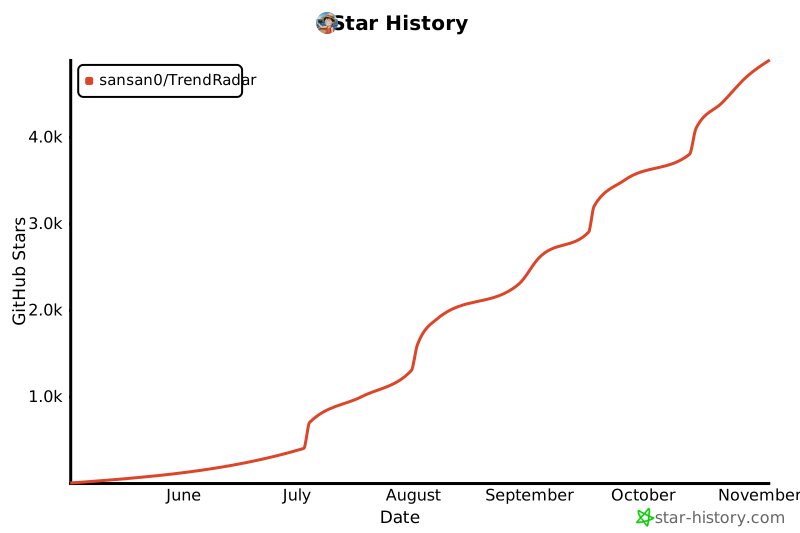](https://www.star-history.com/#sansan0/TrendRadar&Date)
<br>
## 📄 License
GPL-3.0 License
---
<div align="center">
[🔝 Back to Top](#trendradar)
</div>
MCP Config
Below is the configuration for this MCP Server. You can copy it directly to Cursor or other MCP clients.
mcp.json
Connection Info
You Might Also Like
No recommendations available