

Content
# devbar.sh
Drop-in toolbar for any website. Annotate the UI and capture selectors, computed
styles, React component trees, and screenshots as an agent-ready prompt.
[](https://www.npmjs.com/package/devbar.sh)
[](./LICENSE)
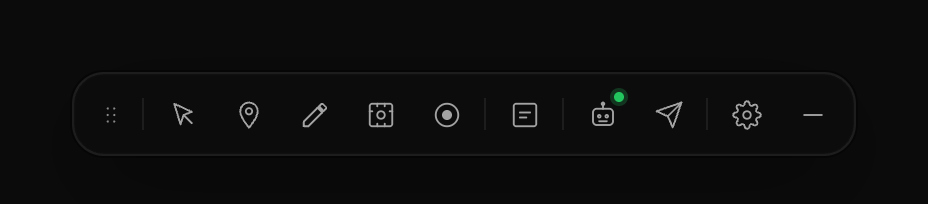
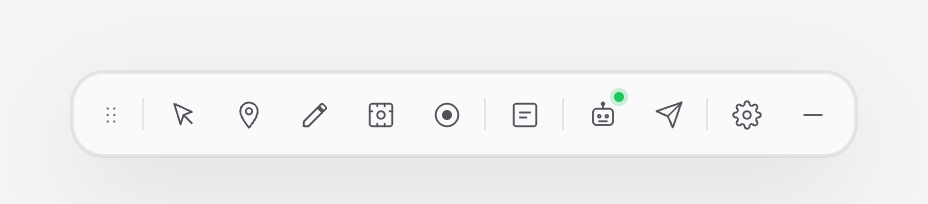
It follows the host page's theme, so it does not look pasted onto a light app:
## Installation
```bash
bun add devbar.sh
```
## Usage
Mount `<Devbar />` once, anywhere in your tree. It renders a fixed toolbar and
owns its own overlays.
```tsx
import { Devbar } from "devbar.sh";
function App() {
return (
<>
<YourApp />
<Devbar />
</>
);
}
```
The stylesheet ships as a separate file — import it once alongside the
component:
```tsx
import "devbar.sh/styles.css";
```
The CDN build (`devbar.sh/cdn`) inlines its own styles, so it needs no separate
import.
### Server-rendered apps
The toolbar is safe to import from a server-rendered tree — a Next.js root
layout, a Remix root, an Astro island. It renders nothing on the server and
nothing on the first client render, then appears once mounted, because what it
draws depends on the host page's theme, a stored bar position and stored
settings; producing markup without them would only fail to hydrate.
In Next.js, mount it in the root layout from a `'use client'` module:
```tsx
"use client";
import { Devbar } from "devbar.sh";
import "devbar.sh/styles.css";
export function DevToolbar() {
if (process.env.NODE_ENV !== "development") return null;
return <Devbar />;
}
```
That still ships the toolbar's stylesheet to production, where the guard means
it is never used. To keep it out, put the two imports in a module of their own
and pull that module in with `next/dynamic` — Turbopack will not resolve a CSS
import from inside a `dynamic()` factory, so the imports have to sit at the top
of the module being imported, not in the factory.
### Package entrypoints
| Import | What it is |
| ---------------------- | ---------------------------------------------------------------------- |
| `devbar.sh` | `<Devbar />`, `init()`, the payload types, and the local-agent hooks |
| `devbar.sh/styles.css` | Toolbar stylesheet (required for the component build) |
| `devbar.sh/cdn` | Self-contained IIFE bundle with styles inlined, for a `<script>` tag |
| `devbar.sh/local` | `createLocalServer()` — the local dispatcher used by the CLI |
| `devbar.sh/config` | `defineConfig()` and the `devbar.config.ts` types |
| `devbar.sh/next` | `createWorkspaceRoutes()` — the Workspace API and shell as Next routes |
| `devbar.sh/workspace` | `createWorkspace()` — the same as a fetch handler, and the backends |
Only `react`, `react-dom` (peers) and two small runtime dependencies —
`html-to-image` and `jiti` — are installed with the package. The MCP server the
CLI runs is implemented directly rather than pulling in the MCP SDK, so
`devbar mcp` works with nothing else installed. The hosted
dashboard's server (Better Auth, Stripe, reports, MCP) lives in this repo under
`src/server` but is **not** published; see [docs/DEPLOYMENT.md](./docs/DEPLOYMENT.md).
### Connect your local agent
The package installs a `devbar` binary. Run it in a project and the toolbar
finds it — no `server`, `token`, or `project` props:
```bash
cd my-app
bunx devbar.sh init # writes devbar.config.ts
bunx devbar.sh # serves on 127.0.0.1:3100 and registers this project
```
```tsx
<Devbar />
```
From there, reports go two ways:
- **Push** — the report is handed to an agent CLI (`claude`, `codex`, or
`opencode`) running in the project directory. Screenshots are written next to
the prompt as files, so the agent can actually read them.
- **Pull** — an agent session you already have open picks reports off the queue
over MCP, and can inspect, screenshot, and highlight the page you are looking
at right now.
```bash
claude mcp add devbar -- bunx devbar.sh mcp
```
| Command | Does |
| ------------------------- | --------------------------------------------------- |
| `devbar` | start the server, or register this project with one |
| `devbar mcp` | MCP server on stdio |
| `devbar doctor` | check everything needed to dispatch |
| `devbar tasks [--watch]` | dispatch tasks and their status |
| `devbar reports` | captured reports |
| `devbar dispatch [id]` | dispatch one report, or every pending one |
| `devbar init` | write a starter `devbar.config.ts` for your agent |
| `devbar init --workspace` | mount the Workspace route in a Next.js app |
| `devbar link` | print the wiring snippet for this project |
Discovery only runs on `localhost` pages and only probes `127.0.0.1:3100` and
`:3101`. Pass `local={false}` to switch it off, `local={{ ports: [4000] }}` to
point it elsewhere, or `live={false}` to hide the live page tools entirely.
Live page tools stay off until you switch on **Agent live** — at the top of the
toolbar's Agent tab, or in Settings — per origin. Dispatch runs an agent in your repository, so it stays on
loopback and never leaves your machine. `devbar init` detects which agent CLI you have — asking when there
is more than one — and writes `permission: "auto"` with `autoDispatch: true`, so a submitted report goes
straight to the agent. Set `permission: "plan"` and `autoDispatch: false` for read-only, dispatch-by-hand. See
[docs/LOCAL-AGENT.md](./docs/LOCAL-AGENT.md) for the config reference, the
supported agent CLIs, the MCP tool list, and the security model.
### Chrome extension
`extension/` is a Manifest V3 extension that toggles the toolbar on any tab —
no code changes to the site. The toolbar bundle ships inside it as
`devbar.cdn.js` (written by `bun run build`), injected into the page's MAIN
world: MV3 forbids remotely hosted code, and React fiber data is invisible from
an isolated world, so element capture would lose component context there.
To run it from a checkout:
```bash
bun run build # writes extension/devbar.cdn.js
```
Then in Chrome: `chrome://extensions` → enable **Developer mode** → **Load
unpacked** → pick the `extension/` directory. Open any http(s) page and click
the Devbar icon; the badge reads **ON** while the toolbar is mounted, and
clicking again removes it. Restricted pages (`chrome://`, the Web Store) cannot
be injected and show an **ERR** badge.
`extension/example.html` is a plain page wired to the same bundle, useful for
checking the script-tag path on its own.
To build the archive the Chrome Web Store accepts:
```bash
bun run build # writes extension/devbar.cdn.js
bun run package:extension # writes dist/devbar-extension-<version>.zip
```
The archive holds only the six files the extension loads — the icon SVG
sources, the icon generator, and `example.html` stay out of it. See
[docs/CHROME-EXTENSION.md](./docs/CHROME-EXTENSION.md) for store submission,
the listing assets, and how updates reach installed browsers.
### Using the toolbar
Pick a tool, mark up the page, then export everything as a single prompt.
| Tool | What it captures |
| ----------- | -------------------------------------------------------------------- |
| **Select** | An element plus its selector, React component path, and diagnostics |
| **Marker** | A numbered pin at a point on the page |
| **Draw** | Freehand annotation over a screenshot (remembers your last pen) |
| **Capture** | A region screenshot — press `F` (or the minibar button) for the page |
| **Record** | A recording of this tab; the browser's picker also offers the screen |
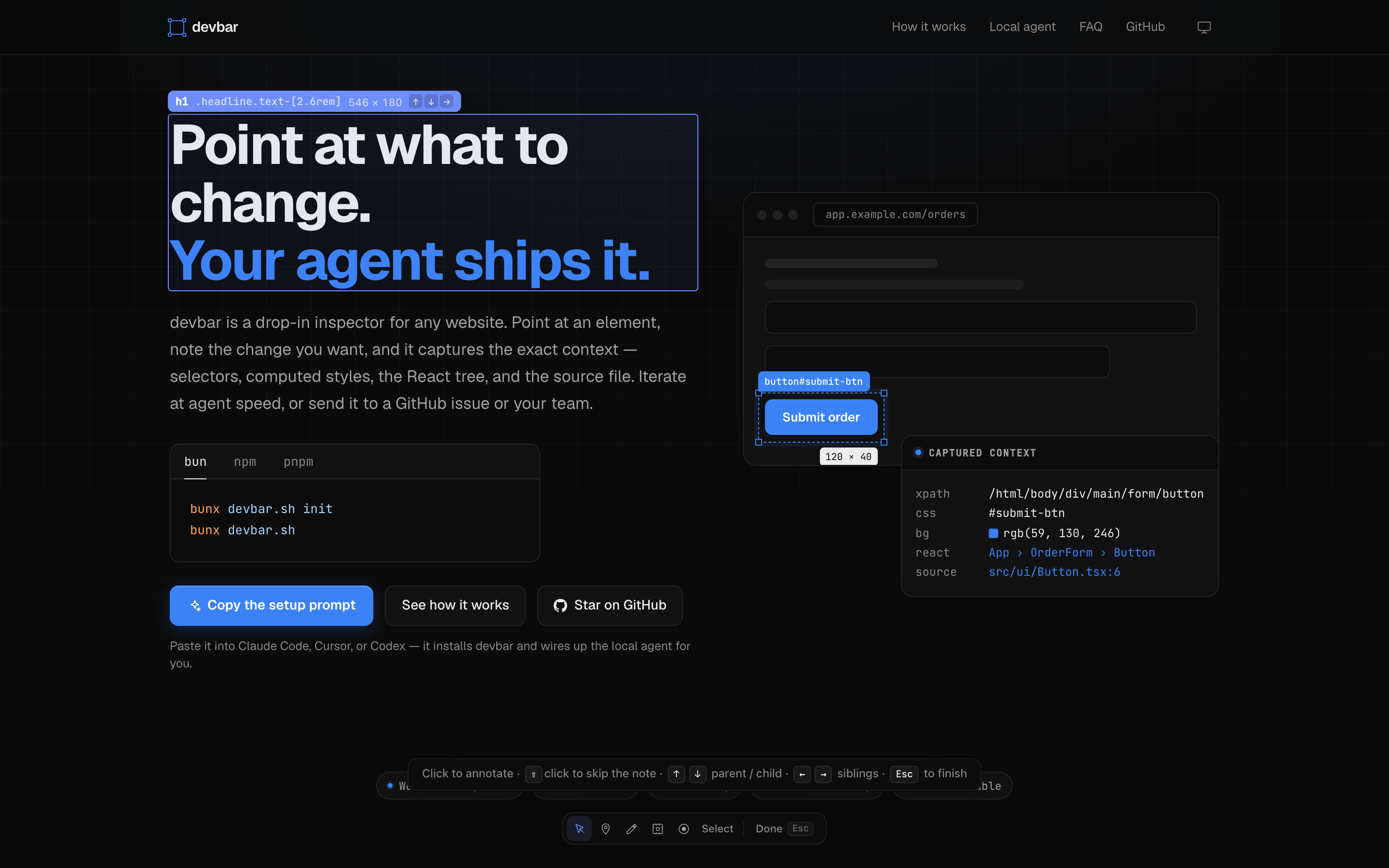
While the **Select** tool is active, a badge follows the cursor showing the
element's tag and pixel size. `↑` widens the selection to the parent element,
`↓` narrows it to the first child, and `←` / `→` step between siblings, so you
can land on the wrapper you actually mean — or the next card over — instead of
whichever node happens to be under the pointer. Hold `⇧` while clicking to
annotate without the note popover.
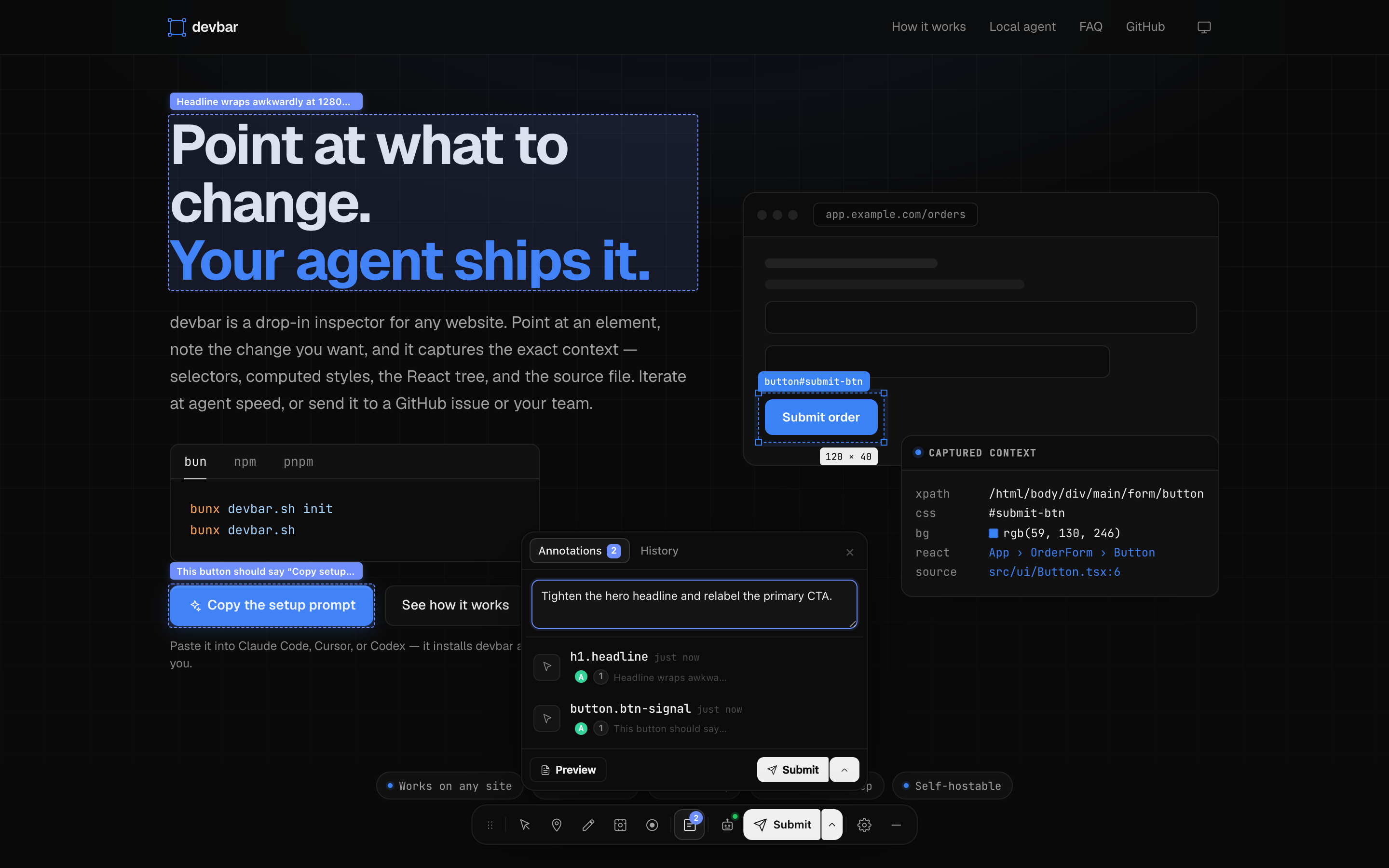
Everything you capture collects in the dedicated **Annotations** panel, alongside
**History** for past exports. **Agent**, **Settings** and **Shortcuts** live in a
separate preferences panel opened from the toolbar's gear button.
### The Agent tab
Dispatch runs an agent inside your repository, so the toolbar says what that
means before you ask for it and what happened after:
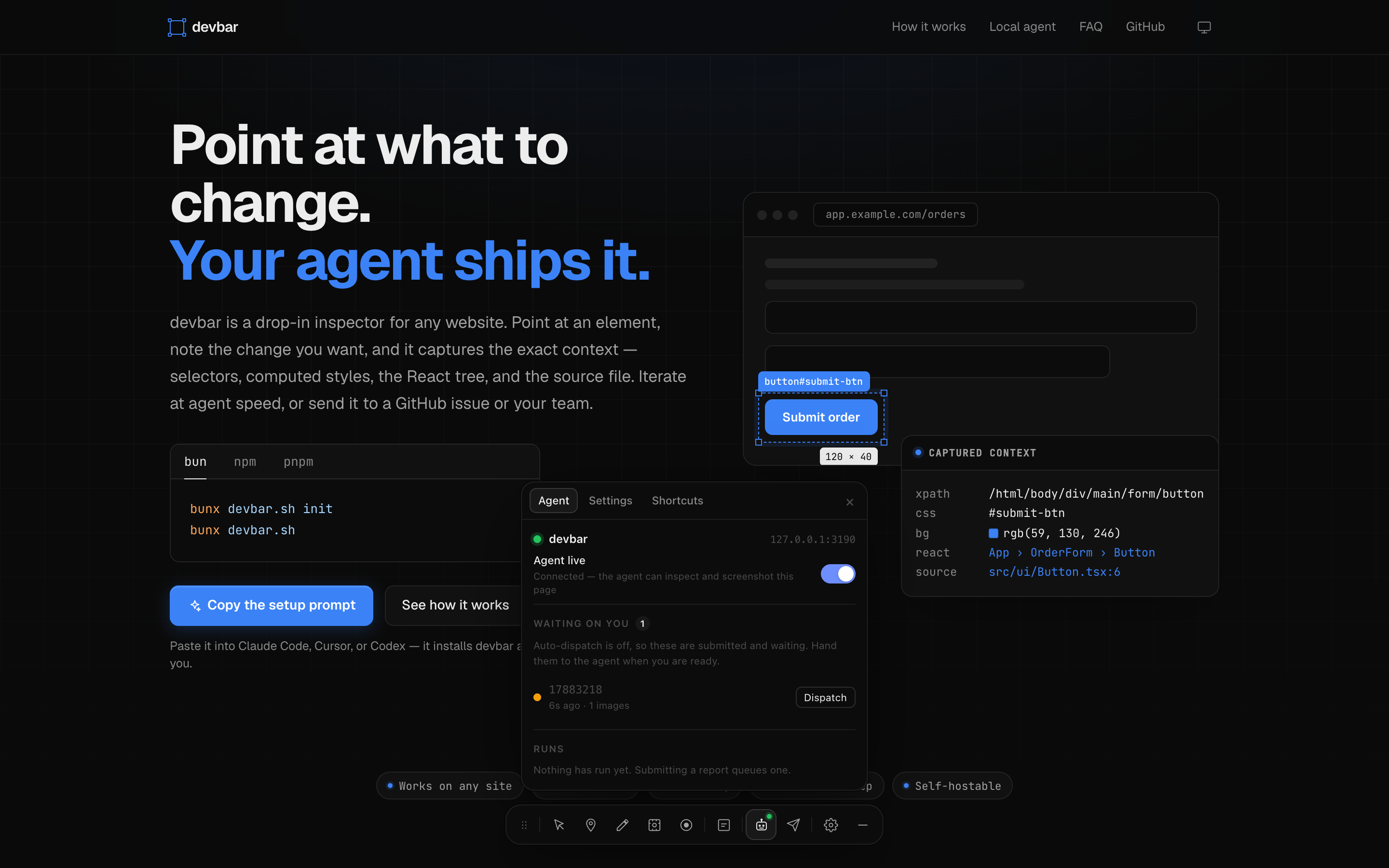
- **The status line** — which server was found, which project claims this page,
and the **Agent live** switch that decides whether an agent may inspect and
screenshot it. When nothing claims the page, the picker to choose a project is
right there rather than a tab away.
- **Waiting on you** — reports you have submitted that no agent has been given.
With `autoDispatch` off Submit stores a report and stops, so
each one gets a **Dispatch** button rather than sitting there looking ignored.
The toast shown right after Submit carries the same **Dispatch** button, so
the common case never needs this tab at all.
- **Runs** — queued, running and finished dispatches, with elapsed time, model
and cost. **Stop** cancels one still in flight. Opening a run shows the exact
prompt the agent was handed, its output, and the files it touched. Opening one
that is still going attaches to it: the server replays what the agent has said
so far and then streams the rest, so a run started by the CLI, by
auto-dispatch, or in another tab can be followed from whenever you look.
- **MCP** — which agent sessions are attached over MCP right now, what they can
call, and the last tool they used.
- **Configuration** — folded shut below the rest, since it is set once: the agent
command, model, effort, permission level, auto-dispatch, concurrency, budget
and working directory for the project that claims this page, read live from
the running server. The summary line carries model and permission without
opening it, and auto-dispatch is called out when it is on — that is the
setting that runs an agent without asking.
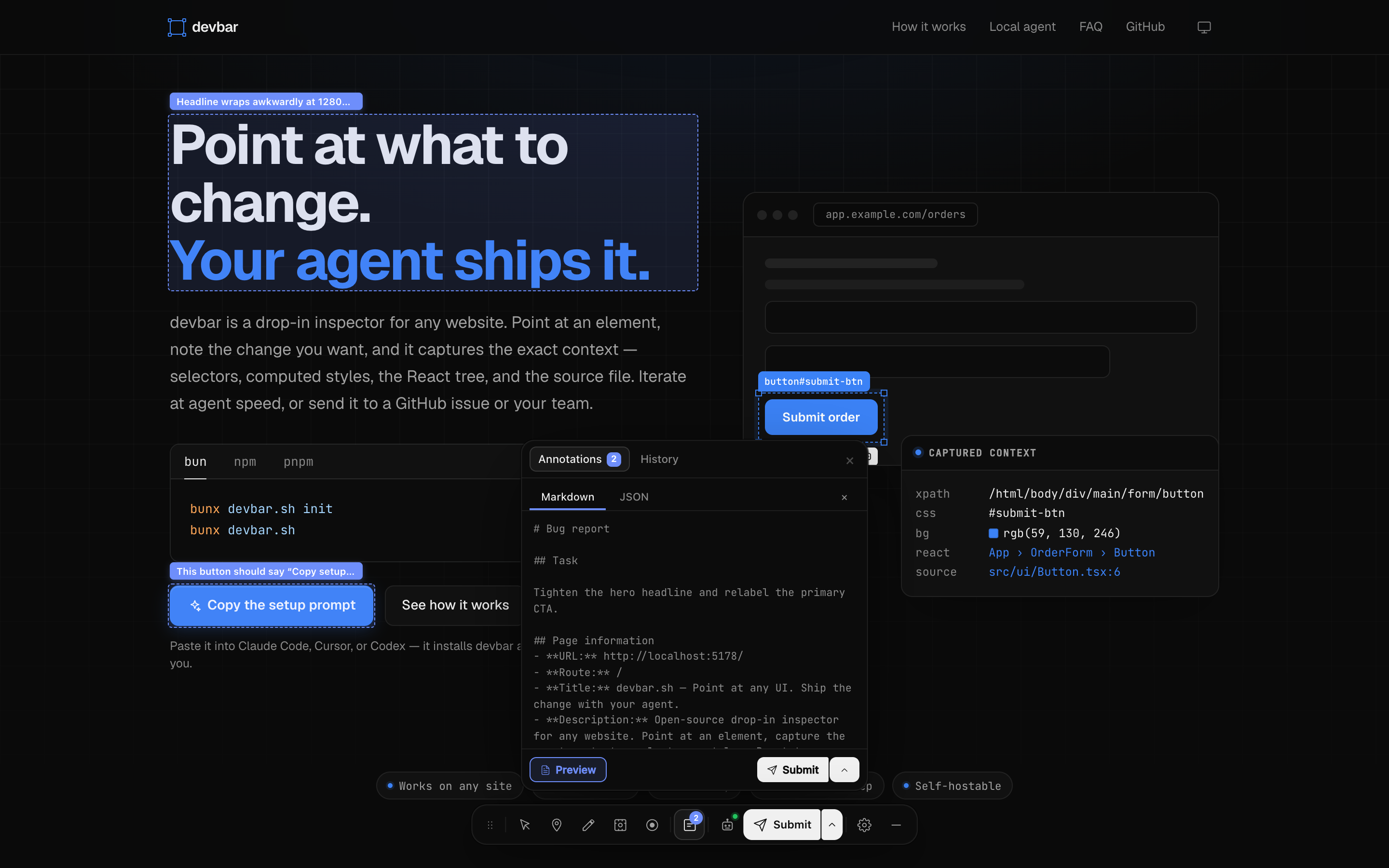
At the top of the Annotations tab is a **task field**: one line saying what you
actually want changed. Annotations are evidence; the task is the intent. When
set, it leads the exported prompt as a `## Task` section and the closing
instruction changes from "analyse these issues" to "carry out this task, using
the annotations as evidence". It is cleared along with the annotations on export.
**Copy** (or **Submit**, when a server is configured) sends the report in one
click, from the panel footer or straight from the bar; the caret next to it
holds the other formats, plus **Send to agent** — submit and dispatch in one
step, so the run starts without a second click. That one is greyed out, with the
reason on it, whenever there is no agent to take the report: no local server
running, or no project claiming this page. The bar's agent button carries the
same fact as a dot. Exporting archives the batch under **History** and the
toast offers **Restore** for a few seconds in case it went to the wrong place —
History has the same button for later. Removing an annotation offers an
**Undo** the same way, and so does **Clear all**. Each row also has a locate
button that scrolls the annotated element back into view.
**Preview** (`Alt+P`) shows the exact prompt before it goes anywhere — the
markdown an agent reads, or the raw JSON payload behind it:
#### Export formats
| Format | What you get |
| ------- | ------------------------------------------------------------------------- |
| `.md` | The prompt as markdown — what an agent reads |
| `.json` | The whole payload, every captured field |
| `.html` | A standalone report: styles inline, images embedded, one file |
| `.pdf` | The same report through the browser's print dialog — choose _Save as PDF_ |
`.html` and `.pdf` are for people rather than models: the report you attach to
a ticket or mail to a designer. Both are a single self-contained document, so
images stay embedded even with **Image export format** set to _Files_, and
both are laid out for paper — cards never split across a page break. See
[docs/HTML-PDF-EXPORT.md](./docs/HTML-PDF-EXPORT.md) for what the document
contains and why PDF goes through the print dialog.
#### History
Every export is archived under **History**, and an archived batch can do
everything the live one could: copy the prompt or the whole payload, save all
four file formats, **Submit** to the server, **Agent** to submit and dispatch
in one step, **Restore** it into the session, or delete it. The batch keeps the
**task** it was exported under — the line saying what it was for — so a
re-export a day later still leads with `## Task`, and restoring brings the task
back unless you have already typed a new one. See
[docs/HISTORY.md](./docs/HISTORY.md).
### Workspace
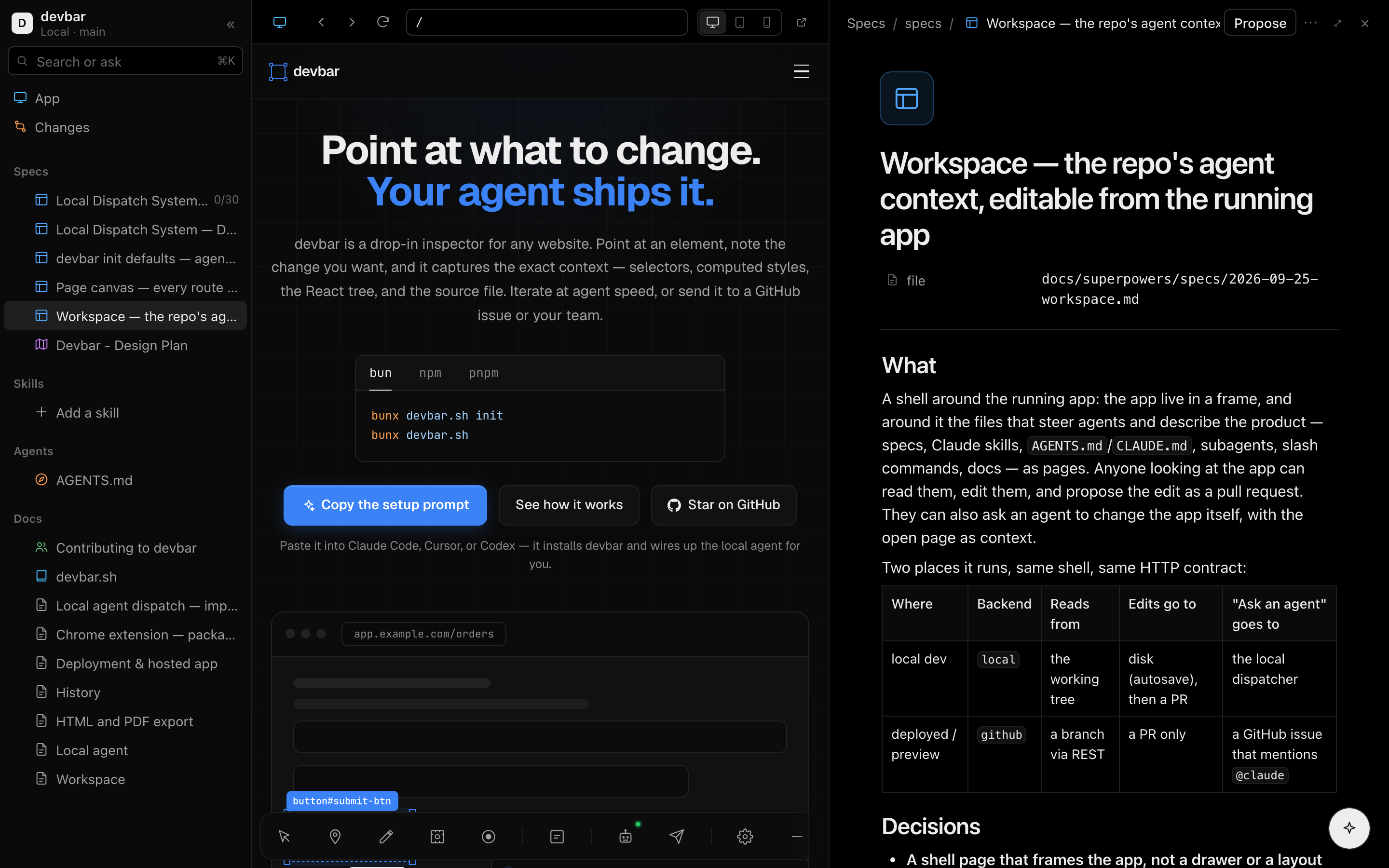
The book button on the bar (`Alt+W`) turns the tab into the **Workspace
shell**: your app, running live in the middle, with the repository's agent
context around it as pages — **specs** (`specs/`, `docs/specs/`, `.kiro/specs/`,
spec-kit's `.specify/`, with task progress), **skills**
(`.claude/skills/*/SKILL.md`), **agents** (`AGENTS.md`, `CLAUDE.md`, subagents,
slash commands) and **docs**. It is laid out like Notion — a page tree, pages
opening beside the app, block editing with `/` commands, ⌘K, an emoji for any
page — in Vercel's black and white, with colour-coded icons. Anyone looking at the app can edit a spec, tick off a task, or ask an
agent to change the app with the open page as context, and turn the result into
a pull request.
It works in both places people look at the app:
- **Local dev** — with `bunx devbar.sh` running there is nothing to wire; the
shell is also at `http://127.0.0.1:3100/`. Pages save to disk as you edit
them (HMR does the rest), a proposal becomes a branch, a push and
`gh pr create` without touching your checkout, and prompts go to your agent
CLI — what it changes on disk is proposed the same way.
- **Deployed, self-hosted** — mount the routes in your Next.js app and point the
toolbar at them; the same route serves the shell at `/api/devbar/shell`. In
production they read the GitHub repository (a preview deploy reads its own
branch), proposals open PRs through the API, and prompts open an issue for
`@claude`.
```ts
// app/api/devbar/[...path]/route.ts
import { createWorkspaceRoutes } from "devbar.sh/next";
export const { GET, POST, OPTIONS } = createWorkspaceRoutes({ authorize });
```
```tsx
<Devbar workspace="/api/devbar" />
```
Beyond localhost the API only answers callers your `authorize` lets in, or who
hold `DEVBAR_WORKSPACE_TOKEN` — or sign in with GitHub, any OpenID Connect
provider (Google, Okta, Entra), or through Cloudflare Access / Google IAP.
`requireGitHub: "writes"` makes every change go through the person's own GitHub
account. `bunx devbar.sh init --workspace` writes the route for you. See [docs/WORKSPACE.md](./docs/WORKSPACE.md) for
the file conventions, editing, the GitHub setup, access control and the HTTP
contract, and [examples/nextjs](./examples/nextjs) for a working app.
### Keyboard shortcuts
| Keys | Action |
| ------------------------------- | --------------------------------------------------------- |
| `Alt+S` / `M` / `D` / `C` / `R` | Select / Marker / Draw / Capture / Record |
| `⇧Alt+C` | Full-page screenshot (no region step) |
| `↑` `↓` | Widen / narrow the selection (Select tool) |
| `←` `→` | Previous / next sibling (Select tool) |
| `↵` | Annotate the current element, or save the note |
| `⇧ click` / `⇧↵` | Annotate the element without a note (Select tool) |
| `F` | Capture the whole page (Capture tool) |
| `↵` | Finish the drawing (Draw tool) |
| `Esc` | Discard the note, exit the tool, or close the open panel |
| `Alt+A` | Toggle the annotations panel |
| `Alt+T` | Focus the task field |
| `Alt+P` | Preview the report |
| `Alt+W` | Open the Workspace shell, or exit it from inside |
| `Alt+H` | Hide / show the toolbar |
| `Alt+,` | Settings |
| `Alt+/` | Keyboard shortcuts |
| `⌘Z` | Undo — a removal, a clear, an export, or the last capture |
| `⌘↵` | Copy the report — or submit it when a server is set |
An `Alt+<tool>` shortcut works while another tool is active, switching directly
between tools; the minibar shown during a tool does the same with one click.
On macOS the shortcuts use the physical key, so `Option+S` works even though the
key event reports `ß`. Shortcuts never fire while you are typing in one of the
host page's fields or editors, and `⌘Z` only reaches devbar while a tool is
active, the panel is open, or an Undo/Restore is on offer — the rest of the
time it belongs to your app. Double-click the drag handle to send the bar back
to its default spot.
## Contributing
Please see [CONTRIBUTING.md](./CONTRIBUTING.md) for contribution guidelines.
## License
MIT
Connection Info
You Might Also Like
No recommendations available