

Content
# BlendRelay MCP — Create and Edit Blender Scenes with AI
**An open-source Blender AI add-on and MCP server for prompt-based 3D modeling, scene generation, Edit Mode changes, reference images, and viewport sketches.**
BlendRelay MCP brings AI 3D modeling and text-to-Blender workflows into Blender 4.5+. Connect Codex, Claude Code, Antigravity, or another MCP-compatible AI agent; describe what you want; attach design references; sketch over the viewport; or target selected objects and mesh elements. The agent can then inspect and update the open `.blend` scene through typed Blender tools.
[Visit the BlendRelay website](https://shefq.github.io/blendrelay-mcp/) · [Watch Demo](https://www.youtube.com/watch?v=AaTDT457A3U) · [Install from PyPI](https://pypi.org/project/blendrelay-mcp/) · [⭐ Star on GitHub](https://github.com/shefq/blendrelay-mcp)
[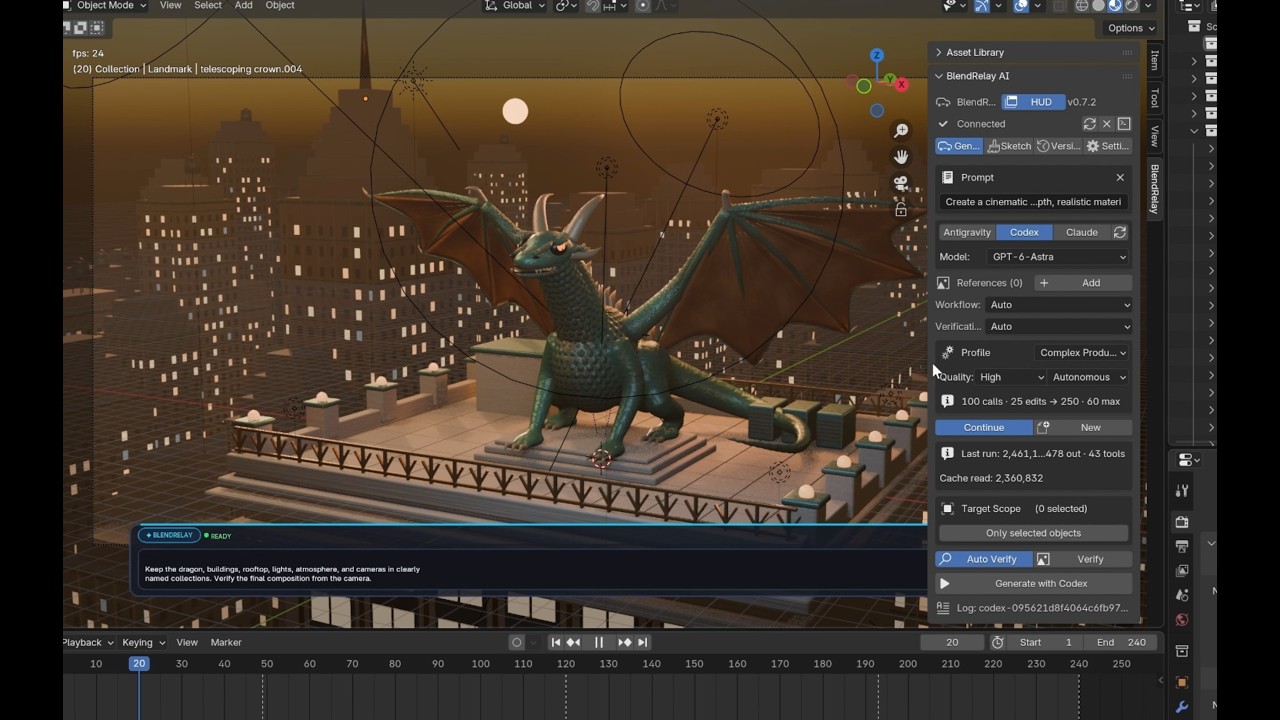](https://www.youtube.com/watch?v=AaTDT457A3U)
> ⭐ **Enjoying BlendRelay MCP?** If this project helps your workflow, please consider [giving it a star on GitHub](https://github.com/shefq/blendrelay-mcp) — it helps more 3D creators and developers discover the tool!
## What you can do
- Generate complete scenes, environments, props, buildings, products, and abstract artwork.
- Edit selected objects with natural-language instructions.
- Work with selected vertices, edges, and faces in Blender Edit Mode.
- Use one or more reference images for shape, composition, material, or style guidance.
- Draw viewport sketches and adjustable target boxes to show where changes should happen.
- Create materials, lighting, cameras, modifiers, Geometry Nodes, animation, and renders.
- Save and restore automatic scene checkpoints if a result needs to be undone.
## Before you install
You need:
- Blender 4.5 or newer. Open Blender once before running setup.
- [`uvx`](https://docs.astral.sh/uv/guides/tools/) or Python 3.11+ with `pip`.
- One supported AI command-line agent, installed and signed in:
- OpenAI Codex CLI
- Google Antigravity CLI
- Anthropic Claude Code
## Install BlendRelay
Open PowerShell or a terminal and run:
```powershell
uvx blendrelay-mcp setup
```
Alternatively, install it with `pip`:
```powershell
python -m pip install blendrelay-mcp
blendrelay-mcp setup
```
Setup creates the local runtime folders and installs the bundled Blender extension into the newest compatible Blender installation it finds.
To target a particular Blender version:
```powershell
uvx blendrelay-mcp setup --blender-version 4.5
```
## Enable it in Blender
1. Restart Blender after installation.
2. Open **Edit → Preferences → Add-ons / Get Extensions**.
3. Search for **BlendRelay MCP** and enable it.
4. Return to the 3D Viewport and press `N` to open the sidebar.
5. Select the **BlendRelay** tab.
6. Click **Connect**.
The floating HUD can be shown or hidden from the panel. Its prompt supports multiple lines: use `Shift+Enter` for a new line and `Enter` to run.
## Connect your AI agent
### Codex CLI
Register BlendRelay once with Codex:
```powershell
codex mcp add blendrelay -- uvx blendrelay-mcp mcp
codex mcp list
```
Make sure `blendrelay` appears as enabled. In Blender, choose **Codex**, select a model available to your signed-in account, and click **Connect**.
### Antigravity CLI
Install and sign in to Antigravity, then select **Antigravity** in the Blender panel. BlendRelay prepares the task-specific MCP configuration when it launches the agent. If your Antigravity permission policy blocks MCP tools, allow `mcp(blendrelay/*)` in the Antigravity settings.
### Claude Code
Install and sign in to [Claude Code](https://code.claude.com/docs/en/setup), then select **Claude** in the Blender panel. BlendRelay detects the `claude` executable, supplies an isolated MCP configuration for each run, and approves only tools from `mcp__blendrelay__*`. You can use Claude Code's configured default model or enter an alias such as `sonnet` or `opus` under **Settings**.
Conversation continuation is supported: enable **Continue** to resume the Claude session associated with the current Blender workspace, or click **New** to start cleanly.
### Other MCP clients
Claude Desktop, Claude Code, Cursor, and other MCP clients can connect to Blender through the published package:
```json
{
"mcpServers": {
"blendrelay": {
"command": "uvx",
"args": ["blendrelay-mcp", "mcp"]
}
}
}
```
This external-client connection does not require the Blender panel to launch Codex, Claude, or Antigravity. Blender and the BlendRelay add-on still need to be open and connected.
## Your first creation
In the **Generate** tab:
1. Choose the AI agent and model.
2. Choose a generation profile and quality level.
3. Leave the scope on **Full Scene** for a new scene.
4. Enter a clear prompt.
5. Click **Generate** or use the floating HUD.
Example prompt:
```text
Create a polished studio product scene for a modern wireless speaker.
Use a dark graphite body, a woven fabric grille, soft bevels, and realistic PBR materials.
Place it on a simple pedestal with a large softbox key light, subtle rim lighting,
an 85 mm product camera, and a clean charcoal background. Keep all major parts
as separately named objects and frame the final camera for a 16:9 render.
```
Strong prompts usually include the subject, dimensions or scale, visual style, materials, lighting, camera composition, required separate parts, and the desired final output.
## Edit existing work
For object-level edits:
1. Select one or more objects in Blender.
2. Enable **Only selected objects**.
3. Describe the requested change, including what must be preserved.
```text
Only edit the selected chair. Make the backrest 15% taller, soften the outer edges,
replace the upholstery with dark green velvet, and preserve its location and dimensions.
```
For mesh edits, enter Blender Edit Mode, select the relevant vertices, edges, or faces, and enable **Only selected geometry**.
```text
Only modify the selected faces. Inset them slightly, extrude inward by 3 cm,
and bevel the new boundary with three segments. Preserve the surrounding topology.
```
BlendRelay can capture focused views of the selection so the agent receives both scene data and visual context.
## Use references, sketches, and target regions
- Add multiple images from **Reference Images**, or drag images onto the 3D Viewport.
- In **Sketch & Region**, draw strokes over the viewport to communicate paths, silhouettes, placement, or corrections.
- Use an adjustable target box when the requested creation or change belongs in a specific volume.
- State how each reference should be used. For example: “use image 1 for shape and image 2 only for materials.”
Reference images guide the agent; they are not automatically converted into exact production geometry. Include known dimensions whenever accuracy matters.
## Choose a generation profile
| Profile | Best for |
| --- | --- |
| Focused Task | A contained edit to selected objects or geometry |
| Full Creation | A complete object or moderately detailed scene |
| Creation + Assets | Scenes that should search the enabled asset providers |
| Complex Production | Large scenes, multi-stage builds, animation, or detailed verification |
Start with **High** quality for normal work. Use **Maximum** when visual finish matters more than generation time and token usage.
## Checkpoints and safe iteration
BlendRelay saves a recovery checkpoint before an AI task and another after successful completion. Open **Versions** to save or restore scene states.
Save the main `.blend` file normally as well. The workspace identity is stored in the Blender file, allowing BlendRelay to reconnect the file to its existing references, logs, and checkpoints when you reopen it.
## Update BlendRelay
For an `uvx` installation:
```powershell
uvx --refresh blendrelay-mcp setup
```
For a `pip` installation:
```powershell
python -m pip install --upgrade blendrelay-mcp
blendrelay-mcp setup
```
Restart Blender after updating so it loads the newly installed extension files.
## Troubleshooting
Run the diagnostic command first:
```powershell
uvx blendrelay-mcp doctor
```
If Blender shows **Disconnected**:
- Keep Blender open and click **Connect** again.
- Confirm the selected AI CLI is installed and signed in.
- For Codex, run `codex mcp list` and confirm the server is named `blendrelay`.
- For Claude, run `claude doctor` and confirm the CLI is healthy. BlendRelay supplies the MCP configuration automatically when Claude is launched from the panel.
- Rerun `uvx --refresh blendrelay-mcp setup` after installing a new Blender version.
- Restart Blender after updating the add-on.
If an agent finishes without changing the scene, inspect the task log shown in the Blender panel. Common causes are a disconnected Blender bridge, an MCP permission denial, or an AI client registered under a different server name.
## Local data
BlendRelay stores shared runtime data under `%LOCALAPPDATA%\BlendRelayMCP` on Windows. Each Blender scene receives its own folder under `workspaces/<workspace-id>/` for references, agent logs, screenshots, sketches, and scene versions.
Set `BLENDRELAY_DATA_DIR` if you need a different storage location.
## Advanced commands
- `blendrelay-mcp doctor`: Check the installation and runtime status.
- `blendrelay-mcp install-addon`: Reinstall the bundled Blender extension.
- `blendrelay-mcp mcp`: Start the MCP stdio gateway.
- `blendrelay-mcp runtime serve`: Start the local runtime bridge manually.
## Support the project
If you find BlendRelay MCP helpful, please consider:
- ⭐ **Starring the repository on [GitHub](https://github.com/shefq/blendrelay-mcp)** to show your support
- 🐛 Reporting bugs or suggesting features on [GitHub Issues](https://github.com/shefq/blendrelay-mcp/issues)
- 📢 Sharing your AI 3D creations with the community
## License
BlendRelay MCP is open-source software. Contributions, bug reports, feature requests, and documentation improvements are welcome.
- The Python MCP server and runtime are released under the MIT License.
- The Blender extension is released under GPL-3.0-or-later.
See the repository license files for the complete terms.
Connection Info
You Might Also Like
No recommendations available