

Content
# Human MCP 👁️
> Bringing Human Capabilities to AI Agents

Human MCP v2.16.0 is a comprehensive Model Context Protocol server that provides AI coding agents with human-like capabilities including visual analysis, document processing, speech generation, content creation, image editing, browser automation, and advanced reasoning for debugging, understanding, and enhancing multimodal content.
## "Human MCP" is a part of [ClaudeKit](https://claudekit.cc)

## Features
🎯 **Visual Analysis (Eyes) - ✅ Complete (4 tools)**
- **eyes_analyze**: Analyze images, videos, and GIFs for UI bugs, errors, and accessibility
- **eyes_compare**: Compare two images to find visual differences
- **eyes_read_document**: Extract text and data from PDF, DOCX, XLSX, PPTX, and more
- **eyes_summarize_document**: Generate summaries and insights from documents
✋ **Content Generation & Image Editing (Hands) - ✅ Complete (18 tools)**
- **Image Generation** (1 tool): gemini_gen_image - Generate images from text using Imagen API
- **Video Generation** (2 tools): gemini_gen_video, gemini_image_to_video - Create videos with Veo 3.0
- **Music Generation** (2 tools): minimax_gen_music, elevenlabs_gen_music - Generate music with vocals
- **Sound Effects** (1 tool): elevenlabs_gen_sfx - Generate sound effects from text descriptions
- **AI Image Editing** (5 tools): Gemini-powered editing with inpainting, outpainting, style transfer, object manipulation, composition
- **Jimp Processing** (4 tools): Local image manipulation - crop, resize, rotate, mask
- **Background Removal** (1 tool): rmbg_remove_background - AI-powered background removal
- **Browser Automation** (3 tools): playwright_screenshot_fullpage, playwright_screenshot_viewport, playwright_screenshot_element - Automated web screenshots
🗣️ **Speech Generation (Mouth) - ✅ Complete (4 tools)**
- **mouth_speak**: Convert text to speech with 30+ voices and 24 languages
- **mouth_narrate**: Long-form content narration with chapter breaks
- **mouth_explain**: Generate spoken code explanations with technical analysis
- **mouth_customize**: Test and compare different voices and styles
🧠 **Advanced Reasoning (Brain) - ✅ Complete (3 tools)**
- **mcp__reasoning__sequentialthinking**: Native sequential thinking with thought revision
- **brain_analyze_simple**: Fast pattern-based analysis (problem solving, root cause, SWOT, etc.)
- **brain_patterns_info**: List available reasoning patterns and frameworks
- **brain_reflect_enhanced**: AI-powered meta-cognitive reflection for complex analysis
## Total: 29 MCP Tools Across 4 Human Capabilities
**👁️ Eyes (4 tools)** - Visual analysis and document processing
**✋ Hands (18 tools)** - Content generation, image editing, music/SFX, and browser automation
**🗣️ Mouth (4 tools)** - Speech generation and narration
**🧠 Brain (3 tools)** - Advanced reasoning and problem solving
### Technology Stack
- **Google Gemini 2.5 Flash** - Vision, document, and reasoning AI
- **Gemini Imagen API** - High-quality image generation
- **Gemini Veo 3.0 API** - Professional video generation
- **Gemini Speech API** - Natural voice synthesis (30+ voices, 24 languages)
- **Minimax API** - Alternative speech (Speech 2.6), music (Music 2.5), video (Hailuo 2.3)
- **ZhipuAI (Z.AI) API** - Alternative vision (GLM-4.6V), image (GLM-Image), video (CogVideoX-3)
- **ElevenLabs API** - Text-to-speech (70+ languages), music generation, sound effects
- **Playwright** - Browser automation for web screenshots
- **Jimp** - Fast local image processing
- **rmbg** - AI-powered background removal (U2Net+, ModNet, BRIAI models)
### Supported Providers & Models
Human MCP supports multiple AI providers per capability. Set via per-request `provider` parameter or environment variable defaults.
#### Vision (Eyes)
| Provider | Models | Features | Env Var |
|----------|--------|----------|---------|
| **Google Gemini** (default) | `gemini-2.5-flash`, `gemini-2.5-pro` | Image, video, GIF analysis; document processing | `GOOGLE_GEMINI_API_KEY` |
| **ZhipuAI** | `glm-4.6v`, `glm-4.6v-flash` (FREE) | Image analysis via GLM-4.6V vision | `ZHIPUAI_API_KEY` |
#### Image Generation (Hands)
| Provider | Models | Features | Env Var |
|----------|--------|----------|---------|
| **Google Gemini** (default) | `gemini-2.5-flash-image`, `gemini-3.1-flash-image-preview` | Text-to-image, 14 aspect ratios, 5 styles | `GOOGLE_GEMINI_API_KEY` |
| **ZhipuAI** | `cogview-4-250304` | Text-to-image, CogView-4 | `ZHIPUAI_API_KEY` |
#### Video Generation (Hands)
| Provider | Models | Features | Env Var |
|----------|--------|----------|---------|
| **Google Gemini** (default) | `veo-3.0-generate-001` | Text-to-video, image-to-video, 4-12s, camera controls | `GOOGLE_GEMINI_API_KEY` |
| **Minimax** | `MiniMax-Hailuo-2.3`, `MiniMax-Hailuo-2.3-Fast` | Text-to-video, image-to-video, 768P/1080P | `MINIMAX_API_KEY` |
| **ZhipuAI** | `cogvideox-3` | Text-to-video, image-to-video, async polling | `ZHIPUAI_API_KEY` |
#### Speech / TTS (Mouth)
| Provider | Models | Features | Env Var |
|----------|--------|----------|---------|
| **Google Gemini** (default) | `gemini-2.5-flash-preview-tts`, `gemini-2.5-pro-preview-tts` | 31 voices, 24 languages, style prompts | `GOOGLE_GEMINI_API_KEY` |
| **Minimax** | `speech-2.6-hd`, `speech-2.6-turbo` | Emotion control, speed adjustment | `MINIMAX_API_KEY` |
| **ElevenLabs** | `eleven_v3`, `eleven_multilingual_v2`, `eleven_flash_v2_5`, `eleven_turbo_v2_5` | 70+ languages, voice cloning, stability/style controls | `ELEVENLABS_API_KEY` |
#### Music Generation (Hands)
| Provider | Models | Features | Env Var |
|----------|--------|----------|---------|
| **Minimax** | `music-2.5` | Vocals from lyrics, structure tags, MP3/WAV | `MINIMAX_API_KEY` |
| **ElevenLabs** | Music API | Instrumental mode, 3s-10min, prompt-based | `ELEVENLABS_API_KEY` |
#### Sound Effects (Hands)
| Provider | Models | Features | Env Var |
|----------|--------|----------|---------|
| **ElevenLabs** | Sound Generation API | Text-to-SFX, 0.5-30s, looping, prompt influence | `ELEVENLABS_API_KEY` |
#### Provider Configuration
```bash
# Default provider per capability (optional, all default to "gemini")
SPEECH_PROVIDER=gemini # Options: gemini, minimax, elevenlabs
VIDEO_PROVIDER=gemini # Options: gemini, minimax, zhipuai
VISION_PROVIDER=gemini # Options: gemini, zhipuai
IMAGE_PROVIDER=gemini # Options: gemini, zhipuai
```
Or override per request:
```json
{ "provider": "minimax", "prompt": "..." }
```
### Google Gemini Documentation
- [Gemini API](https://ai.google.dev/gemini-api/docs?hl=en)
- [Gemini Models](https://ai.google.dev/gemini-api/docs/models)
- [Video Understanding](https://ai.google.dev/gemini-api/docs/video-understanding?hl=en)
- [Image Understanding](https://ai.google.dev/gemini-api/docs/image-understanding)
- [Document Understanding](https://ai.google.dev/gemini-api/docs/document-processing)
- [Audio Understanding](https://ai.google.dev/gemini-api/docs/audio)
- [Speech Generation](https://ai.google.dev/gemini-api/docs/speech-generation)
- [Image Generation](https://ai.google.dev/gemini-api/docs/image-generation)
- [Video Generation](https://ai.google.dev/gemini-api/docs/video)
## Quick Start
### Getting Your Google Gemini API Key
Before installation, you'll need a Google Gemini API key to enable visual analysis capabilities.
#### Step 1: Access Google AI Studio
1. Visit [Google AI Studio](https://aistudio.google.com/) in your web browser
2. Sign in with your Google account (create one if needed)
3. Accept the terms of service when prompted
#### Step 2: Create an API Key
1. In the Google AI Studio interface, look for the "Get API Key" button or navigate to the API keys section
2. Click "Create API key" or "Generate API key"
3. Choose "Create API key in new project" (recommended) or select an existing Google Cloud project
4. Your API key will be generated and displayed
5. **Important**: Copy the API key immediately as it may not be shown again
#### Step 3: Secure Your API Key
⚠️ **Security Warning**: Treat your API key like a password. Never share it publicly or commit it to version control.
**Best Practices:**
- Store the key in environment variables (not in code)
- Don't include it in screenshots or documentation
- Regenerate the key if accidentally exposed
- Set usage quotas and monitoring in Google Cloud Console
- Restrict API key usage to specific services if possible
#### Step 4: Set Up Environment Variable
Configure your API key using one of these methods:
**Method 1: Shell Environment (Recommended)**
```bash
# Add to your shell profile (.bashrc, .zshrc, .bash_profile)
export GOOGLE_GEMINI_API_KEY="your_api_key_here"
# Reload your shell configuration
source ~/.zshrc # or ~/.bashrc
```
**Method 2: Project-specific .env File**
```bash
# Create a .env file in your project directory
echo "GOOGLE_GEMINI_API_KEY=your_api_key_here" > .env
# Add .env to your .gitignore file
echo ".env" >> .gitignore
```
**Method 3: MCP Client Configuration**
You can also provide the API key directly in your MCP client configuration (shown in setup examples below).
#### Step 5: Verify API Access
Test your API key works correctly:
```bash
# Test with curl (optional verification)
curl -H "Content-Type: application/json" \
-d '{"contents":[{"parts":[{"text":"Hello"}]}]}' \
-X POST "https://generativelanguage.googleapis.com/v1beta/models/gemini-2.5-flash:generateContent?key=YOUR_API_KEY"
```
### Choosing Your Gemini Provider
Human MCP supports two ways to access Google's Gemini models:
#### Option 1: Google AI Studio (Default - Recommended for Getting Started)
**Best for:** Quick start, development, prototyping
**Setup:**
1. Get your API key from [Google AI Studio](https://aistudio.google.com/)
2. Set environment variable: `export GOOGLE_GEMINI_API_KEY=your_api_key`
**Pros:**
- Simple setup (just one API key)
- No GCP account required
- Free tier available
- Perfect for development and testing
#### Option 2: Vertex AI (Recommended for Production)
**Best for:** Production deployments, enterprise use, GCP integration
**Setup:**
1. Create a GCP project and enable Vertex AI API
2. Set up authentication:
```bash
# Option A: Application Default Credentials (for local dev)
gcloud auth application-default login
# Option B: Service Account (for production)
export GOOGLE_APPLICATION_CREDENTIALS=/path/to/service-account.json
```
3. Set environment variables:
```bash
export USE_VERTEX=1
export VERTEX_PROJECT_ID=your-gcp-project-id
export VERTEX_LOCATION=us-central1 # optional, defaults to us-central1
```
**Pros:**
- Enterprise-grade quotas and SLAs
- Better integration with GCP services
- Advanced IAM and security controls
- Usage tracking via Cloud Console
- Better for production workloads
**Configuration Example (Claude Desktop):**
```json
{
"mcpServers": {
"human-mcp-vertex": {
"command": "npx",
"args": ["@goonnguyen/human-mcp"],
"env": {
"USE_VERTEX": "1",
"VERTEX_PROJECT_ID": "your-gcp-project-id",
"VERTEX_LOCATION": "us-central1"
}
}
}
}
```
**Note:** With Vertex AI, you don't need `GOOGLE_GEMINI_API_KEY` - authentication is handled by GCP credentials.
#### Vertex AI Authentication Methods
**1. Application Default Credentials (ADC)** - Best for local development
```bash
gcloud auth application-default login
```
**2. Service Account** - Best for production
```bash
# Download service account JSON from GCP Console
export GOOGLE_APPLICATION_CREDENTIALS=/path/to/service-account.json
```
**3. Workload Identity** - Best for GKE deployments
- Automatically configured when running on GKE
- No credentials file needed
- Recommended for Kubernetes deployments
**Troubleshooting Vertex AI:**
If you encounter authentication errors:
1. Verify your GCP project ID: `gcloud config get-value project`
2. Check ADC status: `gcloud auth application-default print-access-token`
3. Ensure Vertex AI API is enabled: Visit [Vertex AI Console](https://console.cloud.google.com/vertex-ai)
4. Verify IAM permissions: Your account needs `Vertex AI User` role
**Cost Considerations:**
Both Google AI Studio and Vertex AI use the same Gemini models and pricing, but:
- Google AI Studio: Generous free tier for testing
- Vertex AI: Production-grade quotas, better for high-volume usage
#### Alternative Methods for API Key
**Using Google Cloud Console:**
1. Go to [Google Cloud Console](https://console.cloud.google.com/)
2. Create a new project or select existing one
3. Enable the "Generative AI API"
4. Go to "Credentials" > "Create Credentials" > "API Key"
5. Optionally restrict the key to specific APIs and IPs
**API Key Restrictions (Recommended):**
- Restrict to "Generative AI API" only
- Set IP restrictions if using from specific locations
- Configure usage quotas to prevent unexpected charges
- Enable API key monitoring and alerts
#### Troubleshooting API Key Issues
**Common Problems:**
- **Invalid API Key**: Ensure you copied the complete key without extra spaces
- **API Not Enabled**: Make sure Generative AI API is enabled in your Google Cloud project
- **Quota Exceeded**: Check your usage limits in Google Cloud Console
- **Authentication Errors**: Verify the key hasn't expired or been revoked
**Testing Your Setup:**
```bash
# Verify environment variable is set
echo $GOOGLE_GEMINI_API_KEY
# Should output your API key (first few characters)
```
### Prerequisites
- Node.js v22+ or [Bun](https://bun.sh) v1.2+
- Google [Gemini API key](http://aistudio.google.com/) (configured as shown above)
### Development (For Contributors)
If you want to contribute to Human MCP development:
```bash
# Clone the repository
git clone https://github.com/human-mcp/human-mcp.git
cd human-mcp
# Install dependencies
bun install
# Copy environment template
cp .env.example .env
# Add your Gemini API key to .env
GOOGLE_GEMINI_API_KEY=your_api_key_here
# Start development server
bun run dev
# Build for production
bun run build
# Run tests
bun test
# Type checking
bun run typecheck
```
### Usage with MCP Clients
Human MCP can be configured with various MCP clients for different development workflows. Follow the setup instructions for your preferred client below.
#### Claude Desktop
Claude Desktop is a desktop application that provides a user-friendly interface for interacting with MCP servers.
**Configuration Location:**
- **macOS**: `~/Library/Application Support/Claude/claude_desktop_config.json`
- **Windows**: `%APPDATA%\Claude\claude_desktop_config.json`
- **Linux**: `~/.config/Claude/claude_desktop_config.json`
**Configuration Example:**
```json
{
"mcpServers": {
"human-mcp": {
"command": "npx",
"args": ["@goonnguyen/human-mcp"],
"env": {
"GOOGLE_GEMINI_API_KEY": "your_gemini_api_key_here"
}
}
}
}
```
#### Claude Code (CLI)
Claude Code is the official CLI for Claude that supports MCP servers for enhanced coding workflows.
**Prerequisites:**
- Node.js v22+ or Bun v1.2+
- Google Gemini API key
- Claude Code CLI installed
**Configuration Methods:**
Claude Code offers multiple ways to configure MCP servers. Choose the method that best fits your workflow:
**Method 1: Using Claude Code CLI (Recommended)**
```bash
# Add Human MCP server with automatic configuration
claude mcp add --scope user human-mcp npx @goonnguyen/human-mcp --env GOOGLE_GEMINI_API_KEY=your_api_key_here
# Alternative: Add locally installed version
claude mcp add --scope project human-mcp npx @goonnguyen/human-mcp --env GOOGLE_GEMINI_API_KEY=your_api_key_here
# List configured MCP servers
claude mcp list
# Remove server if needed
claude mcp remove human-mcp
```
**Method 2: Manual JSON Configuration**
**Configuration Location:**
- **All platforms**: `~/.config/claude/config.json`
**Configuration Example:**
```json
{
"mcpServers": {
"human-mcp": {
"command": "npx",
"args": ["@goonnguyen/human-mcp"],
"env": {
"GOOGLE_GEMINI_API_KEY": "your_gemini_api_key_here",
"LOG_LEVEL": "info",
"MCP_TIMEOUT": "30000"
}
}
}
}
```
**Configuration Scopes:**
Claude Code supports different configuration scopes:
- **User Scope** (`--scope user`): Available across all projects (default)
- **Project Scope** (`--scope project`): Shared via `.mcp.json`, checked into version control
- **Local Scope** (`--scope local`): Private to current project only
```bash
# Project-wide configuration (team sharing)
claude mcp add --scope project human-mcp npx @goonnguyen/human-mcp --env GOOGLE_GEMINI_API_KEY=your_api_key_here
# Local project configuration (private)
claude mcp add --scope local human-mcp npx @goonnguyen/human-mcp --env GOOGLE_GEMINI_API_KEY=your_api_key_here
```
**Setup Steps:**
1. Install Claude Code CLI: `npm install -g @anthropic-ai/claude-code`
2. Configure your Google Gemini API key (see Environment Setup section)
3. Add Human MCP server using CLI or manual configuration
4. Verify configuration: `claude mcp list`
**Verification:**
```bash
# List all configured MCP servers
claude mcp list
# Test Human MCP connection
claude mcp test human-mcp
# Start Claude with MCP servers enabled
claude --enable-mcp
# Check server logs for debugging
claude mcp logs human-mcp
```
**Usage Examples:**
```bash
# Start Claude Code with MCP servers enabled
claude --enable-mcp
# Analyze a screenshot in your current project
claude "Analyze this screenshot for UI issues" --attach screenshot.png
# Use Human MCP tools in conversation
claude "Use eyes_analyze to check this UI screenshot for accessibility issues"
# Pass additional arguments to the MCP server
claude -- --server-arg value "Analyze this image"
```
**Windows-Specific Configuration:**
For Windows users, wrap `npx` commands with `cmd /c`:
```bash
# Windows configuration
claude mcp add --scope user human-mcp cmd /c npx @goonnguyen/human-mcp --env GOOGLE_GEMINI_API_KEY=your_api_key_here
```
Or via JSON configuration:
```json
{
"mcpServers": {
"human-mcp": {
"command": "cmd",
"args": ["/c", "npx", "@goonnguyen/human-mcp"],
"env": {
"GOOGLE_GEMINI_API_KEY": "your_gemini_api_key_here"
}
}
}
}
```
#### OpenCode
OpenCode is a powerful AI coding agent that supports MCP servers for enhanced capabilities. Use Human MCP to add visual analysis tools to your OpenCode workflow.
**Configuration Location:**
- **Global**: `~/.config/opencode/opencode.json`
- **Project**: `./opencode.json` in your project root
**Configuration Example (STDIO - Recommended):**
```json
{
"$schema": "https://opencode.ai/config.json",
"mcp": {
"human": {
"type": "local",
"command": ["npx", "@goonnguyen/human-mcp"],
"enabled": true,
"environment": {
"GOOGLE_GEMINI_API_KEY": "your_gemini_api_key_here",
"TRANSPORT_TYPE": "stdio",
"LOG_LEVEL": "info"
}
}
}
}
```
**Setup Steps:**
1. Configure your Google Gemini API key (see Environment Setup section)
2. Add Human MCP server using CLI or manual configuration
3. Verify configuration: `claude mcp list`
**Important Notes:**
- **STDIO Mode**: Human MCP uses stdio transport by default, which provides the best compatibility with OpenCode
- **No R2 Uploads**: In stdio mode, all images and videos are processed locally and sent to Gemini using inline base64 - no Cloudflare R2 uploads occur
- **Security**: Never commit API keys to version control. Use environment variables or secure credential storage
**Verification:**
- Check OpenCode logs for successful MCP connection
- Try using `eyes_analyze` tool: "Analyze this screenshot for UI issues"
- Verify no external network calls to Cloudflare R2 in stdio mode
#### Gemini CLI
While Gemini CLI doesn't directly support MCP, you can use Human MCP as a bridge to access visual analysis capabilities.
**Integration Example:**
```bash
# Create a wrapper script for Gemini CLI integration
#!/bin/bash
# gemini-visual-analysis.sh
# Set environment variables
export GOOGLE_GEMINI_API_KEY="your_api_key"
# Run Human MCP analysis
echo '{"source": "'$1'", "type": "image", "analysis_type": "ui_debug"}' | \
npx @goonnguyen/human-mcp
```
#### MCP Coding Clients (Cline, Cursor, Windsurf)
These IDE extensions support MCP servers for enhanced AI-assisted coding with visual analysis capabilities.
##### Cline (VS Code Extension)
**Configuration Location:**
- VS Code Settings: `.vscode/settings.json` in your workspace
- Or Global Settings: VS Code → Preferences → Settings → Extensions → Cline
**Configuration Example:**
```json
{
"cline.mcpServers": {
"human-mcp": {
"command": "npx",
"args": ["@goonnguyen/human-mcp"],
"env": {
"GOOGLE_GEMINI_API_KEY": "your_gemini_api_key_here"
}
}
}
}
```
**Setup Steps:**
1. Configure your Google Gemini API key (see Environment Setup section)
2. Add Human MCP server using CLI or manual configuration
3. Verify configuration: `claude mcp list`
**Verification:**
- Check Cline logs for successful MCP connection
- Try using `eyes_analyze` tool: "Analyze this screenshot for UI issues"
##### Cursor
**Configuration Location:**
- Cursor Settings: `.cursor/settings.json` in your workspace
- Or via Cursor → Settings → Extensions → MCP
**Configuration Example:**
```json
{
"mcp.servers": {
"human-mcp": {
"command": "npx",
"args": ["@goonnguyen/human-mcp"],
"env": {
"GOOGLE_GEMINI_API_KEY": "your_gemini_api_key_here"
}
}
}
}
```
**Setup Steps:**
1. Install latest version of Cursor
2. Configure your Google Gemini API key (see Environment Setup section)
3. Add Human MCP server using CLI or manual configuration
4. Configure MCP servers in settings (use `npx` version for reliability)
5. Enable MCP integration in Cursor preferences
6. Test visual analysis features
##### Windsurf
**Configuration Location:**
- Windsurf config: `~/.windsurf/mcp_servers.json`
- Or project-specific: `.windsurf/mcp_servers.json`
**Configuration Example:**
```json
{
"servers": {
"human-mcp": {
"command": "npx",
"args": ["@goonnguyen/human-mcp"],
"env": {
"GOOGLE_GEMINI_API_KEY": "your_gemini_api_key_here"
},
"timeout": 30000
}
}
}
```
**Setup Steps:**
1. Install Windsurf IDE
2. Configure your Google Gemini API key (see Environment Setup section)
3. Add Human MCP server using CLI or manual configuration
4. Restart Windsurf
5. Verify connection in MCP panel
### Environment Variable Setup
For all clients, ensure your Google Gemini API key is properly configured:
**Option 1: System Environment Variables (Recommended)**
```bash
# Add to your shell profile (.bashrc, .zshrc, etc.)
export GOOGLE_GEMINI_API_KEY="your_api_key_here"
# Reload your shell
source ~/.zshrc # or ~/.bashrc
```
**Option 2: Client Configuration**
Include the API key directly in the MCP server configuration (as shown in examples above). This is the most reliable method for ensuring the key is available to the Human MCP server.
**Option 3: Global .env File (Advanced)**
```bash
# Create a global .env file (optional)
echo "GOOGLE_GEMINI_API_KEY=your_api_key_here" >> ~/.env
# Source it in your shell profile
echo "source ~/.env" >> ~/.zshrc
```
### Connection Verification
**Test Human MCP Server:**
```bash
# For development/testing, use the MCP inspector from source
# (only if you have cloned the repository for development)
cd /path/to/human-mcp && bun run inspector
```
**Test with MCP Clients:**
1. Check client logs for connection status
2. Try using `eyes_analyze` tool with a test image
3. Verify API responses are returned correctly
4. Look for the Human MCP server in the client's MCP server list
### Troubleshooting
**Common Issues:**
1. **Connection Failed**
- Verify Node.js/npm or Bun is installed and accessible
- Ensure `@goonnguyen/human-mcp` package is installed in the client configuration
- Check Google Gemini API key is valid and properly configured
2. **Tool Not Found**
- Restart the MCP client after configuration changes
- Check Human MCP server logs for errors
- Verify the server starts: `npx @goonnguyen/human-mcp`
3. **API Errors**
- Validate Google Gemini API key
- Check API quota and usage limits
- Review network connectivity and firewall settings
4. **Permission Errors**
- Check npm global installation permissions
- Use `npx` instead of global installation if needed
- Verify API key has necessary permissions
**Getting Help:**
- Check [Human MCP Issues](https://github.com/human-mcp/human-mcp/issues)
- Review client-specific MCP documentation
- Test package installation: `npx @goonnguyen/human-mcp --help`
## HTTP Transport & Local Files
### Overview
Human MCP supports HTTP transport mode for clients like Claude Desktop that require HTTP-based communication instead of stdio. When using HTTP transport with local files, the server automatically handles file uploading to ensure compatibility.
### Using Local Files with HTTP Transport
When Claude Desktop or other HTTP transport clients access local files, they often use virtual paths like `/mnt/user-data/uploads/file.png`. The Human MCP server automatically detects these paths and uploads files to Cloudflare R2 for processing.
#### Automatic Upload (Default Behavior)
When you provide a local file path, the server automatically:
1. Detects the local file path or Claude Desktop virtual path
2. Uploads it to Cloudflare R2 (if configured)
3. Returns the CDN URL for processing
4. Uses the fast Cloudflare CDN for delivery
#### Manual Upload Options
##### Option 1: Upload File Directly
```bash
# Upload file to Cloudflare R2 and get CDN URL
curl -X POST http://localhost:3000/mcp/upload \
-F "file=@/path/to/image.png" \
-H "Authorization: Bearer your_secret"
# Response:
{
"result": {
"success": true,
"url": "https://cdn.example.com/human-mcp/abc123.png",
"originalName": "image.png",
"size": 102400,
"mimeType": "image/png"
}
}
```
##### Option 2: Upload Base64 Data
```bash
# Upload base64 data to Cloudflare R2
curl -X POST http://localhost:3000/mcp/upload-base64 \
-H "Content-Type: application/json" \
-H "Authorization: Bearer your_secret" \
-d '{
"data": "iVBORw0KGgoAAAANSUhEUgA...",
"mimeType": "image/png",
"filename": "screenshot.png"
}'
```
##### Option 3: Use Existing CDN URLs
If your files are already hosted, use the public URL directly:
- Cloudflare R2: `https://cdn.example.com/path/to/file.jpg`
- Other CDNs: Any publicly accessible URL
### Cloudflare R2 Configuration
#### Required Environment Variables
Add these to your `.env` file:
```env
# Cloudflare R2 Storage Configuration
CLOUDFLARE_CDN_PROJECT_NAME=human-mcp
CLOUDFLARE_CDN_BUCKET_NAME=your-bucket-name
CLOUDFLARE_CDN_ACCESS_KEY=your_access_key
CLOUDFLARE_CDN_SECRET_KEY=your_secret_key
CLOUDFLARE_CDN_ENDPOINT_URL=https://your-account-id.r2.cloudflarestorage.com
CLOUDFLARE_CDN_BASE_URL=https://cdn.example.com
```
#### Setting up Cloudflare R2
1. **Create Cloudflare Account**: Sign up at [cloudflare.com](https://cloudflare.com)
2. **Enable R2 Storage**: Go to R2 Object Storage in your Cloudflare dashboard
3. **Create a Bucket**:
- Name: `your-bucket-name`
- Location: Choose based on your needs
4. **Generate API Credentials**:
- Go to "Manage R2 API Tokens"
- Create token with R2:Object:Write permissions
- Copy the access key and secret key
5. **Set up Custom Domain** (Optional):
- Add custom domain to your R2 bucket
- Update `CLOUDFLARE_CDN_BASE_URL` with your domain
#### Claude Desktop HTTP Configuration
For Claude Desktop with HTTP transport and automatic file uploads:
```json
{
"mcpServers": {
"human-mcp-http": {
"command": "node",
"args": ["path/to/http-wrapper.js"],
"env": {
"GOOGLE_GEMINI_API_KEY": "your_key",
"TRANSPORT_TYPE": "http",
"HTTP_PORT": "3000",
"CLOUDFLARE_CDN_BUCKET_NAME": "your-bucket",
"CLOUDFLARE_CDN_ACCESS_KEY": "your-access-key",
"CLOUDFLARE_CDN_SECRET_KEY": "your-secret-key",
"CLOUDFLARE_CDN_ENDPOINT_URL": "https://account.r2.cloudflarestorage.com",
"CLOUDFLARE_CDN_BASE_URL": "https://cdn.example.com"
}
}
}
}
```
### Benefits of Cloudflare R2 Integration
- **Fast Global Delivery**: Files served from Cloudflare's 300+ edge locations
- **Automatic Handling**: No manual conversion needed for local files
- **Large File Support**: Handle files up to 100MB
- **Persistent URLs**: Files remain accessible for future reference
- **Cost Effective**: Cloudflare R2 offers competitive pricing with no egress fees
- **Enhanced Security**: Files isolated from server filesystem
### Alternative Solutions
#### Using stdio Transport
For users who need direct local file access without cloud uploads:
```json
{
"mcpServers": {
"human-mcp": {
"command": "npx",
"args": ["@goonnguyen/human-mcp"],
"env": {
"GOOGLE_GEMINI_API_KEY": "key",
"TRANSPORT_TYPE": "stdio"
}
}
}
}
```
#### Pre-uploading Files
Batch upload files using the upload endpoints:
```bash
#!/bin/bash
# Upload script
for file in *.png; do
curl -X POST http://localhost:3000/mcp/upload \
-F "file=@$file" \
-H "Authorization: Bearer $MCP_SECRET"
done
```
## MCP Tools Reference
### 👁️ Eyes Tools (Visual Analysis & Document Processing)
**eyes_analyze** - Analyze images, videos, and GIFs
```json
{
"source": "path/to/image.png or URL",
"focus": "What to analyze (optional)",
"detail": "quick or detailed (default: detailed)"
}
```
**eyes_compare** - Compare two images
```json
{
"image1": "path/to/first.png",
"image2": "path/to/second.png",
"focus": "differences, similarities, layout, or content"
}
```
**eyes_read_document** - Extract content from documents
```json
{
"document": "path/to/document.pdf",
"pages": "1-5 or all (default: all)",
"extract": "text, tables, or both (default: both)"
}
```
**eyes_summarize_document** - Summarize documents
```json
{
"document": "path/to/document.pdf",
"length": "brief, medium, or detailed",
"focus": "Specific topics (optional)"
}
```
### 🗣️ Mouth Tools (Speech Generation)
**mouth_speak** - Text to speech
```json
{
"text": "Your text here (max 32k tokens)",
"voice": "Zephyr (or 30+ other voices)",
"language": "en-US (or 24 languages)",
"style_prompt": "Speaking style description (optional)"
}
```
**mouth_narrate** - Long-form narration
```json
{
"content": "Long content to narrate",
"voice": "Sage",
"narration_style": "professional, casual, educational, or storytelling",
"chapter_breaks": true
}
```
**mouth_explain** - Code explanation
```json
{
"code": "function example() {}",
"programming_language": "javascript",
"voice": "Apollo",
"explanation_level": "beginner, intermediate, or advanced"
}
```
**mouth_customize** - Voice testing
```json
{
"text": "Test sample",
"voice": "Charon",
"style_variations": ["professional", "casual"],
"compare_voices": ["Puck", "Sage"]
}
```
### ✋ Hands Tools (Content Generation & Image Editing)
#### Image Generation (1 tool)
**gemini_gen_image** - Generate images from text
```json
{
"prompt": "A modern minimalist login form",
"style": "photorealistic, artistic, cartoon, sketch, or digital_art",
"aspect_ratio": "1:1, 16:9, 9:16, 4:3, or 3:4",
"negative_prompt": "What to avoid (optional)"
}
```
#### Video Generation (2 tools)
**gemini_gen_video** - Generate videos from text
```json
{
"prompt": "Mountain landscape at sunrise",
"duration": "4s, 8s, or 12s",
"style": "realistic, cinematic, artistic, cartoon, or animation",
"camera_movement": "static, pan_left, pan_right, zoom_in, zoom_out, dolly_forward, dolly_backward",
"fps": 24
}
```
**gemini_image_to_video** - Animate images
```json
{
"prompt": "Animate with flowing water",
"image_input": "base64 or URL",
"duration": "8s",
"camera_movement": "zoom_in"
}
```
#### Music Generation (2 tools)
**minimax_gen_music** - Generate music with vocals (Minimax Music 2.5)
```json
{
"prompt": "Upbeat pop song about summer",
"lyrics": "Optional lyrics text",
"duration": 240
}
```
**elevenlabs_gen_music** - Generate music (ElevenLabs Music API)
```json
{
"text": "Calm ambient music for meditation",
"duration_seconds": 120,
"prompt_influence": 0.7
}
```
#### Sound Effects Generation (1 tool)
**elevenlabs_gen_sfx** - Generate sound effects from text (ElevenLabs Sound Generation API)
```json
{
"text": "Door creaking open slowly",
"duration_seconds": 5.0,
"prompt_influence": 0.5
}
```
#### AI Image Editing (5 tools)
**gemini_edit_image** - Comprehensive AI editing (5 operations: inpaint, outpaint, style_transfer, object_manipulation, multi_image_compose)
**gemini_inpaint_image** - Add/modify areas with text (no mask required)
```json
{
"input_image": "base64 or path",
"prompt": "What to add/change",
"mask_prompt": "Where to edit (optional)"
}
```
**gemini_outpaint_image** - Expand image borders
```json
{
"input_image": "base64 or path",
"prompt": "What to add in expanded area",
"expand_direction": "all, left, right, top, bottom, horizontal, vertical",
"expansion_ratio": 1.5
}
```
**gemini_style_transfer_image** - Apply artistic styles
```json
{
"input_image": "base64 or path",
"prompt": "Desired style",
"style_image": "Reference image (optional)",
"style_strength": 0.7
}
```
**gemini_compose_images** - Combine multiple images
```json
{
"input_image": "Primary image",
"secondary_images": ["image1", "image2"],
"prompt": "How to compose",
"composition_layout": "blend, collage, overlay, side_by_side"
}
```
#### Jimp Processing (4 tools - Local, Fast)
**jimp_crop_image** - Crop images (6 modes)
```json
{
"input_image": "path or URL",
"mode": "manual, center, top_left, aspect_ratio",
"width": 800,
"height": 600
}
```
**jimp_resize_image** - Resize images (5 algorithms)
```json
{
"input_image": "path or URL",
"width": 1920,
"algorithm": "bilinear, bicubic, nearestNeighbor",
"maintain_aspect_ratio": true
}
```
**jimp_rotate_image** - Rotate images
```json
{
"input_image": "path or URL",
"angle": 90,
"background_color": "#ffffff"
}
```
**jimp_mask_image** - Apply grayscale masks
```json
{
"input_image": "path or URL",
"mask_image": "path or URL (black=transparent, white=opaque)"
}
```
#### Background Removal (1 tool)
**rmbg_remove_background** - AI background removal (3 quality levels: fast, balanced, high)
```json
{
"input_image": "path or URL",
"quality": "fast, balanced, or high",
"output_format": "png or jpeg"
}
```
#### Browser Automation (3 tools)
**playwright_screenshot_fullpage** - Capture full page including scrollable content
```json
{
"url": "https://example.com",
"format": "png or jpeg",
"quality": 80,
"timeout": 30000,
"wait_until": "load, domcontentloaded, or networkidle",
"viewport": { "width": 1920, "height": 1080 }
}
```
**playwright_screenshot_viewport** - Capture visible viewport area only
```json
{
"url": "https://example.com",
"format": "png or jpeg",
"quality": 80,
"timeout": 30000,
"wait_until": "networkidle",
"viewport": { "width": 1920, "height": 1080 }
}
```
**playwright_screenshot_element** - Capture specific element on page
```json
{
"url": "https://example.com",
"selector": ".main-content or 'Click me' or 'button'",
"selector_type": "css, text, or role",
"format": "png or jpeg",
"timeout": 30000,
"wait_for_selector": true
}
```
### 🧠 Brain Tools (Advanced Reasoning)
**mcp__reasoning__sequentialthinking** - Native sequential thinking with thought revision
```json
{
"problem": "Complex issue description",
"thought": "Current thinking step",
"thoughtNumber": 1,
"totalThoughts": 5,
"nextThoughtNeeded": true,
"isRevision": false
}
```
**brain_analyze_simple** - Fast pattern-based analysis
```json
{
"problem": "Issue to analyze",
"pattern": "problem_solving, root_cause, pros_cons, swot, or cause_effect",
"context": "Additional background (optional)"
}
```
**brain_patterns_info** - List reasoning patterns
```json
{
"pattern": "Specific pattern name (optional)"
}
```
**brain_reflect_enhanced** - AI-powered meta-cognitive reflection
```json
{
"originalAnalysis": "Previous analysis to reflect on",
"focusAreas": ["assumptions", "logic_gaps", "alternative_approaches"],
"improvementGoal": "What to improve (optional)",
"detailLevel": "concise or detailed"
}
```
## Example Use Cases
### Debugging UI Issues
```bash
# Analyze a screenshot for layout problems
{
"source": "broken-layout.png",
"type": "image",
"analysis_type": "ui_debug"
}
```
### Error Investigation
```bash
# Analyze screen recording of an error
{
"source": "error-recording.mp4",
"type": "video",
"analysis_type": "error_detection"
}
```
### Accessibility Audit
```bash
# Check accessibility compliance
{
"source": "page-screenshot.png",
"type": "image",
"analysis_type": "accessibility",
"check_accessibility": true
}
```
### Image Generation for Design
```bash
# Generate UI mockups and design elements
{
"prompt": "Professional dashboard interface with data visualization charts",
"style": "digital_art",
"aspect_ratio": "16:9"
}
```
### Prototype Creation
```bash
# Create visual prototypes for development
{
"prompt": "Mobile app login screen with modern design, dark theme",
"style": "photorealistic",
"aspect_ratio": "9:16",
"negative_prompt": "old-fashioned, bright colors"
}
```
### Video Generation for Prototyping
```bash
# Create animated prototypes and demonstrations
{
"prompt": "User interface animation showing a smooth login process with form transitions",
"duration": "8s",
"style": "digital_art",
"aspect_ratio": "16:9",
"camera_movement": "static",
"fps": 30
}
```
### Marketing Video Creation
```bash
# Generate promotional videos for products
{
"prompt": "Elegant product showcase video with professional lighting and smooth camera movement",
"duration": "12s",
"style": "cinematic",
"aspect_ratio": "16:9",
"camera_movement": "dolly_forward"
}
```
### Code Explanation Audio
```bash
# Generate spoken explanations for code reviews
{
"code": "const useAuth = () => { const [user, setUser] = useState(null); return { user, login: setUser }; }",
"programming_language": "javascript",
"voice": "Apollo",
"explanation_level": "advanced",
"include_examples": true
}
```
### Documentation Narration
```bash
# Convert technical documentation to audio
{
"content": "This API endpoint handles user authentication and returns a JWT token...",
"voice": "Sage",
"narration_style": "professional",
"chapter_breaks": true
}
```
### User Interface Voice Feedback
```bash
# Generate voice responses for applications
{
"text": "File uploaded successfully. Processing will complete in approximately 30 seconds.",
"voice": "Kore",
"language": "en-US",
"style_prompt": "Speak in a helpful, reassuring tone"
}
```
### Advanced Problem Solving
```bash
# Analyze complex technical issues with multi-step reasoning
{
"problem": "Database performance degradation in production environment",
"initial_thoughts": 8,
"allow_revision": true,
"enable_branching": true,
"thinking_style": "systematic"
}
```
### Architecture Decision Analysis
```bash
# Deep analysis of system design decisions
{
"subject": "Microservices vs monolithic architecture for e-commerce platform",
"analysis_depth": "detailed",
"consider_alternatives": true,
"track_assumptions": true
}
```
### Hypothesis-Driven Debugging
```bash
# Systematic problem solving with hypothesis testing
{
"problem_statement": "API response time increased by 300% after deployment",
"solution_approach": "scientific",
"verify_hypotheses": true,
"max_iterations": 15
}
```
### Code Review Reasoning
```bash
# Reflect on code analysis and optimization approaches
{
"previous_analysis": "Initial code review findings",
"reflection_focus": ["performance_assumptions", "security_gaps", "maintainability"],
"optimize_process": true
}
```
### Automated Web Screenshots
```bash
# Capture full page screenshot for documentation
{
"url": "https://example.com/dashboard",
"format": "png",
"wait_until": "networkidle",
"viewport": { "width": 1920, "height": 1080 }
}
```
### Element-Specific Screenshots
```bash
# Capture specific UI component for bug reporting
{
"url": "https://example.com/app",
"selector": ".error-message",
"selector_type": "css",
"wait_for_selector": true,
"format": "png"
}
```
### Responsive Testing Screenshots
```bash
# Capture mobile viewport for responsive design testing
{
"url": "https://example.com",
"format": "png",
"viewport": { "width": 375, "height": 812 },
"wait_until": "networkidle"
}
```
## Prompts
Human MCP includes pre-built prompts for common debugging scenarios:
- `debug_ui_screenshot` - Analyze UI screenshots for issues
- `analyze_error_recording` - Debug errors in screen recordings
- `accessibility_audit` - Perform accessibility audits
- `performance_visual_audit` - Analyze performance indicators
- `layout_comparison` - Compare layouts for differences
## Resources
Access built-in documentation:
- `humanmcp://docs/api` - Complete API reference
- `humanmcp://examples/debugging` - Real-world debugging examples
## Configuration
### Transport Configuration
Human MCP supports multiple transport modes for maximum compatibility with different MCP clients:
#### Standard Mode (Default)
Uses modern Streamable HTTP transport with SSE notifications.
```bash
# Transport configuration
TRANSPORT_TYPE=stdio # Options: stdio, http, both
HTTP_PORT=3000 # HTTP server port
HTTP_HOST=0.0.0.0 # HTTP server host
HTTP_SESSION_MODE=stateful # Options: stateful, stateless
HTTP_ENABLE_SSE=true # Enable SSE notifications
HTTP_ENABLE_JSON_RESPONSE=true # Enable JSON responses
```
#### Legacy Client Support
For older MCP clients that only support the deprecated HTTP+SSE transport:
```bash
# SSE Fallback configuration (for legacy clients)
HTTP_ENABLE_SSE_FALLBACK=true # Enable legacy SSE transport
HTTP_SSE_STREAM_PATH=/sse # SSE stream endpoint path
HTTP_SSE_MESSAGE_PATH=/messages # SSE message endpoint path
```
When enabled, Human MCP provides isolated SSE fallback endpoints:
- **GET /sse** - Establishes SSE connection for legacy clients
- **POST /messages** - Handles incoming messages from legacy clients
**Important Notes:**
- SSE fallback is disabled by default following YAGNI principles
- Sessions are segregated between transport types to prevent mixing
- Modern clients should use the standard `/mcp` endpoints
- Legacy clients use separate `/sse` and `/messages` endpoints
### Environment Variables
```bash
# Required
GOOGLE_GEMINI_API_KEY=your_api_key
# Optional Provider API Keys
MINIMAX_API_KEY=your_minimax_api_key
ZHIPUAI_API_KEY=your_zhipuai_api_key
ELEVENLABS_API_KEY=your_elevenlabs_api_key
# Optional Core Configuration
GOOGLE_GEMINI_MODEL=gemini-2.5-flash
GOOGLE_GEMINI_IMAGE_MODEL=gemini-2.5-flash-image
LOG_LEVEL=info
PORT=3000
MAX_REQUEST_SIZE=50MB
ENABLE_CACHING=true
CACHE_TTL=3600
# Security Configuration
HTTP_SECRET=your_http_secret_here
HTTP_CORS_ENABLED=true
HTTP_CORS_ORIGINS=*
HTTP_DNS_REBINDING_ENABLED=true
HTTP_ALLOWED_HOSTS=127.0.0.1,localhost
HTTP_ENABLE_RATE_LIMITING=false
```
## Architecture
```
Human MCP Server v2.16.0
├── 👁️ Eyes Tools (4) - Visual Analysis & Document Processing
│ ├── eyes_analyze - Images, videos, GIFs analysis
│ ├── eyes_compare - Image comparison
│ ├── eyes_read_document - Document content extraction
│ └── eyes_summarize_document - Document summarization
│
├── ✋ Hands Tools (18) - Content Generation, Image Editing, Music/SFX & Browser Automation
│ ├── Image Generation (1)
│ │ └── gemini_gen_image
│ ├── Video Generation (2)
│ │ ├── gemini_gen_video
│ │ └── gemini_image_to_video
│ ├── Music Generation (2)
│ │ ├── minimax_gen_music
│ │ └── elevenlabs_gen_music
│ ├── Sound Effects (1)
│ │ └── elevenlabs_gen_sfx
│ ├── AI Image Editing (5)
│ │ ├── gemini_edit_image
│ │ ├── gemini_inpaint_image
│ │ ├── gemini_outpaint_image
│ │ ├── gemini_style_transfer_image
│ │ └── gemini_compose_images
│ ├── Jimp Processing (4)
│ │ ├── jimp_crop_image
│ │ ├── jimp_resize_image
│ │ ├── jimp_rotate_image
│ │ └── jimp_mask_image
│ ├── Background Removal (1)
│ │ └── rmbg_remove_background
│ └── Browser Automation (3)
│ ├── playwright_screenshot_fullpage
│ ├── playwright_screenshot_viewport
│ └── playwright_screenshot_element
│
├── 🗣️ Mouth Tools (4) - Speech Generation
│ ├── mouth_speak - Text-to-speech (Gemini/Minimax/ElevenLabs)
│ ├── mouth_narrate - Long-form narration
│ ├── mouth_explain - Code explanation
│ └── mouth_customize - Voice testing
│
└── 🧠 Brain Tools (3) - Advanced Reasoning
├── mcp__reasoning__sequentialthinking - Native sequential thinking
├── brain_analyze_simple - Pattern-based analysis
├── brain_patterns_info - Reasoning frameworks
└── brain_reflect_enhanced - AI-powered reflection
Total: 29 MCP Tools
```
**Documentation:**
- **[Project Roadmap](docs/project-roadmap.md)** - Development roadmap and future vision
- **[Project Overview](docs/project-overview-pdr.md)** - Product requirements and specifications
- **[Architecture & Code Standards](docs/codebase-structure-architecture-code-standards.md)** - Technical architecture
- **[Codebase Summary](docs/codebase-summary.md)** - Comprehensive codebase overview
## Development Roadmap & Vision
**Mission**: Transform AI coding agents with complete human-like sensory capabilities, bridging the gap between artificial and human intelligence through sophisticated multimodal analysis.
### Current Status: v2.16.0 - 29 Production-Ready MCP Tools
**👁️ Eyes (4 tools)** - Visual Analysis & Document Processing
- ✅ Image, video, GIF analysis with UI debugging and accessibility auditing
- ✅ Image comparison with visual difference detection
- ✅ Document processing for 12+ formats (PDF, DOCX, XLSX, PPTX, etc.)
- ✅ Document summarization and content extraction
**✋ Hands (18 tools)** - Content Generation, Image Editing, Music/SFX & Browser Automation
- ✅ Image generation with Gemini Imagen API (5 styles, 5 aspect ratios)
- ✅ Video generation with Gemini Veo 3.0 API (duration, FPS, camera controls)
- ✅ Music generation with Minimax Music 2.5 and ElevenLabs Music API
- ✅ Sound effects generation with ElevenLabs Sound Generation API
- ✅ AI-powered image editing: inpainting, outpainting, style transfer, composition
- ✅ Fast local Jimp processing: crop, resize, rotate, mask
- ✅ AI background removal with 3 quality models
- ✅ Browser automation: full page, viewport, and element screenshots with Playwright
**🗣️ Mouth (4 tools)** - Speech Generation
- ✅ Text-to-speech with 30+ voices and 24 languages
- ✅ Long-form narration with chapter breaks
- ✅ Code explanation with technical analysis
- ✅ Voice testing and customization
**🧠 Brain (3 tools)** - Advanced Reasoning
- ✅ Native sequential thinking (fast, no API calls)
- ✅ Pattern-based analysis (problem solving, root cause, SWOT, etc.)
- ✅ AI-powered reflection for complex analysis
### Future Development
#### Phase 3: Audio Processing - Ears (Planned Q1 2025)
Only remaining capability to complete the human sensory suite:
- Speech-to-text transcription with speaker identification
- Audio content analysis and classification
- Audio quality assessment and debugging
- Support for 20+ audio formats (WAV, MP3, AAC, OGG, FLAC)
**Note:** Phases 1, 2, 4, 5, and 6 are complete with 27 production-ready tools
### System Architecture (v2.16.0)
Complete human-like capabilities through 29 MCP tools with multi-provider support:
```
┌─────────────────┐ ┌──────────────────────────┐ ┌─────────────────────────┐
│ AI Agent │◄──►│ Human MCP Server │◄──►│ Google Gemini │
│ (MCP Client) │ │ v2.16.0 │ │ • Gemini 2.5/3.1 Flash │
└─────────────────┘ │ │ │ • Imagen API │
│ 👁️ Eyes (4 tools) ✅ │ │ • Veo 3.0 API │
│ • Visual Analysis │ │ • Speech API │
│ • Document Processing │ └─────────────────────────┘
│ │
│ ✋ Hands (18 tools) ✅ │ ┌─────────────────────────┐
│ • Image Generation │ │ Minimax │
│ • Video Generation │ │ • Speech 2.6 (HD/Turbo) │
│ • Music & SFX │ │ • Music 2.5 │
│ • AI Image Editing │ │ • Hailuo 2.3 Video │
│ • Jimp Processing │ └─────────────────────────┘
│ • Background Removal │
│ • Browser Automation │ ┌─────────────────────────┐
│ │ │ ZhipuAI (Z.AI) │
│ 🗣️ Mouth (4 tools) ✅ │ │ • GLM-4.6V Vision │
│ • Text-to-Speech │ │ • CogView-4 Image │
│ • Narration │ │ • CogVideoX-3 Video │
│ • Code Explanation │ └─────────────────────────┘
│ │
│ 🧠 Brain (3 tools) ✅ │ ┌─────────────────────────┐
│ • Sequential Thinking │ │ ElevenLabs │
│ • Pattern Analysis │ │ • TTS (70+ languages) │
│ • AI Reflection │ │ • Music Generation │
│ │ │ • Sound Effects │
│ 👂 Ears (Planned) │ └─────────────────────────┘
└──────────────────────────┘
```
### Key Benefits
**For Developers:**
- Visual debugging with UI bug detection and accessibility auditing
- Automated web screenshots for testing and documentation
- Document processing for technical specifications and reports
- AI-powered image and video generation for prototyping
- Advanced image editing without complex tools
- Speech generation for documentation and code explanations
- Sophisticated problem-solving with sequential reasoning
**For AI Agents:**
- Human-like multimodal understanding (vision, speech, documents)
- Automated web interaction and screenshot capture
- Creative content generation (images, videos, speech)
- Advanced image editing capabilities (inpainting, style transfer, etc.)
- Fast local image processing (crop, resize, rotate, mask)
- Complex reasoning with thought revision and reflection
- Pattern-based analysis for common problems
### Current Achievements (v2.16.0)
**Completed Phases:**
- ✅ Phase 1: Eyes - Visual Analysis (4 tools) — Gemini + ZhipuAI providers
- ✅ Phase 2: Document Understanding (integrated into Eyes)
- ✅ Phase 4: Mouth - Speech Generation (4 tools) — Gemini + Minimax + ElevenLabs providers
- ✅ Phase 5: Hands - Content Generation, Image Editing & Browser Automation (18 tools) — Gemini + Minimax + ZhipuAI + ElevenLabs providers
- ✅ Phase 6: Brain - Advanced Reasoning (3 tools)
**Remaining:**
- ⏳ Phase 3: Ears - Audio Processing (planned)
**Goals Achieved:**
- ✅ 29 production-ready MCP tools
- ✅ 4 AI providers: Google Gemini, Minimax, ZhipuAI, ElevenLabs
- ✅ Support for 30+ file formats (images, videos, documents, audio)
- ✅ Browser automation for automated web screenshots
- ✅ Sub-30 second response times for most operations
- ✅ Professional-grade content generation (images, videos, speech, music, sound effects)
- ✅ Advanced reasoning with native + AI-powered tools
- ✅ Comprehensive documentation and examples
### Getting Involved
Human MCP is built for the developer community. Whether you're integrating with MCP clients, contributing to core development, or providing feedback, your involvement shapes the future of AI agent capabilities.
- **Beta Testing**: Early access to new phases and features
- **Integration Partners**: Work with us to optimize for your MCP client
- **Community Feedback**: Help prioritize features and improvements
## Supported Formats
**Visual Analysis Formats**:
- **Images**: PNG, JPEG, WebP, GIF (static)
- **Videos**: MP4, WebM, MOV, AVI
- **GIFs**: Animated GIF with frame extraction
- **Sources**: File paths, URLs, base64 data URLs
**Document Processing Formats (v2.0.0)**:
- **Documents**: PDF, DOCX, XLSX, PPTX, TXT, MD, RTF, ODT
- **Data**: CSV, JSON, XML, HTML
- **Features**: Text extraction, table processing, structured data extraction
- **Auto-detection**: Automatic format detection from content and extensions
**Speech Generation Formats**:
- **Gemini Output**: WAV (Base64 encoded), 24kHz mono, 31 voices, 24 languages
- **Minimax Output**: MP3/WAV, emotion control, speed adjustment
- **ElevenLabs Output**: MP3, 70+ languages, voice cloning, stability/style controls
**Content Generation Formats**:
- **Images**: PNG, JPEG (Base64 output)
- **Videos**: MP4 (Base64 output)
- **Durations**: 4s, 8s, 12s video lengths
- **Quality**: Professional-grade output with customizable FPS (1-60)
**Reasoning Capabilities (Brain Tools)**:
- **Native Sequential Thinking**: Fast, API-free thought processes with revision support
- **Pattern Analysis**: Quick problem-solving using proven frameworks (root cause, SWOT, pros/cons, etc.)
- **AI Reflection**: Complex meta-cognitive analysis for improving reasoning quality
- **Output Formats**: Structured thought chains, pattern-based solutions, improvement recommendations
---
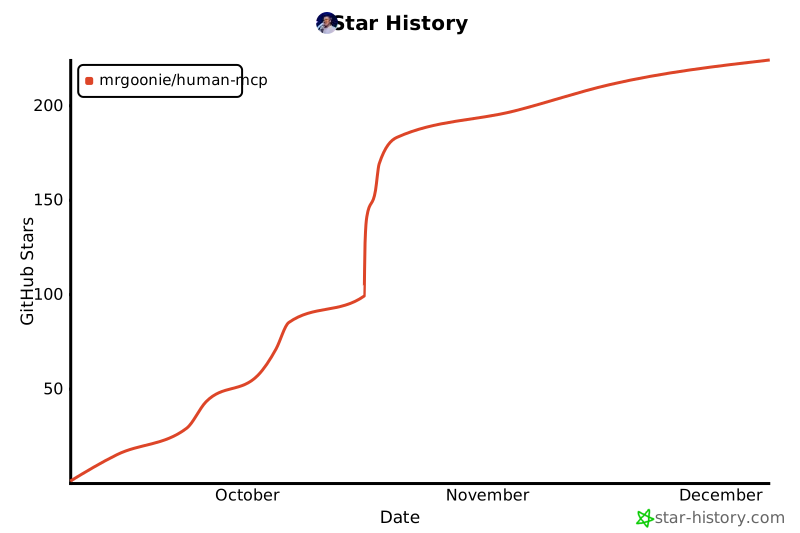
## Star History
[](https://www.star-history.com/#mrgoonie/human-mcp&type=date&legend=top-left)
## Contributing
1. Fork the repository
2. Create a feature branch
3. Make your changes
4. Add tests
5. Submit a pull request
## License
MIT License - see [LICENSE](LICENSE) for details.
## Documentation
Comprehensive documentation is available in the `/docs` directory:
- **[Project Roadmap](docs/project-roadmap.md)** - Development roadmap and future vision through 2025
- **[Project Overview & PDR](docs/project-overview-pdr.md)** - Project overview and product requirements
- **[Architecture & Code Standards](docs/codebase-structure-architecture-code-standards.md)** - Technical architecture and coding standards
- **[Codebase Summary](docs/codebase-summary.md)** - Comprehensive codebase overview
## Support
- 📖 [Documentation](docs/) - Complete project documentation
- 💡 [Examples](humanmcp://examples/debugging) - Usage examples and debugging workflows
- 🐛 [Issues](https://github.com/human-mcp/human-mcp/issues) - Report bugs and request features
- 💬 [Discussions](https://github.com/human-mcp/human-mcp/discussions) - Community discussions
**Human MCP** - Making visual debugging as natural as asking a human to look at your screen.
Connection Info
You Might Also Like

everything-claude-code
Complete Claude Code configuration collection - agents, skills, hooks,...

markitdown
MarkItDown-MCP is a lightweight server for converting URIs to Markdown.

cc-switch
All-in-One Assistant for Claude Code, Codex & Gemini CLI across platforms.

servers
Model Context Protocol Servers
servers
Model Context Protocol Servers

Time
A Model Context Protocol server for time and timezone conversions.